Vendor Geographic Sales: export and sync to Google Sheets
Analyze shipped units, revenue, and Amazon profitability by ASIN and customer destination.
What this report tells you
Vendor Geographic Sales brings Amazon’s shipped sales and profitability metrics into Google Sheets by product and customer destination. Compare regions, find where products sell, and review geographic differences in Amazon’s product profitability.
Useful columns to start with
- ASIN, Period start, and Period end — Keep the product and reporting period visible.
- Customer country, Customer state/province, Customer city, and Customer postal code — Choose the destination detail needed for your analysis.
- Shipped units and Shipped revenue — Measure customer shipments by destination.
- Average selling price — Compare Amazon’s reported average price.
- Net PPM, Shipped COGS, and Contra COGS — Review Amazon’s profitability and cost measures.
- Currency — Keep monetary comparisons in the same report currency.
Keep Store name and marketplace context with the product fields, especially when combining vendor accounts. Start with a small column set that answers your question, then add further attributes as you need them.
How to export Vendor Geographic Sales to Google Sheets
1. Connect your vendor accounts
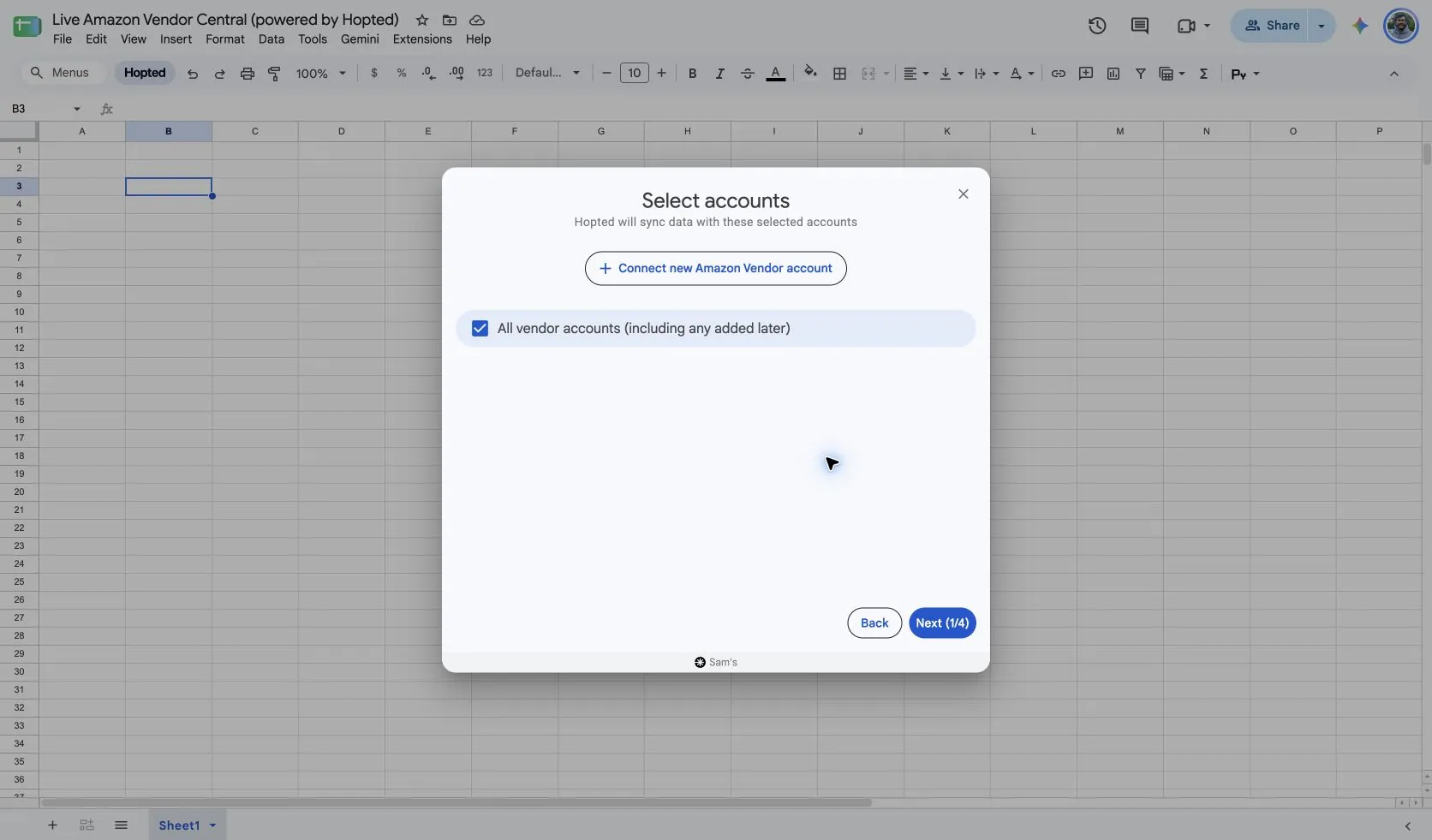
Install Hopted and sign in. Open your Google Sheet, choose Add new data sync and Amazon Vendor Central, then select your vendor accounts.
For a combined workbook, choose All vendor accounts (including any added later). Retain account and marketplace context so customer destinations from different vendor accounts remain distinguishable.
2. Choose Vendor Geographic Sales and columns
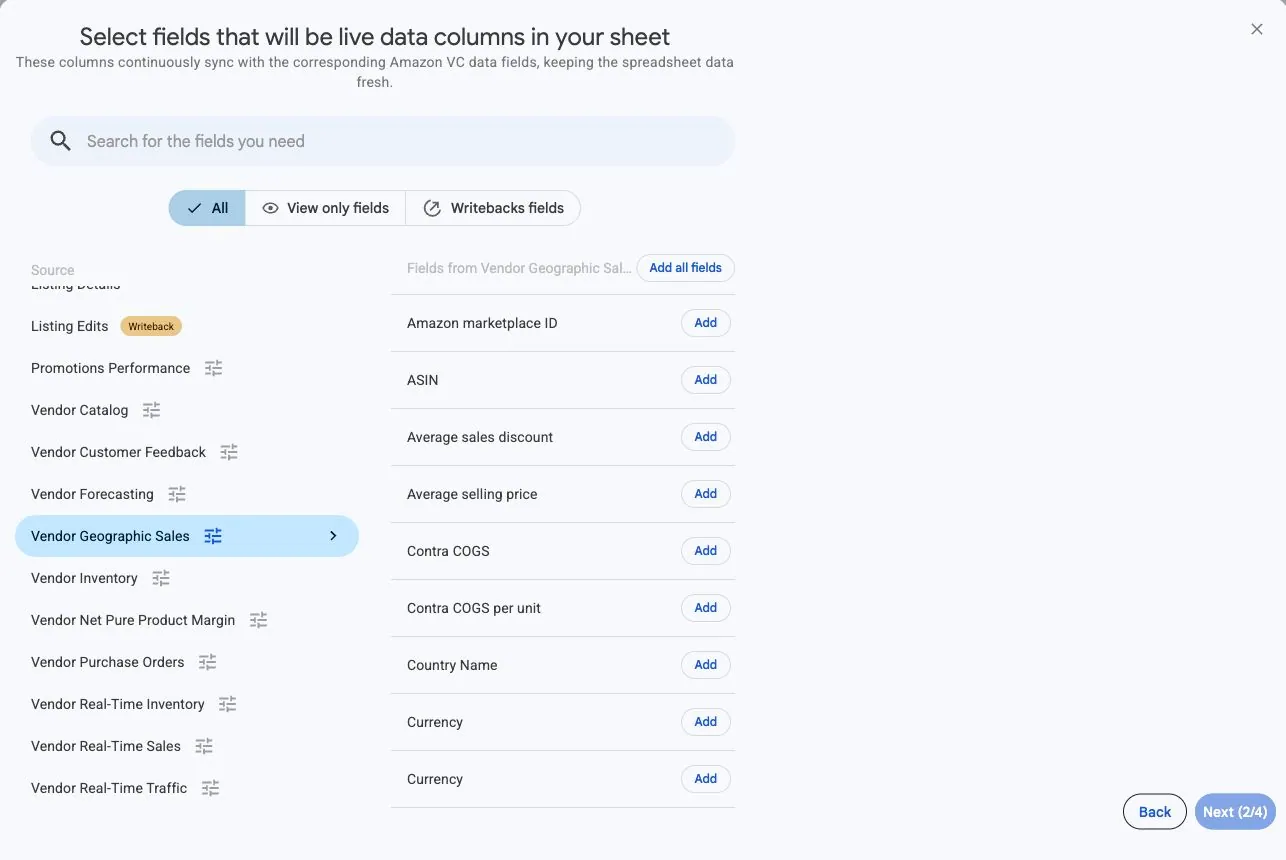
Choose Vendor Geographic Sales and add the columns you need. Start with ASIN, Period start, Period end, Customer country, Shipped units, Shipped revenue, and Currency. Add finer location fields and profitability measures for the question you want to investigate.
3. Set dates, view, currency, and geography
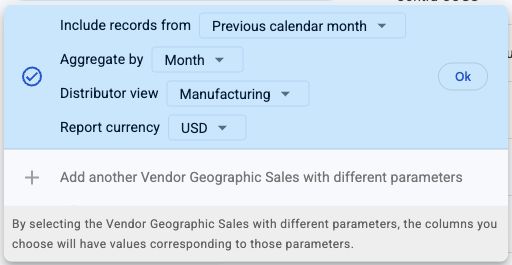
Choose completed reporting dates, Aggregate by, Distributor view, and Report currency in the source settings. Add ASIN and customer country, then any state/province, city, or postal-code columns you need. Hopted determines the geographic grouping from those selected fields.
A previous completed calendar month is a useful starting point. Choose country grouping for a broad review or add state/province, city, and postal-code detail for a more specific question. Keep the same view, time grouping, and currency across comparisons.
4. Review optional filters
Begin without filters when checking a new configuration, or restrict the import to your intended analysis. If an expected destination is missing, check the accounts, marketplace context, dates, grouping, and filters. For city-level analysis, add Customer city to the selected fields rather than looking for a separate grouping dropdown.
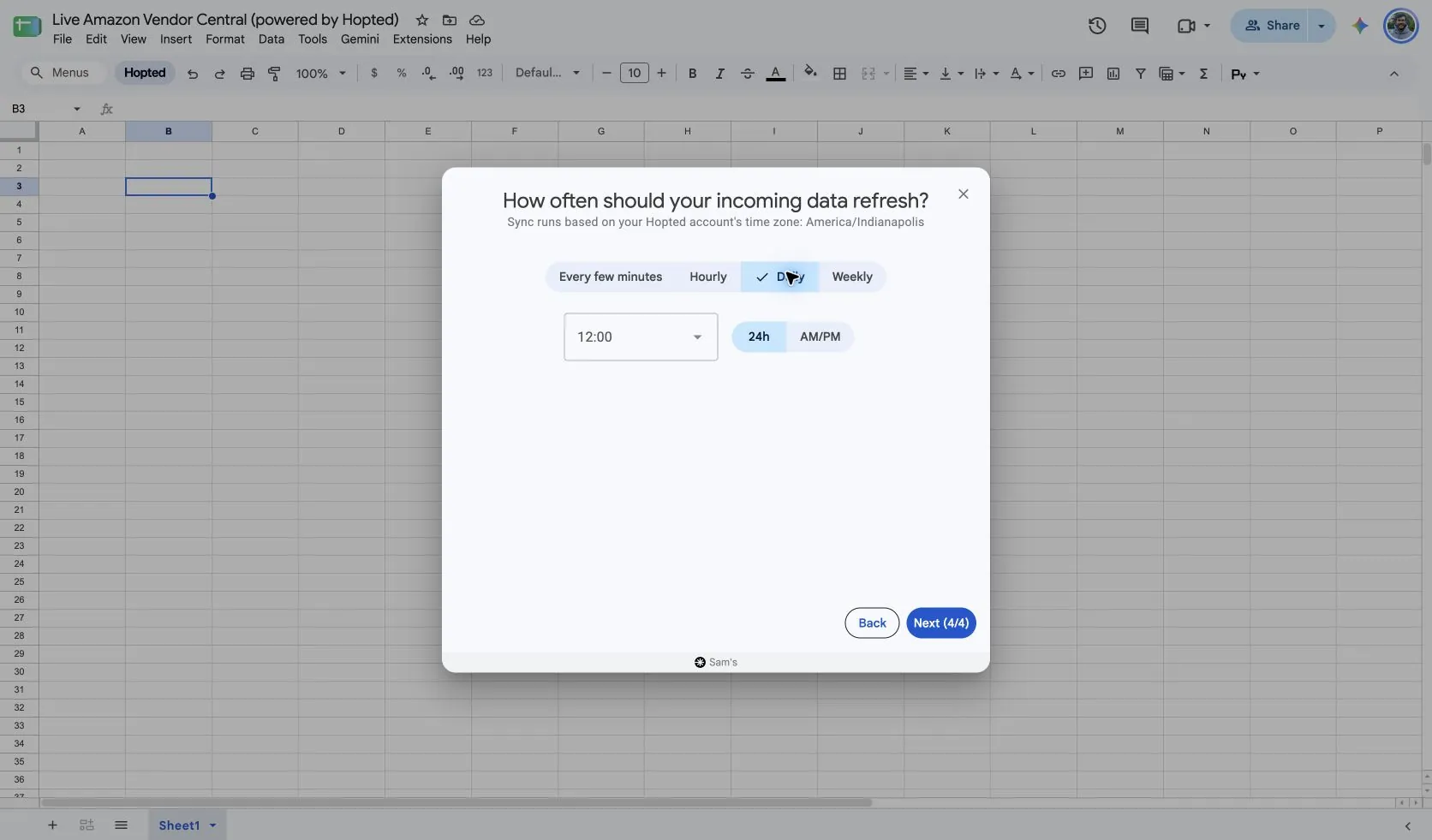
5. Choose a refresh schedule
Choose a refresh schedule that fits the reporting period and your review. A daily schedule can retrieve updates to completed periods, but it cannot make Amazon publish data sooner. Check the time zone shown for the account when choosing the schedule.
6. Create the Sync and inspect the results
Review the configuration and select Create new Sync. Check several products and their Period start and Period end values before building pivots or charts. Verify that Currency matches your selected report currency.
Inspect Customer country separately from marketplace. Leave room for blank state, city, or postal-code values in your review. Preserve postal codes as text when moving the data elsewhere so codes with leading zeroes remain intact.
How to use the report
Find the strongest destinations for a product
Rank destinations by shipped revenue or units for each ASIN. Compare the same products across matching periods and views. For a broader product review, combine this source with Vendor Sales & Profitability, keeping its marketplace totals separate from destination rows.
Start at country level to see the broad pattern. If you need a state or city breakdown, run that grouping separately and compare like with like. Do not append country totals to their city detail and then sum both: those rows describe overlapping shipments.
Compare regional demand across periods
Choose one geographic grouping and keep the same ASIN, marketplace, and currency when comparing two completed months. If one destination rises from 80 shipped units to 120, it has increased by 40 units. Review whether that pattern is shared by other products before planning a regional activity.
The report identifies where customer shipments went. It does not establish why demand changed or show advertising attribution. Use the regional result to choose a question for further investigation rather than assigning the change to a campaign automatically.
Review Amazon profitability beside shipped demand
Compare Shipped revenue, Shipped COGS, and Net PPM for the same product and destination. A location with more shipments does not necessarily have the same reported profitability as another. Add Sales discount or Contra COGS when those measures help investigate the difference.
Keep Net PPM as Amazon’s reported ratio. For example, 0.25 displays as 25% with percentage formatting. Do not add two regional percentages to create a total margin, and do not treat that margin as the profit your own business earned.
What to check before comparing results
Customer country describes the shipment destination and can differ from the marketplace country. Keep marketplace context alongside the destination. Blank location values can still appear in returned rows.
Use complete calendar days, weeks, or months within the previous two years. Recently completed periods may still be incomplete while Amazon publishes data; refreshing more often cannot remove that delay.
Net PPM measures Amazon’s product profitability. Format its decimal fraction as a percentage. Do not sum Net PPM, average prices, or per-unit metrics across rows.
Questions and answers
Is customer country the same as marketplace?
No. Customer country identifies the shipment destination, which can be outside the marketplace country.
Can I select the geographic detail?
Yes. Select the destination columns you need. The geographic grouping includes ASIN and customer country, with optional state/province, city, and postal-code detail.
Why are some location fields blank?
Amazon can return shipments with an empty state, city, or postal code. Those rows are retained. First check that the field belongs to the selected geographic grouping; a blank value alone does not mean there were no shipments.
Can I use a partial week or month?
Use complete past calendar periods. Weeks run Sunday through Saturday and months cover the full calendar month. Select a compatible date range and reporting period before comparing results; recent data can still be incomplete while Amazon publishes it.
Sources and verification
Report fields and settings reflect Hopted’s supported source configuration. Amazon’s documentation explains the underlying dataset and reporting behavior.
See the Amazon Vendor Central connector for the connection overview, or return to the Vendor Central reports directory.