Amazon Ads to Google Sheets: Complete Reports & Export Guide
Explore 25 Amazon Ads reports available through Hopted. Learn how to export and sync your advertising data to Google Sheets for campaign, product, and brand reviews.
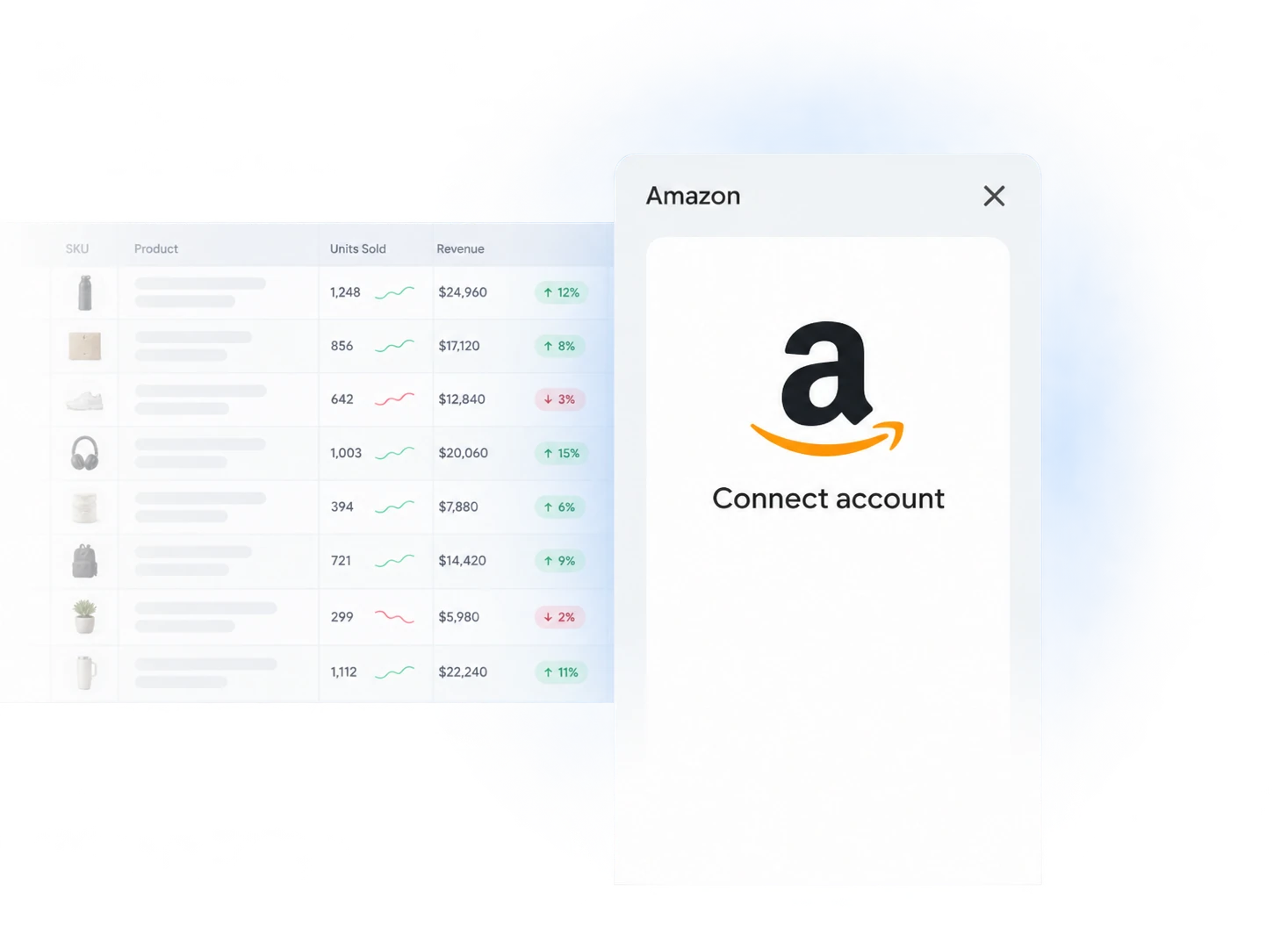
Export Amazon Ads to Google Sheets: Choose Your Report
Browse 25 report guides, grouped by ad product. Each guide explains how to connect Amazon Ads to Google Sheets, choose useful columns, and read performance results.
Sponsored Products
- Sponsored Products - Advertised ProductCompare performance for the ASINs and SKUs promoted by your ads.Read guide →
- Sponsored Products - AudienceCompare audience segments using delivery, cost, clicks, and attributed sales.Read guide →
- Sponsored Products - CampaignsTrack campaign delivery, budget, advertising cost, and attributed results over time.Read guide →
- Sponsored Products - Gross and invalid trafficMonitor gross traffic and the clicks and impressions Amazon classifies as invalid.Read guide →
- Sponsored Products - Purchased ProductIdentify products bought after ad interactions and compare attributed product sales.Read guide →
- Sponsored Products - Search TermReview shopper search terms to find keyword opportunities and inefficient spend.Read guide →
- Sponsored Products - TargetingAnalyze the keywords and product or audience targets behind advertising results.Read guide →
Sponsored Brands
- Sponsored Brands - Ad GroupCompare ad groups within campaigns to locate differences in delivery and attributed performance.Read guide →
- Sponsored Brands - AdsReview individual Sponsored Brands ads alongside campaign and ad-group performance.Read guide →
- Sponsored Brands - AudienceCompare audience segments using delivery, cost, clicks, and attributed sales.Read guide →
- Sponsored Brands - Campaign PlacementCompare Sponsored Brands results across placement classifications.Read guide →
- Sponsored Brands - CampaignsTrack campaign delivery, budget, advertising cost, and attributed results over time.Read guide →
- Sponsored Brands - Gross and invalid trafficMonitor gross traffic and the clicks and impressions Amazon classifies as invalid.Read guide →
- Sponsored Brands - Purchased ProductIdentify products bought after ad interactions and compare attributed product sales.Read guide →
- Sponsored Brands - Search TermReview shopper search terms to find keyword opportunities and inefficient spend.Read guide →
- Sponsored Brands - TargetingAnalyze the keywords and product or audience targets behind advertising results.Read guide →
Sponsored Display
- Sponsored Display - Ad GroupCompare ad groups within campaigns to locate differences in delivery and attributed performance.Read guide →
- Sponsored Display - Advertised ProductCompare performance for the ASINs and SKUs promoted by your ads.Read guide →
- Sponsored Display - CampaignsTrack campaign delivery, budget, advertising cost, and attributed results over time.Read guide →
- Sponsored Display - Gross and invalid trafficMonitor gross traffic and the clicks and impressions Amazon classifies as invalid.Read guide →
- Sponsored Display - Purchased ProductIdentify products bought after ad interactions and compare attributed product sales.Read guide →
- Sponsored Display - TargetingAnalyze the keywords and product or audience targets behind advertising results.Read guide →
Sponsored Television
Brand Metrics
Report names and setup checked in Hopted on October 13, 2026. Availability depends on your connected profiles. For total retail sales, use the Seller Central reports directory.

Questions & Answers
The directory covers the 25 sources currently shown in Hopted’s Amazon Ads picker: seven Sponsored Products reports, nine Sponsored Brands reports, six Sponsored Display reports, two Sponsored Television reports, and Brand Metrics. Report availability and populated fields depend on the connected account and Amazon’s reporting support.
Install Hopted and sign in. To connect Amazon Ads to Google Sheets, open your spreadsheet, click Hopted, choose Add new data sync, and select Amazon Ads. Connect or select your accounts, choose a report source and columns, review optional filters, and set an automatic refresh schedule before creating the Sync.
Yes. The account picker lets you select connected Ads accounts or choose All Amazon accounts (including any added later). Keep Profile ID, account name, date, and currency in your analysis where those fields are available.
Yes. Hopted’s schedule offers every few minutes, hourly, daily, and weekly refresh options. The screen shows your Hopted account’s time zone. A refresh retrieves the data Amazon currently makes available; recent attribution can still change.
Search terms are the queries reported for shoppers who clicked an ad. Targeting reports describe configured keywords, product targets, or other targeting expressions. They answer different questions and should not be treated as interchangeable totals.
Campaign sales metrics describe ad-attributed results according to the selected metric. They are not total retail sales. Brand Metrics has a broader brand and category perspective. Use Seller Central sales reports when you need total store sales.
Check accounts, reporting dates, time zones, filters, row breakdowns, currency, and attribution windows. Search-term reports include only queries that produced an ad click. Recent attributed results can also change as Amazon updates its reporting.
These guides show Hopted’s direct connection to Google Sheets. You can download a Google Sheet in Excel format for a snapshot. That downloaded file does not inherit the Google Sheet’s refresh schedule.
Put your Amazon Ads reports on autopilot.
Add Hopted to Google Sheets and keep the reports you rely on up to date.