Sponsored Brands - Search Term: export and sync to Google Sheets
Review shopper search terms to find keyword opportunities and inefficient spend.

What this report tells you
A search term is the query reported for the shopper, while a keyword or target is what the advertiser selected. This report keeps those concepts apart so you can examine the searches that actually produced ad clicks.
For Sponsored Brands, Hopted exposes engagement and attributed outcome fields appropriate to each report. Some reports also include new-to-brand and video measures. Choose fields for the campaign’s objective instead of expecting every report to contain the same columns.
Useful columns to start with
Choose columns for the question you want to answer. These are a starting set from Hopted’s report picker, rather than an exhaustive field list.
- Campaign Id — Use a stable campaign key for grouping and joins.
- Ad Group Id — Distinguish ad groups inside campaigns.
- Search Term — See the reported shopper query.
- Keyword Text — Retain the configured keyword text.
- Match Type — Distinguish keyword matching settings.
- Impressions — Measure reported ad delivery.
- Clicks — Review engagement with the ad.
- Cost — Track advertising cost.
- Sales — Review the report’s attributed sales.
Add Profile ID, Store name, the date field, and Currency where available. They help keep accounts, periods, and monetary amounts distinct.
How to export Sponsored Brands - Search Term to Google Sheets
1. Connect Amazon Ads to Google Sheets
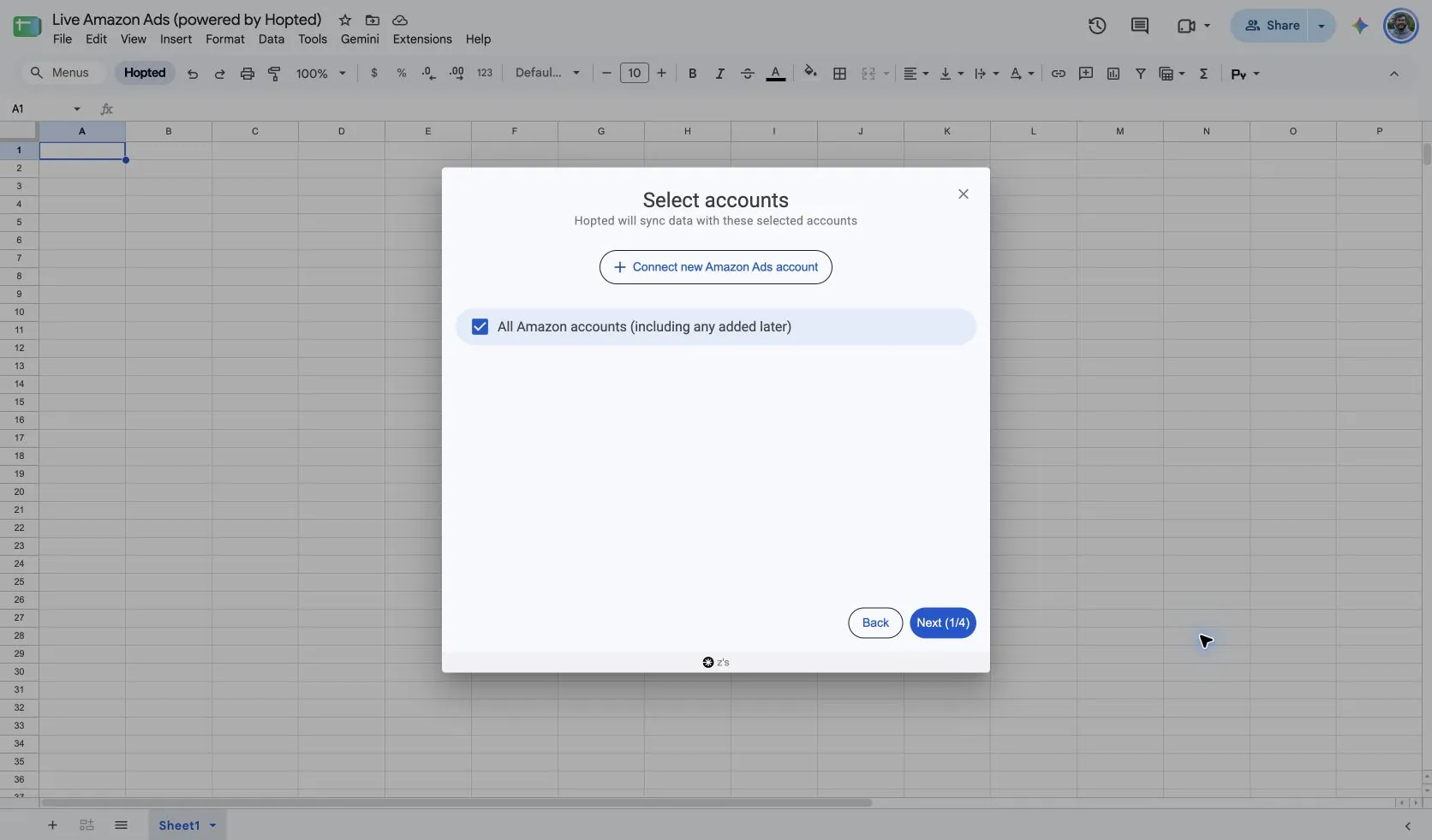
Install Hopted and sign in. To connect Amazon Ads to Google Sheets, open your spreadsheet, click Hopted, then Add new data sync and Amazon Ads. Connect an Ads account if you have not linked one yet, then select the profiles to include. For an account-wide view, choose All Amazon accounts (including any added later).
2. Choose the source, reporting period, and columns
Choose Sponsored Brands - Search Term in the source list. Open its settings to review the reporting period, then use Add beside the columns you want. The screenshot below shows this report in the current Hopted picker.
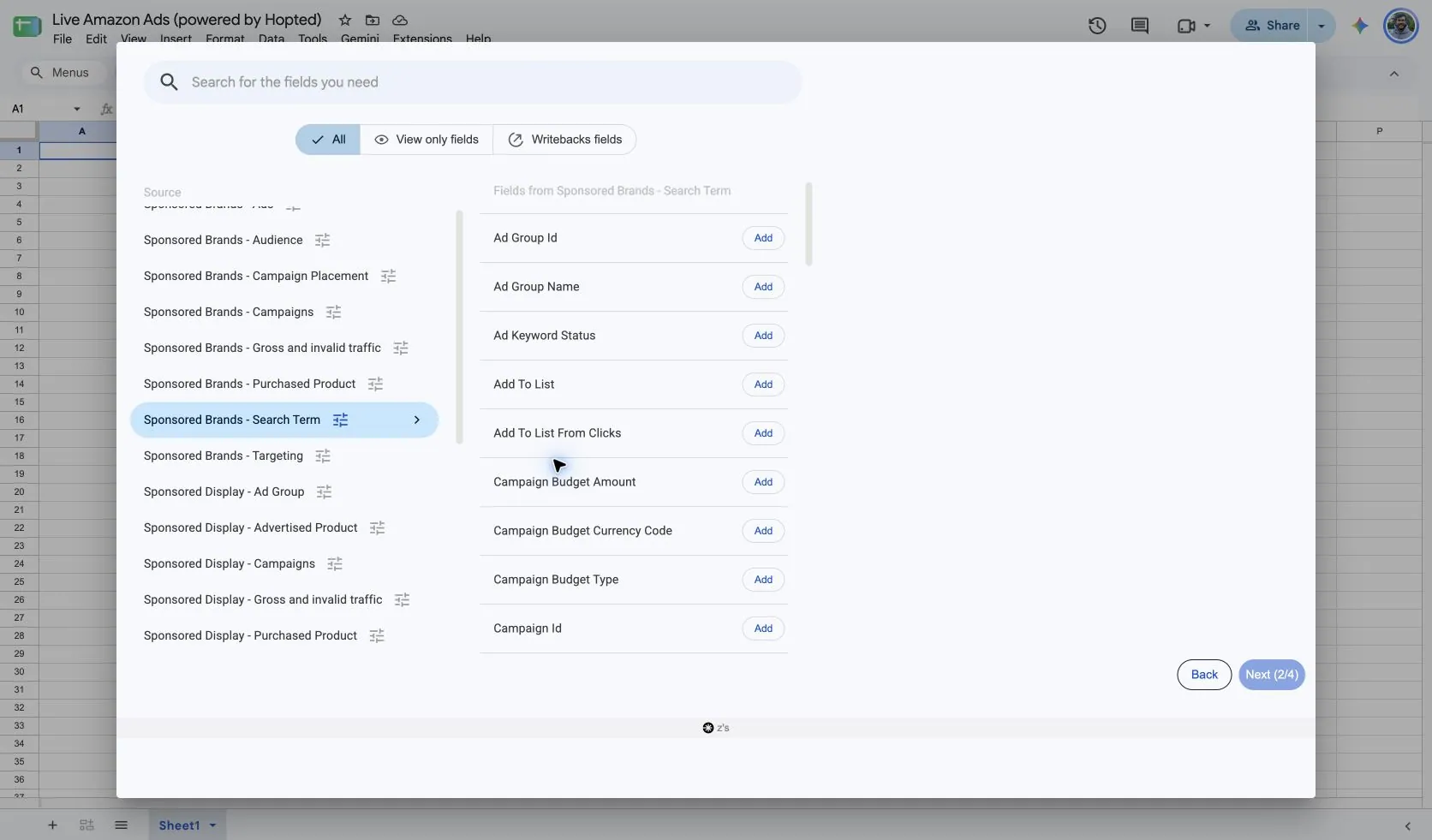
The source settings include a reporting-period choice, such as Previous 30 days. This controls which records are requested; it is separate from the attribution window named in a metric.
3. Review optional filters
Use filters when you want a focused view. Leave them unset for a broader import. Check filters when a result is missing, before assuming the report contains no data.
4. Choose a refresh schedule
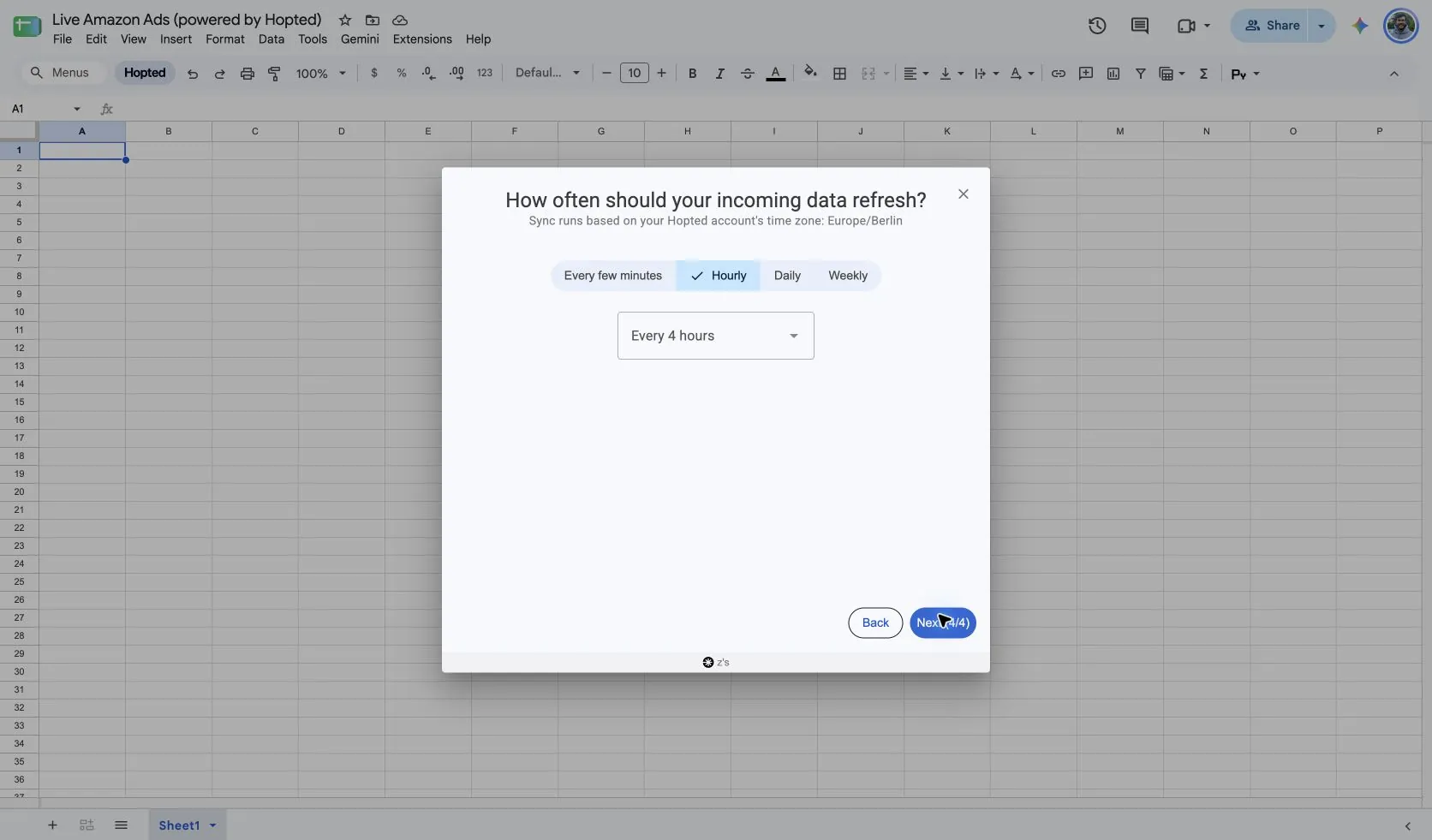
Choose the refresh cadence in Hopted: every few minutes, hourly, daily, or weekly. The schedule screen shows the Hopted account’s time zone. Select a cadence that suits your review and the source’s data availability.
5. Review and create the Sync
Check the accounts, selected fields, filters, and schedule on the review screen. Click Create new Sync when the configuration is ready. Review the imported rows in your Sheet before building formulas or sharing a dashboard.
How to use the report
- Find search terms with attributed sales that may deserve a closer look as deliberate keyword targets.
- Review terms with meaningful cost and weak outcomes after allowing time for attribution to mature. Avoid making decisions from a handful of clicks.
- Compare the same search term across campaigns and match types to see where your advertising overlaps.
For a sales-efficiency review, calculate ACoS = advertising cost ÷ attributed sales × 100% and ROAS = attributed sales ÷ advertising cost. Use the same currency, reporting period, and attribution basis. Calculate ratios from summed amounts rather than averaging row-level percentages; leave a ratio blank when its denominator is zero.
What to check before comparing results
Amazon’s search term report includes terms with at least one ad click. Its impression totals can therefore differ from campaign totals; it is not a complete record of every shopper search.
Availability depends on the connected profile, marketplace, ad activity, and Amazon’s reporting support. A source appearing in Hopted’s picker does not guarantee rows for every account. Recent results may change as Amazon updates reporting.
Keep each report’s row dimensions intact. Do not add together overlapping breakdowns or combine different currencies without a deliberate conversion. For historical comparisons beyond the source’s available period, review Hopted Data history.
Questions and answers
How do I export Sponsored Brands - Search Term to Google Sheets?
Install Hopted, open a Google Sheet, choose Amazon Ads, select your connected accounts, and choose Sponsored Brands - Search Term as the source. Add columns, review the reporting period and optional filters, then choose a refresh schedule and create the Sync.
Which columns should I start with?
Start with Campaign Id, Ad Group Id, Search Term, Keyword Text, Match Type. Keep account, date, and currency context where available. You can choose additional fields in Hopted for the review you are building.
Why do search-term totals differ from campaign totals?
Amazon’s search term report includes terms with at least one ad click. Its impression totals can therefore differ from campaign totals; it is not a complete record of every shopper search.
Sources and verification
Report name, setup screens, and example fields checked in Hopted’s Amazon Ads picker on October 13, 2026. Screenshots were captured from the “Live Amazon Ads (powered by Hopted)” Google Sheet.
Amazon Ads search term report provides Amazon’s reporting definitions. See the Amazon Ads connector for the connection overview, or return to the Amazon Ads reports directory.