Brand Metrics: export and sync to Google Sheets
Follow brand awareness, consideration, customer engagement, and category benchmarks.
What this report tells you
Brand Metrics looks at the brand’s position in a category rather than a single campaign’s return. It combines shopping engagement measures with category comparisons, helping you review awareness and consideration alongside customer activity.
Keep Brand and Category Node together when reviewing category benchmarks. Hopted exposes Awareness Index, Consideration Index, Sales Index, and separate engagement and customer measures. A category index is not a campaign conversion count.
Useful columns to start with
Choose columns for the question you want to answer. These are a starting set from Hopted’s report picker, rather than an exhaustive field list.
- Brand — Keep the brand identity in your analysis.
- Category Node — Keep category comparisons consistent.
- Awareness Index — Review relative brand awareness.
- Consideration Index — Review relative brand consideration.
- Sales Index — Track the sales index supplied by this report.
- New to Brand Customer Rate — Review the report’s new-customer measure.
- Brand Customers ROE — Review return on engagement for brand customers.
Use the category benchmark fields alongside their matching brand measure.
How to export Brand Metrics to Google Sheets
1. Connect Amazon Ads to Google Sheets
Install Hopted and sign in. To connect Amazon Ads to Google Sheets, open your spreadsheet, click Hopted, then Add new data sync and Amazon Ads. Connect an Ads account if you have not linked one yet, then select the profiles to include. For an account-wide view, choose All Amazon accounts (including any added later).
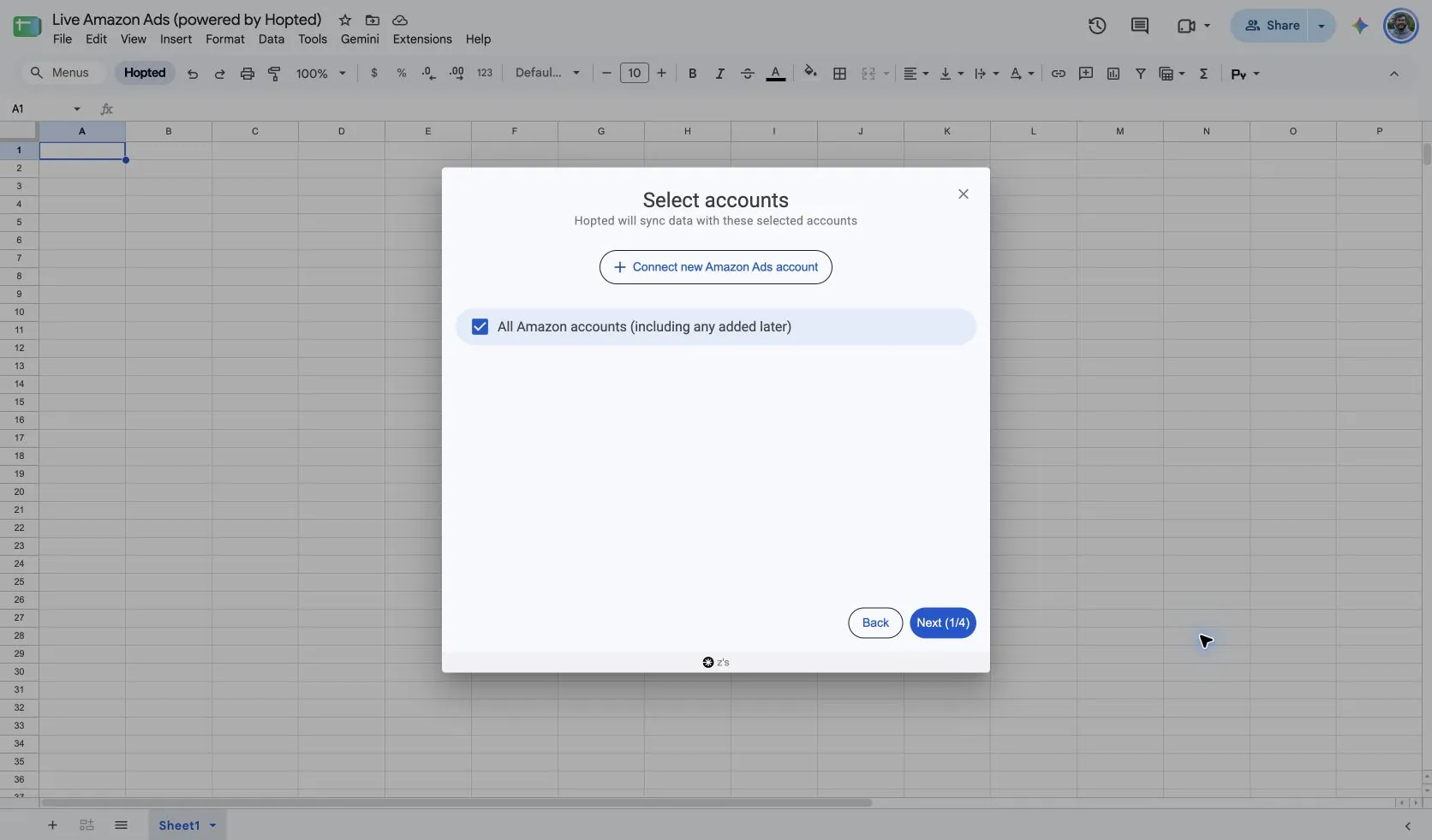
2. Choose the source, reporting period, and columns
Choose Brand Metrics in the source list. Open its settings to review the reporting period, then use Add beside the columns you want. The screenshot below shows this report in the current Hopted picker.
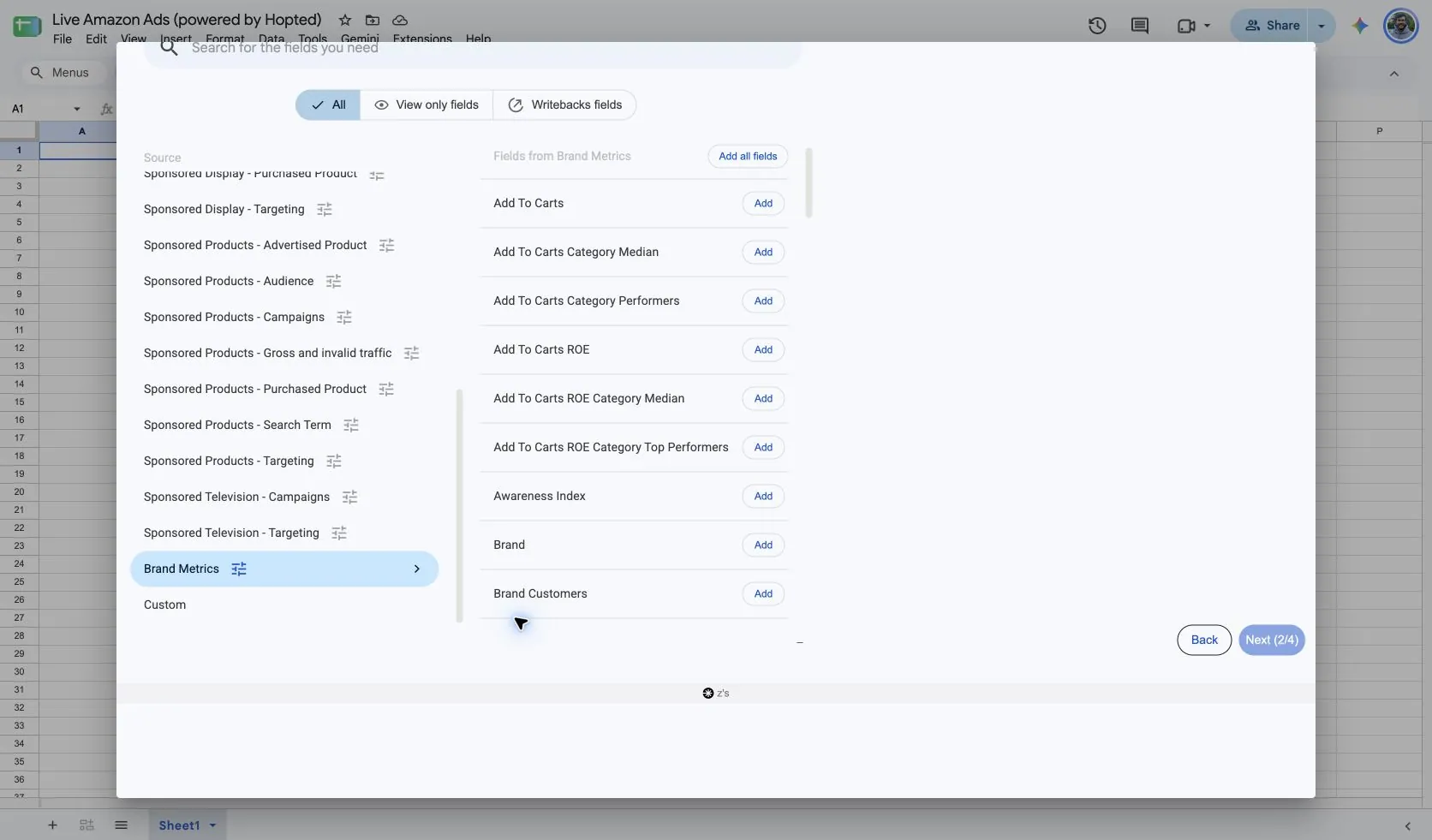
Use the period options shown for Brand Metrics. Its reporting cadence and eligibility can differ from campaign reports.
3. Review optional filters
Use filters when you want a focused view. Leave them unset for a broader import. Check filters when a result is missing, before assuming the report contains no data.
4. Choose a refresh schedule
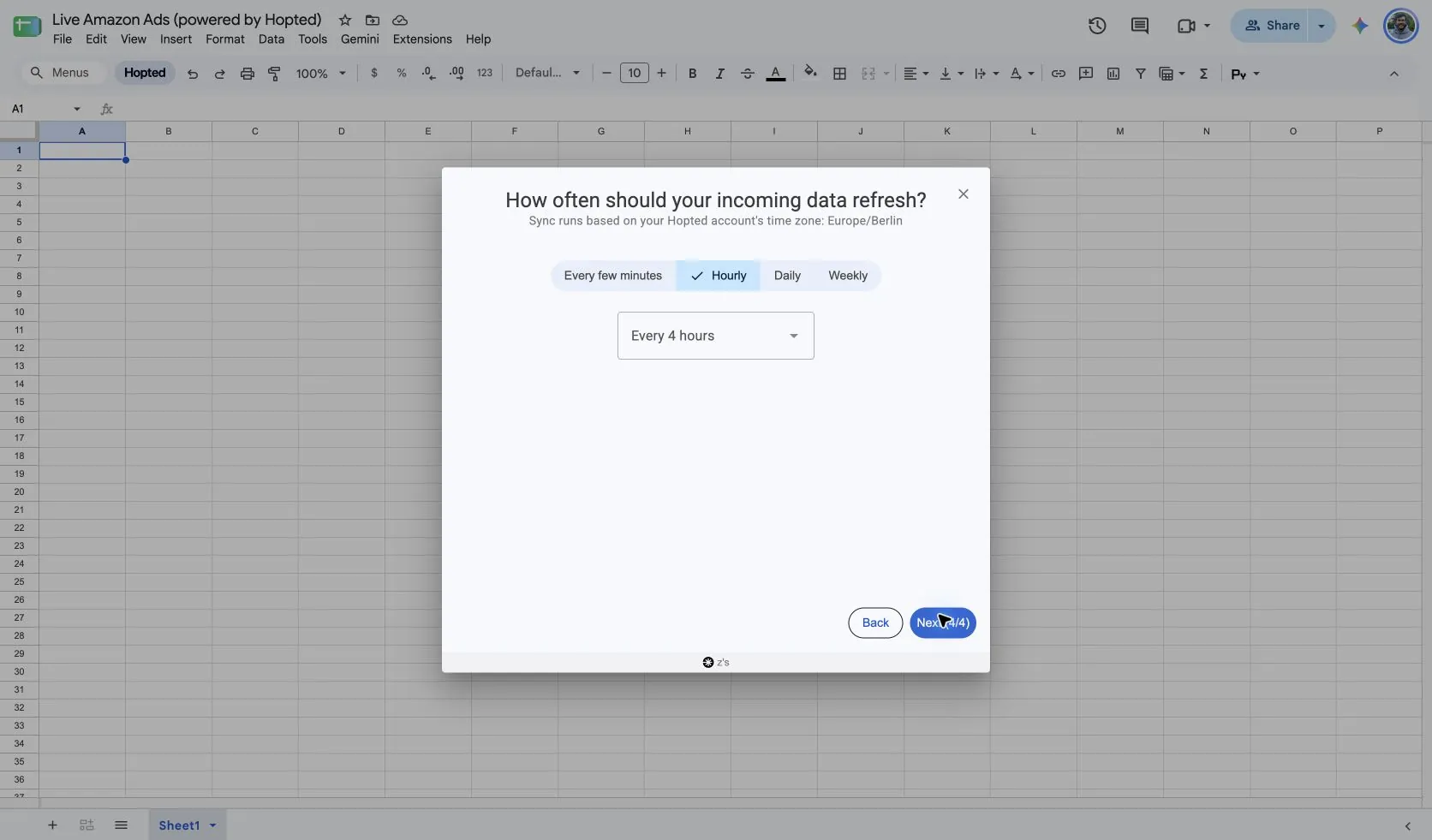
Choose the refresh cadence in Hopted: every few minutes, hourly, daily, or weekly. The schedule screen shows the Hopted account’s time zone. Select a cadence that suits your review and the source’s data availability.
5. Review and create the Sync
Check the accounts, selected fields, filters, and schedule on the review screen. Click Create new Sync when the configuration is ready. Review the imported rows in your Sheet before building formulas or sharing a dashboard.
How to use the report
- Track Awareness Index and Consideration Index for the same brand and category over comparable periods.
- Compare engagement measures with their category median or top-performer counterparts where those fields are populated.
- Review customer and new-to-brand measures together to see whether a stronger position in the category is accompanied by broader customer activity.
What to check before comparing results
Return on engagement (ROE) is a value associated with shopper engagement. It is not campaign ROAS. Brand Metrics includes advertising and non-advertising activity, so changes should not be attributed to one campaign alone.
Availability depends on your brand’s eligibility and the data Amazon provides for the category. An unpopulated field is not automatically a zero.
Keep each report’s row dimensions intact. Do not add together overlapping breakdowns or combine different currencies without a deliberate conversion. For historical comparisons beyond the source’s available period, review Hopted Data history.
Questions and answers
How do I export Brand Metrics to Google Sheets?
Install Hopted, open a Google Sheet, choose Amazon Ads, select your connected accounts, and choose Brand Metrics as the source. Add columns, review the reporting period and optional filters, then choose a refresh schedule and create the Sync.
Which columns should I start with?
Start with Brand, Category Node, Awareness Index, Consideration Index, Sales Index. Keep account, date, and currency context where available. You can choose additional fields in Hopted for the review you are building.
Is Brand Metrics the same as campaign ROAS?
Return on engagement (ROE) is a value associated with shopper engagement. It is not campaign ROAS. Brand Metrics includes advertising and non-advertising activity, so changes should not be attributed to one campaign alone.
Sources and verification
Report name, setup screens, and example fields checked in Hopted’s Amazon Ads picker on October 13, 2026. Screenshots were captured from the “Live Amazon Ads (powered by Hopted)” Google Sheet.
Amazon Ads Brand Metrics definitions provides Amazon’s reporting definitions. See the Amazon Ads connector for the connection overview, or return to the Amazon Ads reports directory.