Vendor Inventory: export and sync to Google Sheets
Review Amazon on-hand stock, open purchase orders, aged inventory, and operational health by ASIN.
What this report tells you
Vendor Inventory brings Amazon’s inventory and operational-health measures for your vendor products into Google Sheets. Review stock availability, incoming supply, and products needing replenishment or excess-stock attention. This is inventory within your Amazon retail relationship, rather than stock in your warehouse. Keep it alongside your internal inventory and lead-time plan for a fuller supply view.
Useful columns to start with
Choose a focused set of columns for your task. These are examples from Hopted’s current Vendor picker, rather than an exhaustive field list.
- ASIN — Match inventory measures to the correct product.
- End Date — Identify the date represented by period-end inventory balances.
- Sellable On Hand Inventory Units — Review units Amazon reports as sellable on hand.
- Unsellable On Hand Inventory Units — Identify stock outside the sellable balance.
- Open Purchase Order Units — Review confirmed purchase-order units not yet received.
- Net Received Inventory Units — Track net receipts after returns to vendors.
- 90+ Days Sellable Inventory Units — Find older sellable stock for an excess-inventory review.
- Vendor Confirmation Rate — Review the reported order-confirmation measure without treating it as a stock balance.
- Average Vendor Lead Time Days — Add lead-time context to replenishment discussions.
Keep Store name, marketplace, date or time fields, and Currency where available. This context helps keep different accounts, periods, and monetary amounts distinct.
How to export Vendor Inventory to Google Sheets
1. Connect Amazon Vendor Central to Google Sheets
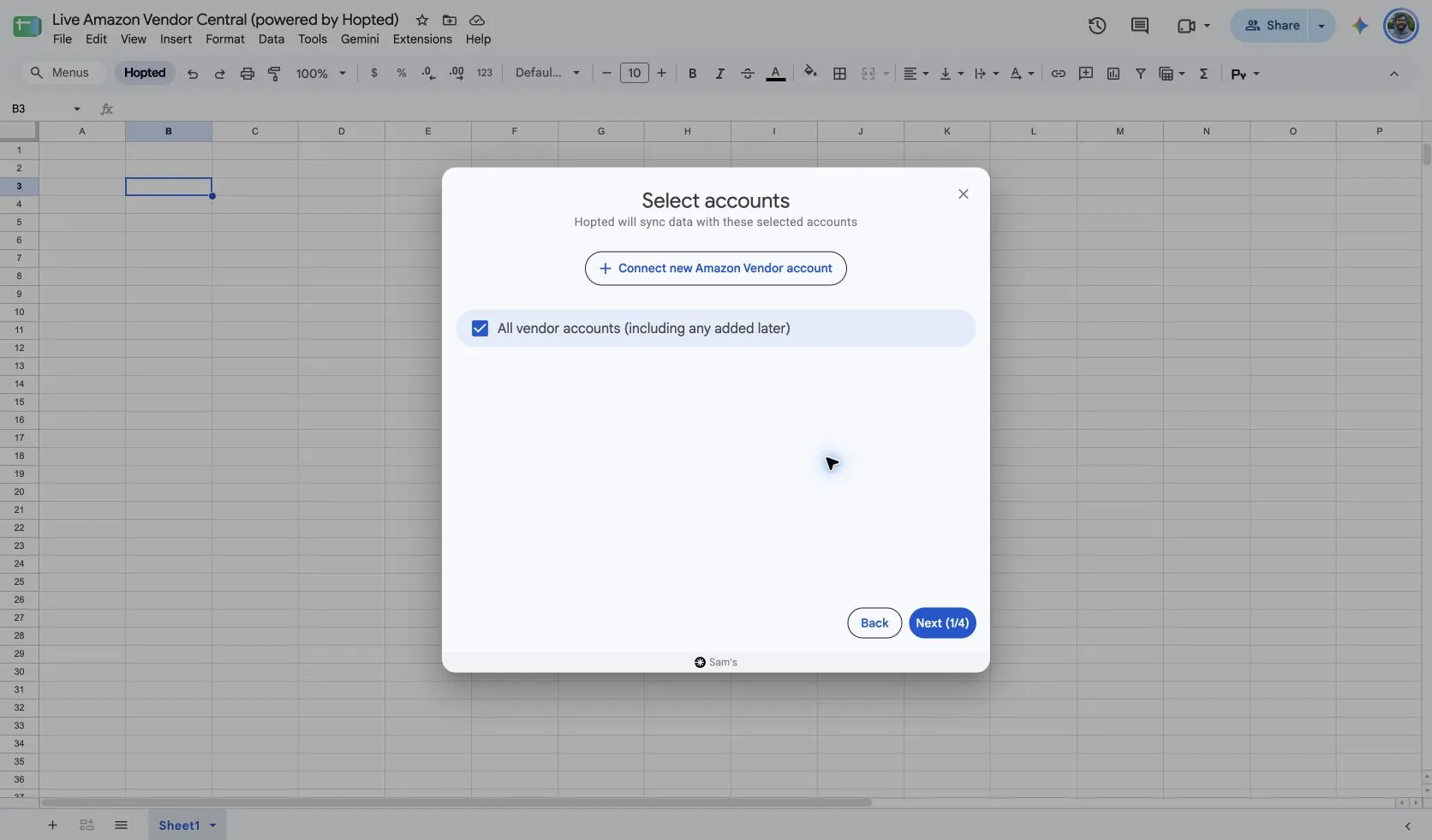
Install Hopted and sign in. Open your Google Sheet, click Hopted, then Add new data sync and Amazon Vendor Central. Select the vendor accounts to include. For a combined view, choose All vendor accounts (including any added later).
2. Choose the source, settings, and columns
Choose Vendor Inventory in the source list and use Add beside the fields you need. Review the source settings where present. The screenshot below shows this source in the current Hopted picker.
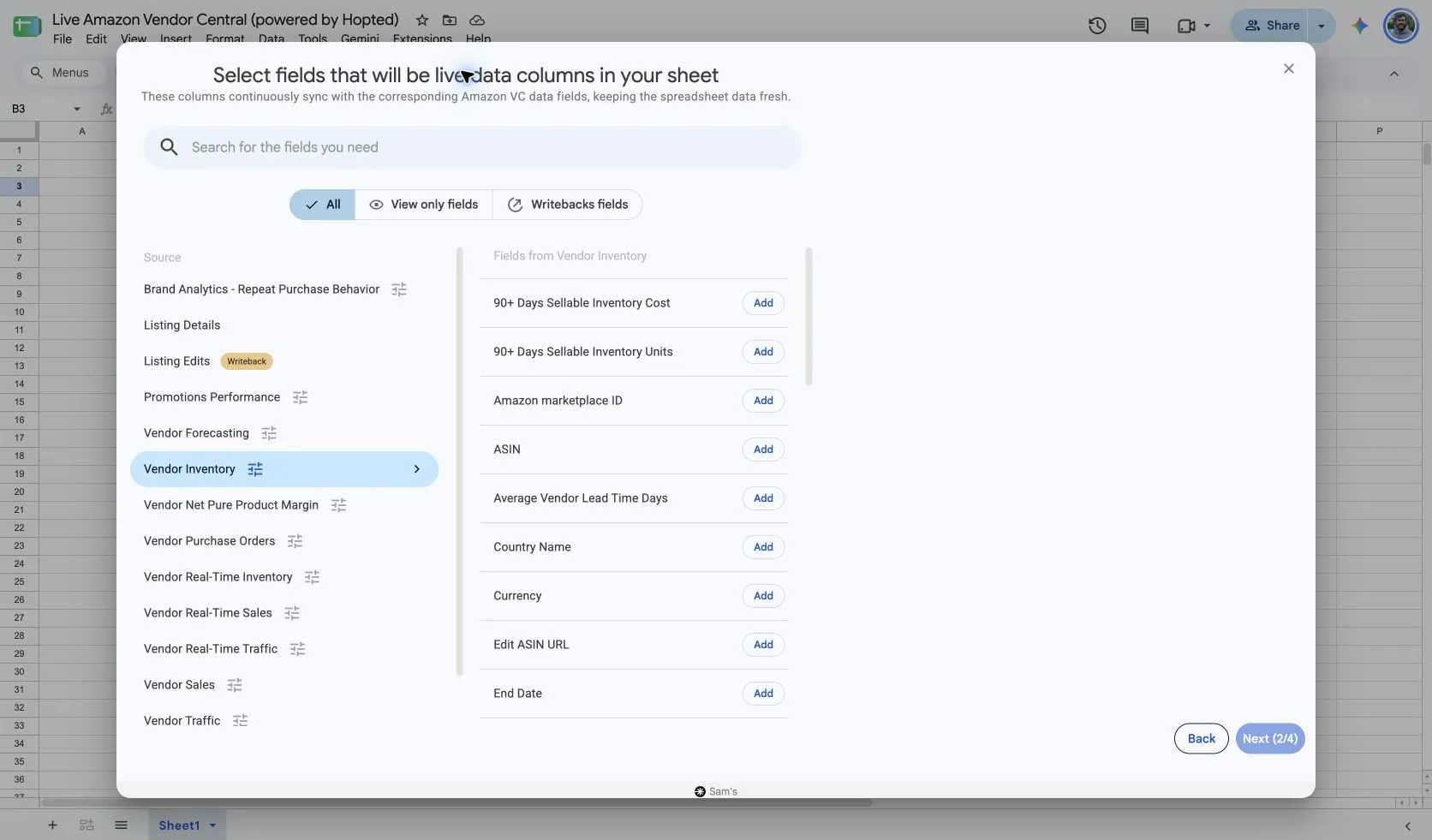
Select Vendor Inventory in Hopted. The captured setup uses Include records from: Previous calendar month, Reporting period: Month, Distributor view: Manufacturing, and Selling program: Retail.
Match Distributor view and Selling program to the scope used in Vendor Central. Manufacturing covers products you manufacture across suppliers; Sourcing covers products supplied directly by your vendor group. Keep these settings stable when comparing periods.
Use supported daily ranges or full past weeks/months for your review. Keep Start Date and End Date visible when comparing sales and planning data.
3. Review optional filters
Leave filters unset for a broader import, or add a filter for the specific records you want to review. Check account, date-range, and filter choices when an expected result is missing.
4. Choose a refresh schedule
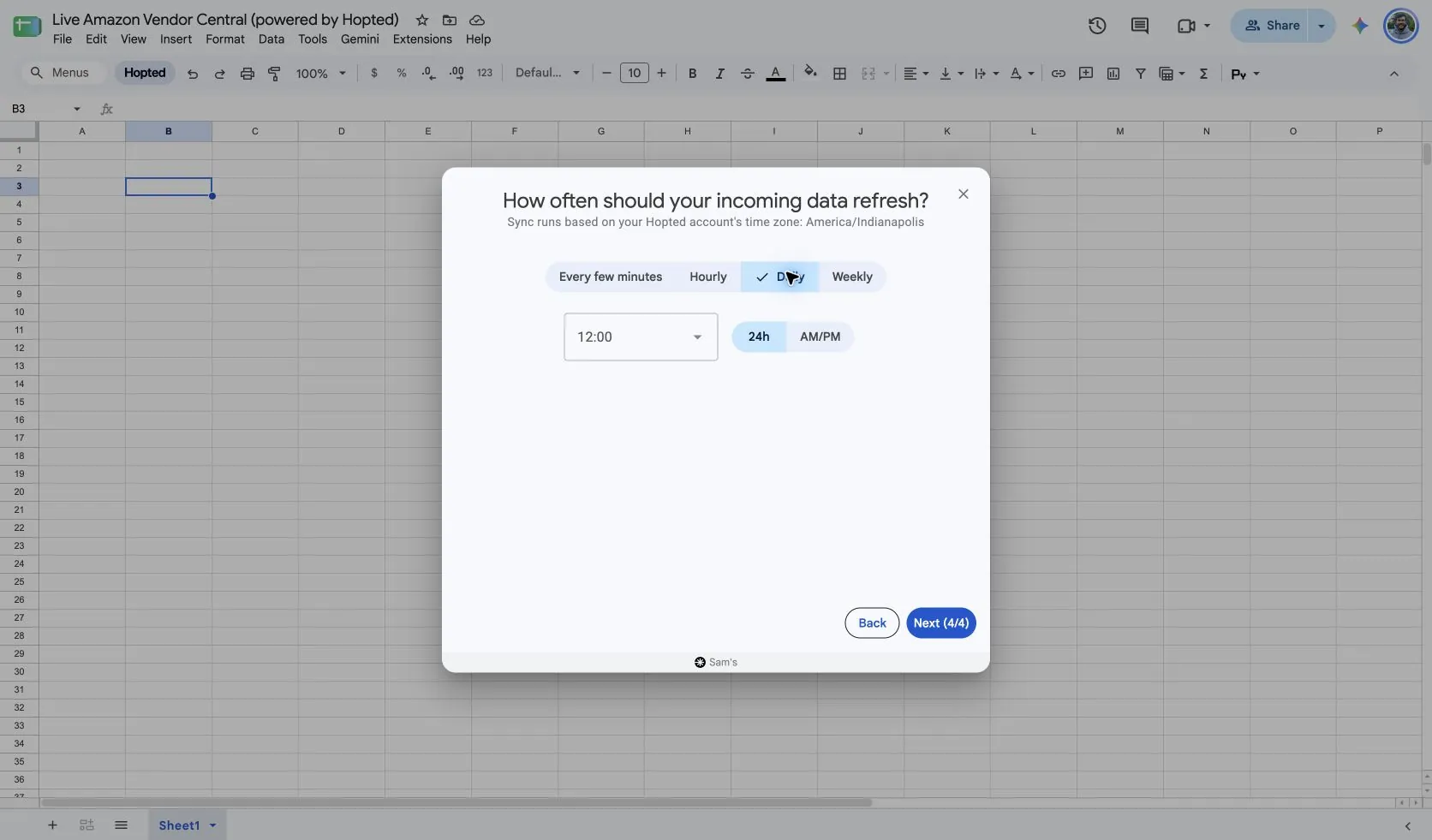
Hopted offers every-few-minutes, hourly, daily, and weekly schedules. The schedule uses the time zone shown for your Hopted account. Choose a cadence that fits the report and your review; a faster schedule cannot make Amazon publish data sooner.
5. Review and create the Sync
Check the accounts, selected fields, source settings, filters, and refresh schedule. Choose Create new Sync when the configuration is ready. Review the imported rows before adding calculations or sharing a dashboard.
How to use the report
- Review low on-hand balances alongside Open Purchase Order Units and lead time. Prioritize ASINs that need closer investigation, then use Vendor Purchase Orders to inspect the relevant order detail. An open order is not the same as inventory already available for sale.
- Create an excess-stock review using 90+ Days Sellable Inventory Units and recent Vendor Sales. Identify products whose stock and sales trend deserve discussion. Add your own commercial context before proposing an action.
- Track operational measures such as Vendor Confirmation Rate, net receipts, and lead time across matching completed periods. Separate these rate and flow measures from period-end stock snapshots so the chart answers a clear question.
What to check before comparing results
On-hand inventory describes the final day of the selected period. Adding successive period-end balances together overstates stock. Receipts are a flow over a period; on-hand units are a balance at a point in time.
Amazon’s schema allows some negative balances and confirmation rates above 100%. Investigate context before treating every unusual value as an error. Procurable Product Out Of Stock Rate and Sourceable Product Out Of Stock Rate are distinct fields; availability varies and blanks are not automatically zero.
Standard inventory data is published after period close and follows Amazon’s documented PST convention. For hourly availability observations, use Vendor Real-Time Inventory and account for its different measure.
Availability depends on the vendor account, marketplace, permissions, and the data Amazon supplies. Keep row dimensions intact when joining reports. For longer-term comparisons, review Hopted Data history.
Questions and answers
How do I export Vendor Inventory to Google Sheets?
Open Hopted in Google Sheets, choose Amazon Vendor Central, select your vendor accounts, and choose Vendor Inventory. Add the columns you need, review its settings and optional filters, then choose a refresh schedule and create the Sync.
Is this my warehouse inventory?
No. It reports Amazon inventory and operational measures for your vendor products. Combine it with your own stock plan when you need an end-to-end supply view.
Can I total monthly on-hand inventory?
No. Each on-hand value is a period-end snapshot. Compare snapshots over time, or use the latest relevant balance.
Sources and verification
Source names, example fields, and setup screens were checked in Hopted’s Vendor Central picker on October 14, 2026. Screenshots come from the supplied “Live Amazon Vendor Central (powered by Hopted)” Google Sheet.
See the Amazon Vendor Central connector for the connection overview, or return to the Vendor Central reports directory.