Vendor Customer Feedback: export and sync to Google Sheets
Bring product review topics, snippets, rating impact, and trends into Google Sheets, alongside category return topics and trends.
What this report tells you
Vendor Customer Feedback brings Amazon’s latest available product-review and return insights into Google Sheets through Data Kiosk. Compare positive and negative review topics, inspect snippets, or explore rating impact. Review insights include ASIN and product-category context; return topics describe the category rather than individual product returns.
Useful columns to start with
- ASIN and Parent ASIN — Keep the product context visible.
- Feedback scope — Distinguish ASIN and browse-node category rows.
- Review sentiment and Feedback topic — Separate positive and negative themes.
- Review mentions and Topic occurrence % — Review topic frequency where available.
- Review snippet — Read the returned excerpts in snippet mode.
- ASIN star rating impact — Explore Amazon’s reported topic impact in impact mode.
- Trend period start and Trend period end — Retain Amazon’s comparison windows in trend modes.
How to export Vendor Customer Feedback to Google Sheets
1. Connect Amazon Vendor Central to Google Sheets
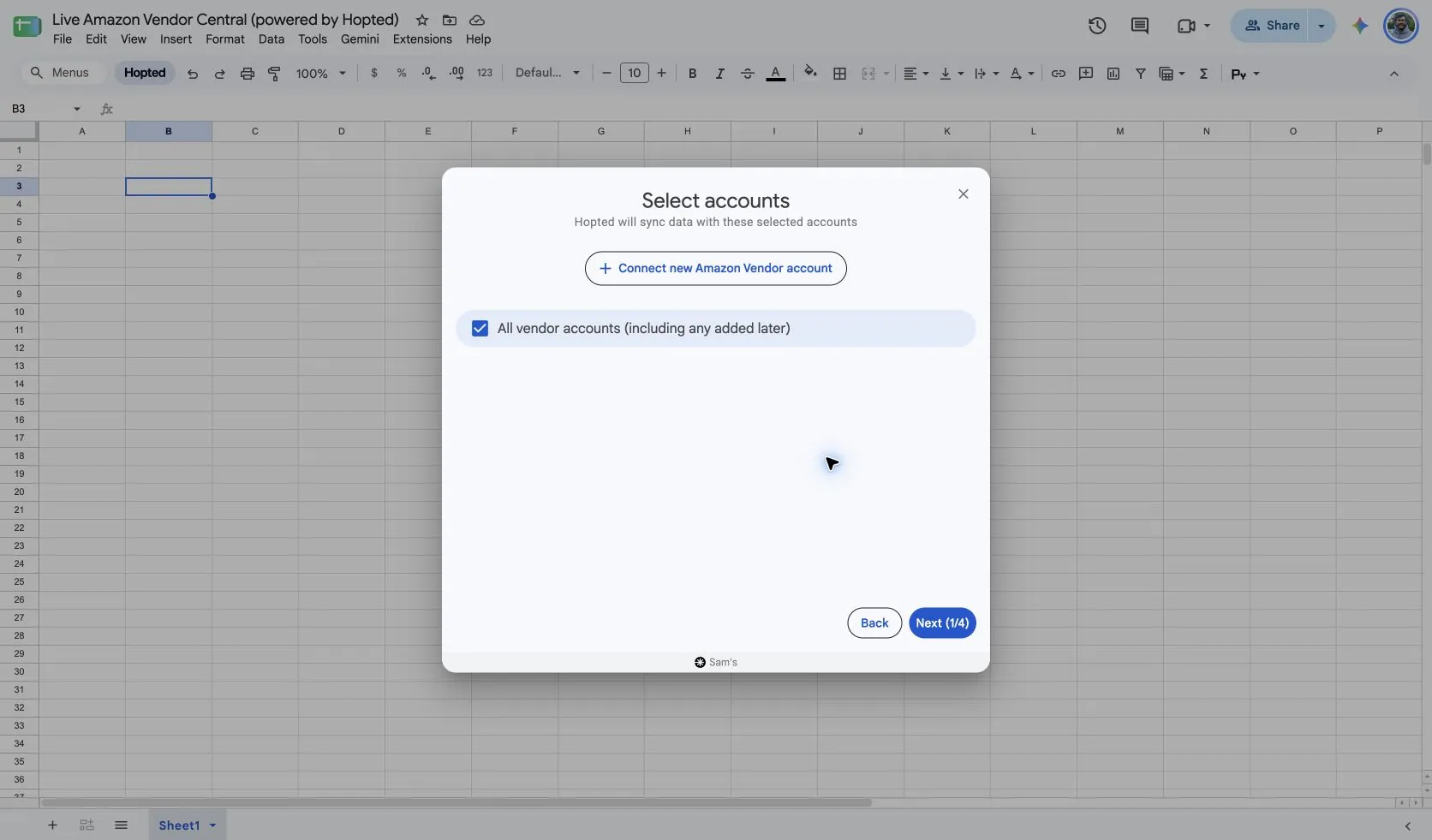
Install Hopted and sign in. Open your Google Sheet, click Hopted, then Add new data sync and Amazon Vendor Central. Select your vendor accounts.
Start with one vendor account and marketplace so the first import is easy to compare with Vendor Central. Add other accounts after checking that their product coverage and reporting settings match your intended review.
2. Choose the report and starting columns
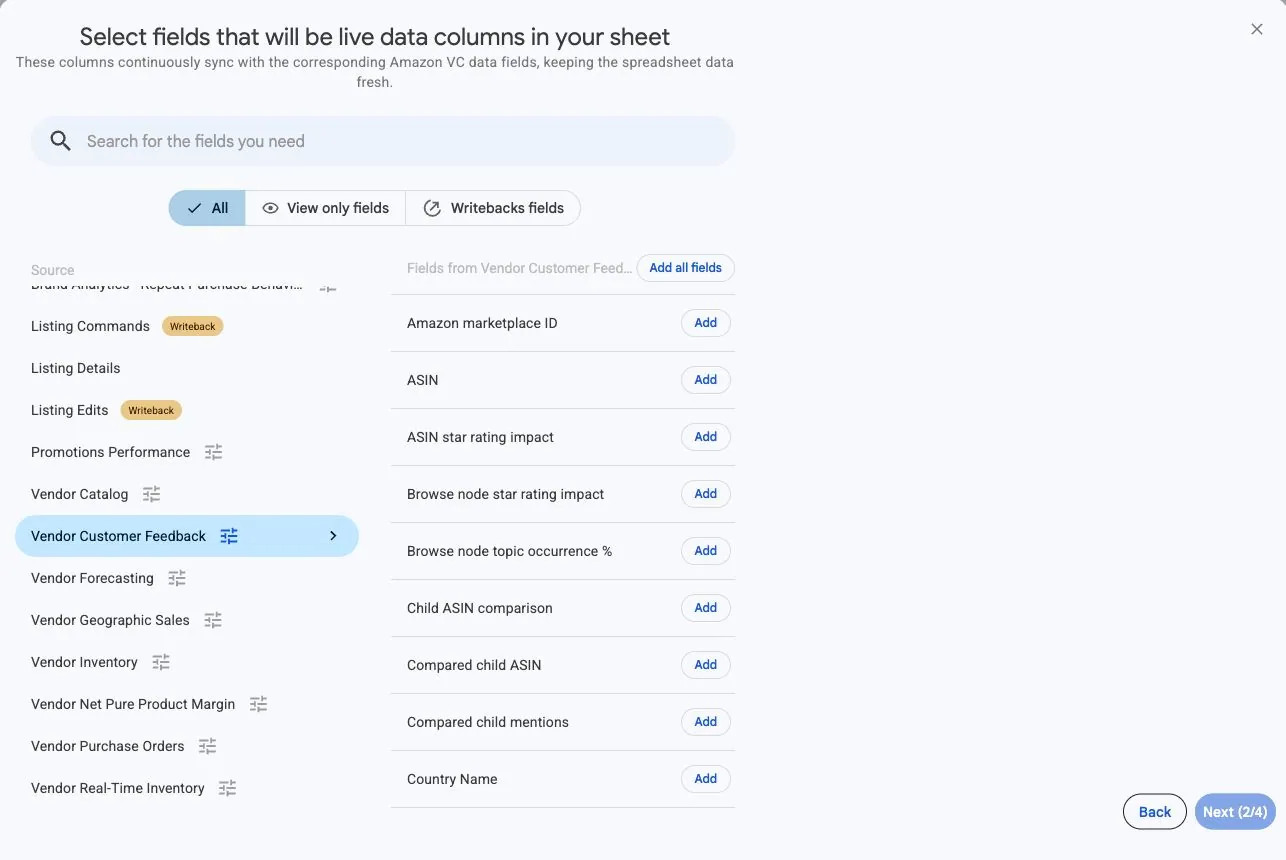
Choose Vendor Customer Feedback and add the columns you need.
For a first Review topic import, start with ASIN, Parent ASIN, Feedback scope, Review sentiment, Feedback topic, Review mentions, and Topic occurrence %. Retain account and marketplace context. The selected columns determine the feedback detail. Keep one detail view per Sync and add compatible fields for the question you want to answer.
3. Set the source options
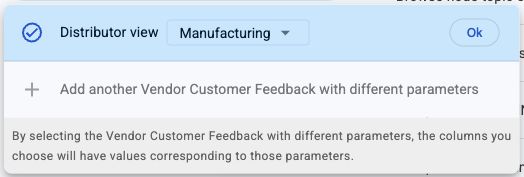
Choose Distributor view in the source settings. Add the columns for a Review topic overview first. Hopted determines the feedback view from your selected fields and asks what they relate to if the choice is unclear. Other views include review subtopics, snippets, compared child ASINs, rating impact, review trends, and category return topics and trends.
Use a separate sync for each detail view you need. For example, keep Review topic as the overview and create another sync with Review snippet to inspect excerpts. This source has no Include records from selector: changing the refresh schedule retrieves the latest available insights, not a chosen historical month.
4. Review optional filters
Leave filters unset for the initial review, or narrow the rows to an ASIN you know. A topic import can contain several rows per product, with different sentiments and scopes. Avoid a filter that removes the comparison rows you want to keep.
5. Choose a refresh schedule
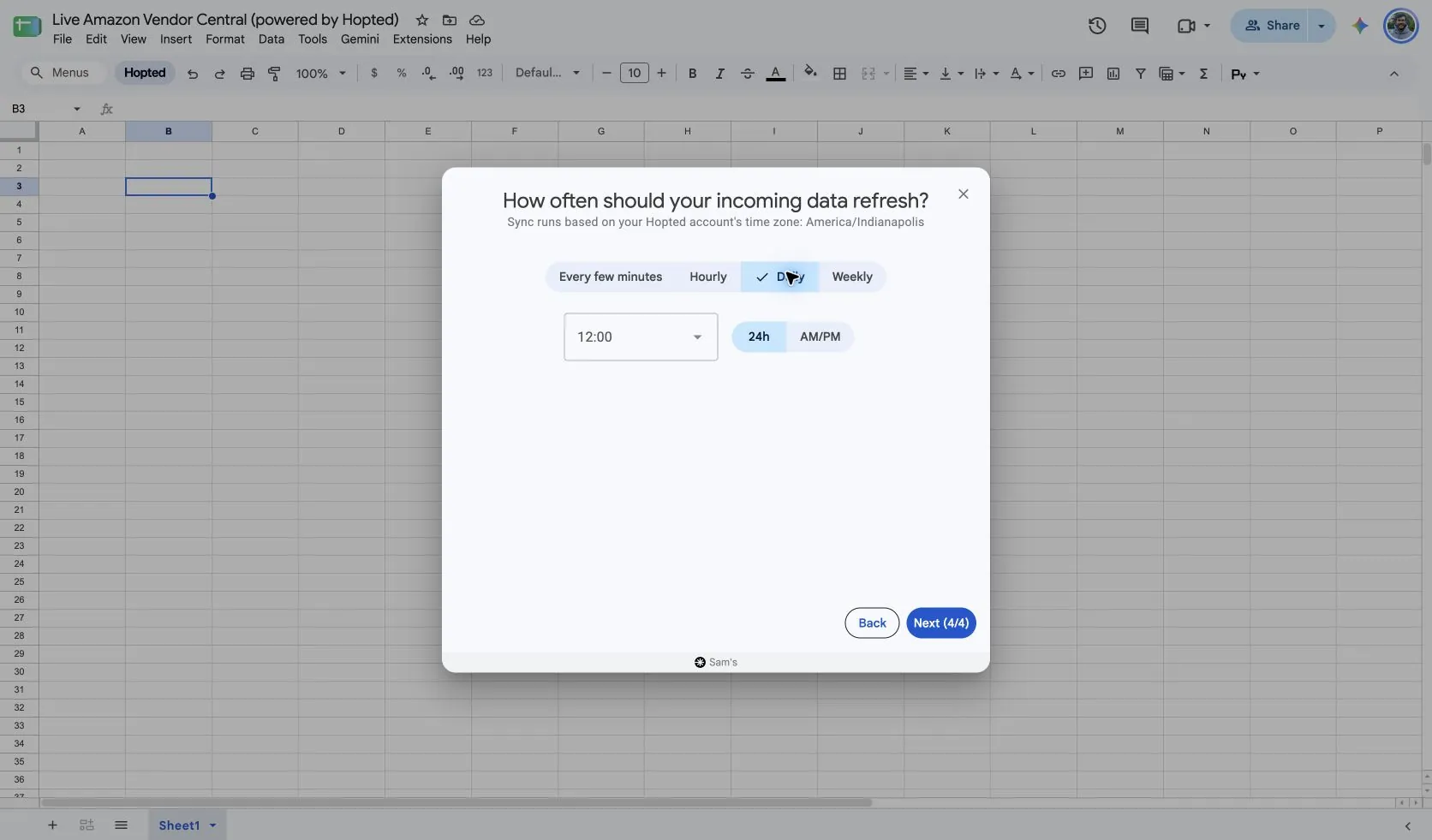
Choose the cadence and time that fit your review. Check the time zone shown for your Hopted account. A daily refresh is a practical starting point for a daily review, while Amazon’s own publication timing still determines when new data becomes available.
6. Create the Sync and check the imported rows
Review the configuration and choose Create new Sync. Check the imported rows before adding calculations.
Check Feedback scope and Review sentiment before comparing rows. In Review topic mode, verify how Topic occurrence % is displayed. In trend modes, retain Trend comparison population, Trend period start, and Trend period end. In snippet mode, keep Snippet level and Snippet position when you need to distinguish repeated excerpts.
How to use the report
Use negative review topics to prioritize product or listing investigations, then read snippets for context. Compare an ASIN with its parent or category where those fields are available. Switch to Return topic to review category return themes, or select a trend mode to inspect Amazon’s native comparison populations and windows.
Find topics that deserve a closer look
Start with negative Review topic rows for one ASIN. Compare Topic occurrence % with Parent ASIN topic occurrence % and Browse node topic occurrence % where available. If the ASIN value is 30 and the category comparison is 15, the gap is 15 percentage points. It is not a count of 15 reviews or proof of a product defect. Review mentions supplies a separate count where available.
Read the context behind a topic
Create a Review snippet sync for the same account, marketplace, view, and ASIN. Keep Feedback topic, Review subtopic, Review snippet, and the snippet-identifying fields together. Read several excerpts before deciding whether the issue concerns product design, instructions, or listing expectations. Review star rating impact is another separate mode for exploring Amazon’s reported topic impact; it does not establish that a particular proposed change will improve ratings.
Compare trends without mixing populations
In Review topic trend, compare the same topic, sentiment, scope, and Trend comparison population across Amazon’s returned windows. Keep the native dates visible instead of relabeling every row as a calendar month. In Return topic or Return topic trend, describe the result as category return insight. A frequent category return theme is a reason to investigate your product, not a count of its returned units.
What to check before comparing results
This source returns the latest available insights and has no historical date-range selector. Trend periods come from Amazon and need not span one month. Do not sum overlapping trend windows or mix ASIN and category populations. Available columns depend on the selected feedback detail; blank values can reflect unavailable metrics.
Topic occurrence % uses percentage points: 50 means 50%. Applying ordinary percentage formatting directly to 50 would display 5,000%. Keep the value as a number or divide by 100 before percentage formatting.
Questions and answers
Can I select a previous month of feedback?
No. This source returns Amazon’s latest available insights. Trend modes retain Amazon’s comparison periods rather than selecting a historical monthly snapshot.
Are return topics a list of my returned products?
No. Return topics describe the browse-node product category. Use product return reports when you need individual return records.
Why did the available columns change?
Hopted determines the feedback view from your selected columns. Review topics, snippets, impact, and trends describe different rows and offer compatible fields. Add fields for the view you need; if prompted, choose what they relate to.
Why are review mentions blank on category rows?
Review mentions is available for ASIN topic and subtopic rows, not browse-node category rows. Check Feedback scope and the selected mode. A blank count is not evidence that no one mentioned the topic.
Sources and verification
Report names, example fields, and settings reflect Hopted’s supported source configuration as of November 16, 2026.
See the Amazon Vendor Central connector or return to the Vendor Central reports directory.