Vendor Catalog: export and sync to Google Sheets
Review current product titles, identifiers, brand details, MSRP, and preparation attributes by ASIN and marketplace.
What this report tells you
Vendor Catalog brings current Amazon catalog attributes into Google Sheets. Build a product reference for your vendor business, check identifiers, and enrich sales analysis with product details. Choose Manufacturing or Sourcing to control which products are included.
Useful columns to start with
- ASIN and Parent ASIN — Match products and their current parent relationships.
- Product title, Brand, and Product group — Add readable product context.
- EAN, UPC, and ISBN-13 — Review catalog identifiers.
- MSRP and Currency — Keep the suggested retail price and its currency together.
- Release date, Prep instructions, and Replenishment category — Review current catalog attributes.
- Vendor code — Available when grouping by ASIN and Vendor code in Sourcing view.
Keep Store name and marketplace context with the product fields, especially when combining vendor accounts. Start with a small column set that answers your question, then add further attributes as you need them.
How to export Vendor Catalog to Google Sheets
1. Connect your vendor accounts
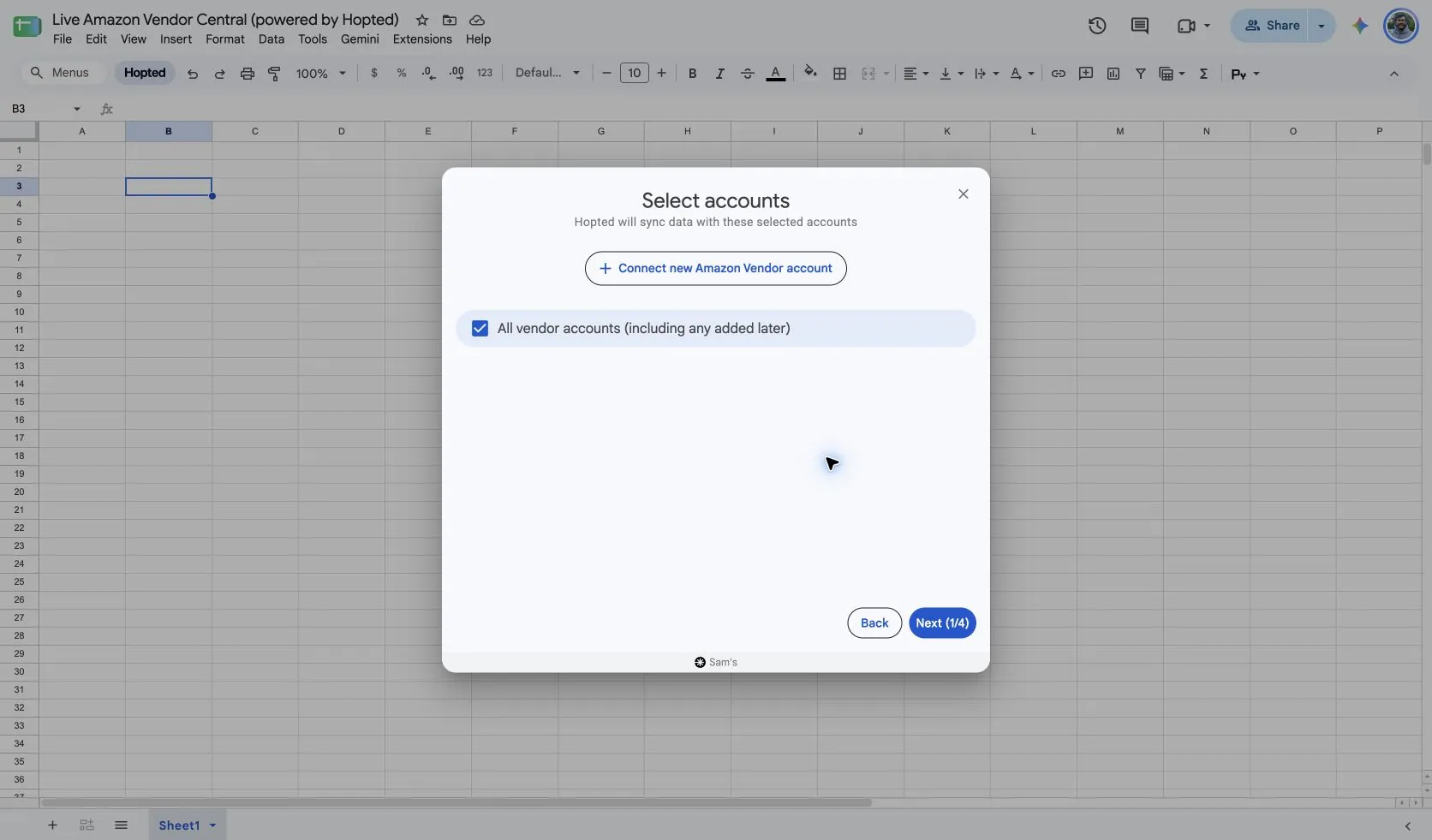
Install Hopted and sign in. Open your Google Sheet, choose Add new data sync and Amazon Vendor Central, then select your vendor accounts.
For a combined workbook, choose All vendor accounts (including any added later). Keep account and marketplace fields in the output so the same ASIN from different accounts remains distinguishable.
2. Choose Vendor Catalog and useful columns
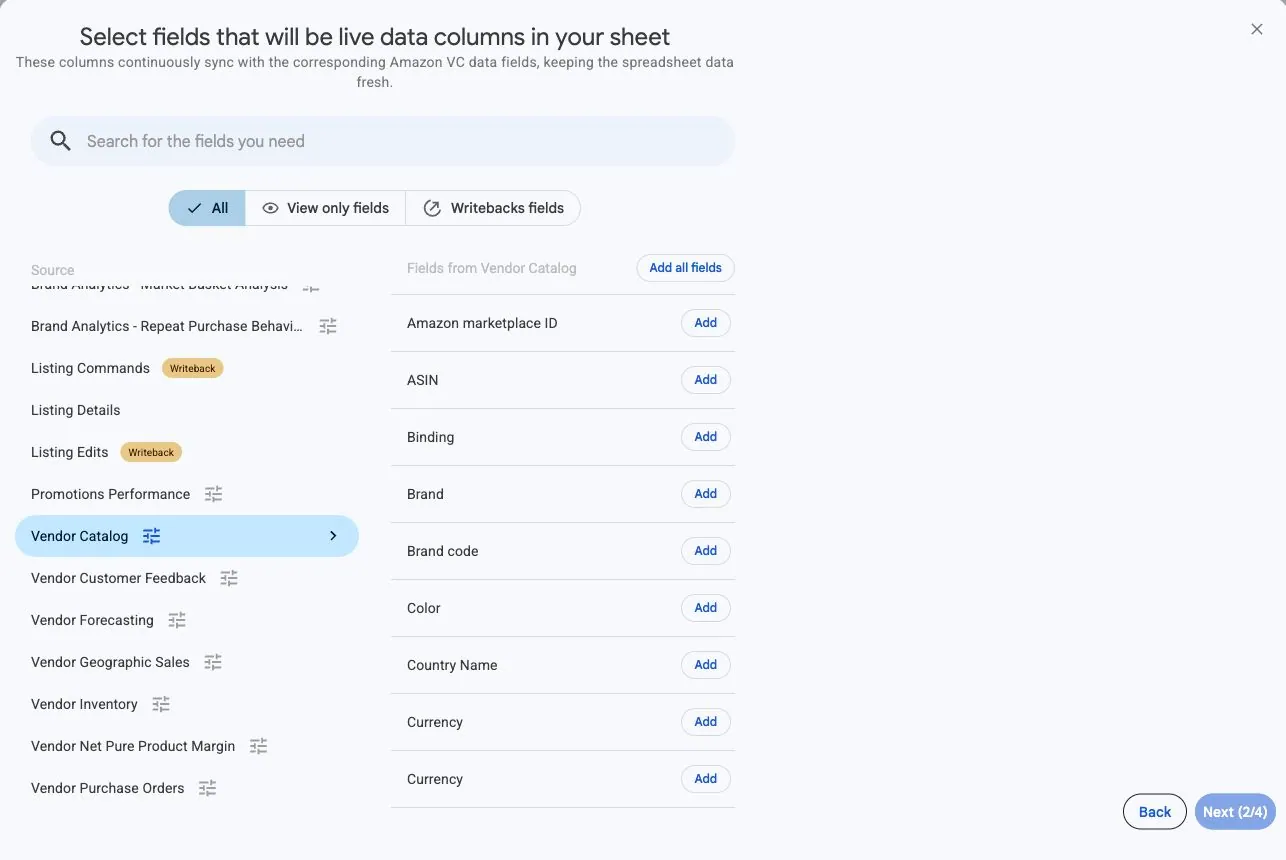
Choose Vendor Catalog and add the columns you need. Start with ASIN, Product title, Brand, Parent ASIN, and the identifier fields relevant to your products. Add MSRP and Currency together when reviewing list prices.
3. Set the catalog view and grouping
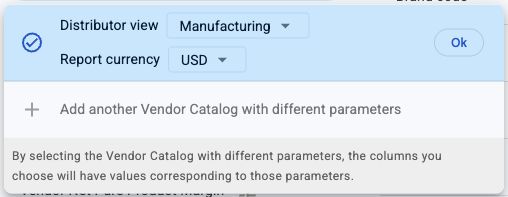
Set Distributor view and Report currency in the source settings. Add ASIN for product-level rows. In Sourcing view, add Vendor code when you need separate rows for each ASIN and vendor code. Hopted determines that grouping from your selected columns.
Choose the view that matches the catalog you intend to review. When you need the vendor-code breakdown, select Sourcing first. Report currency controls the currency of catalog MSRP; retain Currency beside that amount.
4. Review optional filters
Leave filters unset for an initial catalog review, or narrow the import to the records needed for your task. If a product is missing, check the selected accounts, marketplace context, distributor view, and filters before assuming the ASIN is absent from Amazon’s catalog.
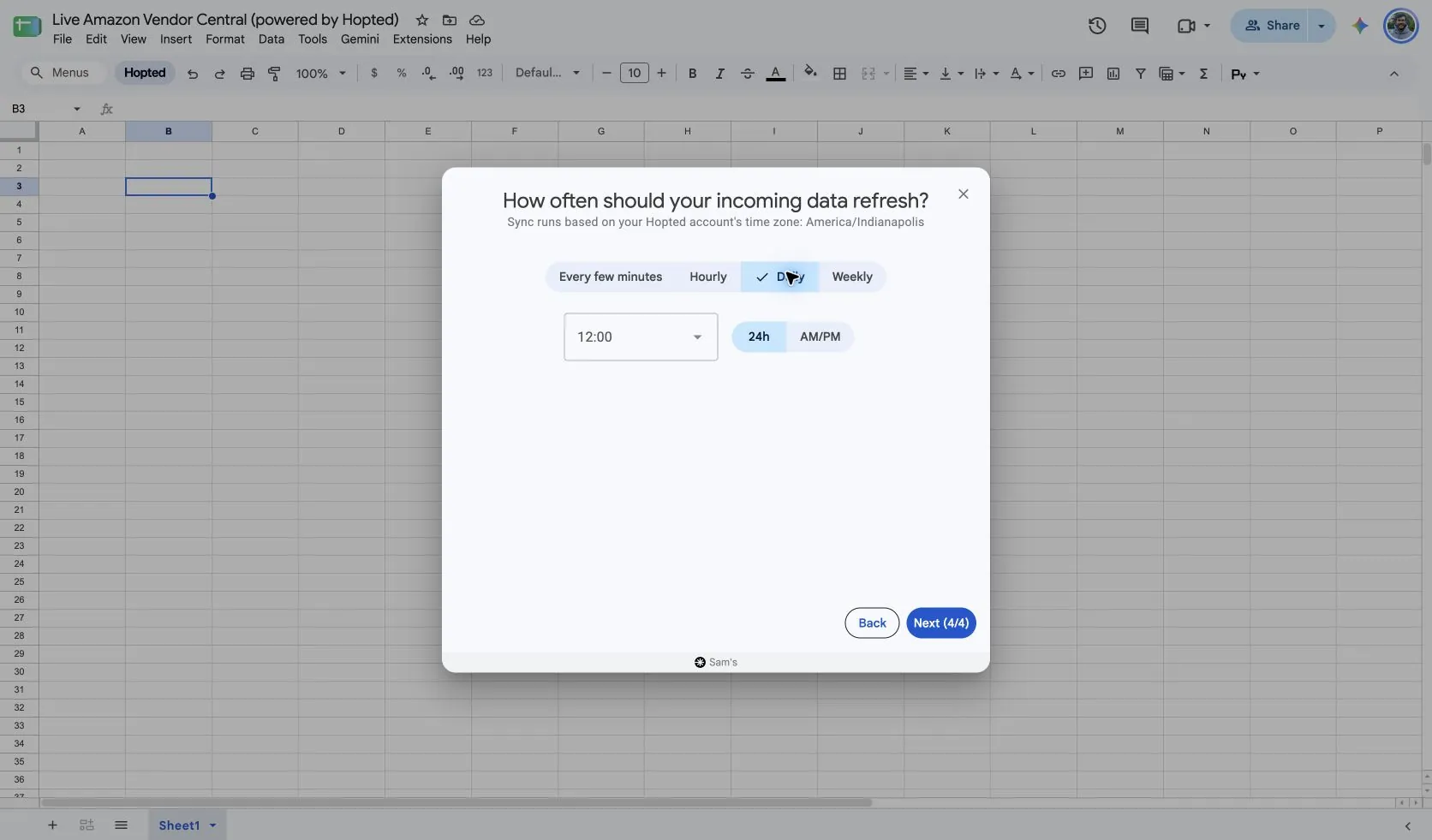
5. Choose a refresh schedule
Choose a schedule that fits how often your team reviews product information. Catalog attributes are current values, so a daily refresh can support a regular catalog review. The schedule retrieves available information; it does not create a history of past catalog definitions.
6. Create the Sync and review the imported rows
Review the accounts, fields, source settings, filters, and schedule, then select Create new Sync. Check several familiar ASINs before joining the output to sales data.
Confirm whether each product has one row or several vendor-code rows. Inspect identifiers with leading zeroes, Currency beside MSRP, and any blank attributes. Keep identifiers as text when using them in other spreadsheets so later formatting does not remove leading zeroes.
How to use the report
Build a product reference for commercial reviews
Sort the catalog by Brand or Product group and keep ASIN visible beside Product title. Add Model number, Color, or Binding when those attributes help distinguish similar products. This gives the team a readable product reference without relying on shortened names copied between workbooks.
Use the same account and marketplace context when comparing this reference with other sources. A parent relationship or title can change, so treat the imported attributes as the current product definition rather than evidence of a past catalog state.
Add catalog context to a sales review
Join catalog details to Vendor Sales & Profitability by ASIN and marketplace. Check the grouping first: an ASIN can have several vendor-code rows, which could multiply sales rows in a join.
For example, joining a sales row containing 200 units to two catalog rows could make that result appear twice. Use the ASIN catalog grouping when you need one product reference, or deliberately resolve the vendor-code relationship before calculating sales totals.
Review product readiness and catalog gaps
Filter for missing identifiers or preparation attributes, then inspect those products with your catalog team. Compare Release date, Prep instructions, Prep performed by, and Replenishment category with the information your team expects. A blank returned field is a reason to investigate, rather than proof that the product has no requirement.
Use Listing Details when you need its supported listing attributes. Keep any planned correction separate from the imported catalog reference and review the appropriate editing workflow before submitting changes.
What to check before comparing results
Catalog attributes show the latest available values. They do not reconstruct what a title, parent ASIN, or MSRP was on a historical date.
Manufacturing covers products you manufacture; Sourcing covers products supplied directly to Amazon by your vendor group. Access depends on your Amazon permissions. Manufacturer code is available only in Manufacturing view.
MSRP is a suggested retail price. Keep it separate from actual selling prices and your wholesale costs.
Optional catalog attributes may be blank in Amazon’s response. Check the source, view, and selected fields before filling gaps manually. A refreshed value can change a current reference, so avoid using it to relabel historical reports without considering that difference.
Questions and answers
Can I export a historical catalog snapshot?
The source returns current catalog attributes. It does not provide an as-of-date catalog history.
Can I group the catalog by vendor code?
Yes, with Sourcing view. Add ASIN and Vendor code to the selected fields. Hopted uses those columns to determine the grouping. Manufacturing supports ASIN grouping only.
Why is Manufacturer code blank in Sourcing view?
Manufacturer code is available in Manufacturing view only. Changing the grouping does not add it to Sourcing. Choose a view your Amazon account can access and review the returned fields before relying on them.
Does MSRP show the price customers paid?
No. MSRP is the catalog manufacturer’s suggested retail price. Use sales sources for actual reported sales amounts and average selling prices, and keep the report currency consistent when comparing monetary values.
Sources and verification
Report fields and settings reflect Hopted’s supported source configuration. Amazon’s documentation explains the underlying dataset and reporting behavior.
See the Amazon Vendor Central connector for the connection overview, or return to the Vendor Central reports directory.