Listing Details: export and sync to Google Sheets
Audit Vendor Central listing identity, content, attributes, and issues in a spreadsheet.
What this report tells you
A catalog review needs more than ASINs and sales totals. Listing Details brings the listing identity and selected product attributes into Google Sheets so vendor teams can find incomplete content, compare related items, and keep their internal catalog review organized. It is the reading side of a listing workflow; use the separate Listing Edits source when you want to prepare supported changes.
Useful columns to start with
Choose a focused set of columns for your task. These are examples from Hopted’s current Vendor picker, rather than an exhaustive field list.
- SKU — Retain the listing identifier when comparing records or preparing later edits.
- ASIN — Join a listing to the same product in vendor analytics sources.
- Vendor Code — Keep the correct vendor relationship alongside the product identity.
- Amazon marketplace ID — Distinguish marketplace-specific contributions for similar products.
- Product name — Review the contributed title against your approved product information.
- Product Type — Add context for the attributes and requirements that apply to a product.
- Product Description — Find missing or outdated descriptions during a focused catalog audit.
- Main Product Image (MAIN) — Review the selected main-image reference alongside other content fields.
- Issues — Bring reported listing problems into the same sheet as the affected items.
- Last updated date — Keep listing update context separate from the spreadsheet refresh time.
Keep Store name, marketplace, date or time fields, and Currency where available. This context helps keep different accounts, periods, and monetary amounts distinct.
How to export Listing Details to Google Sheets
1. Connect Amazon Vendor Central to Google Sheets
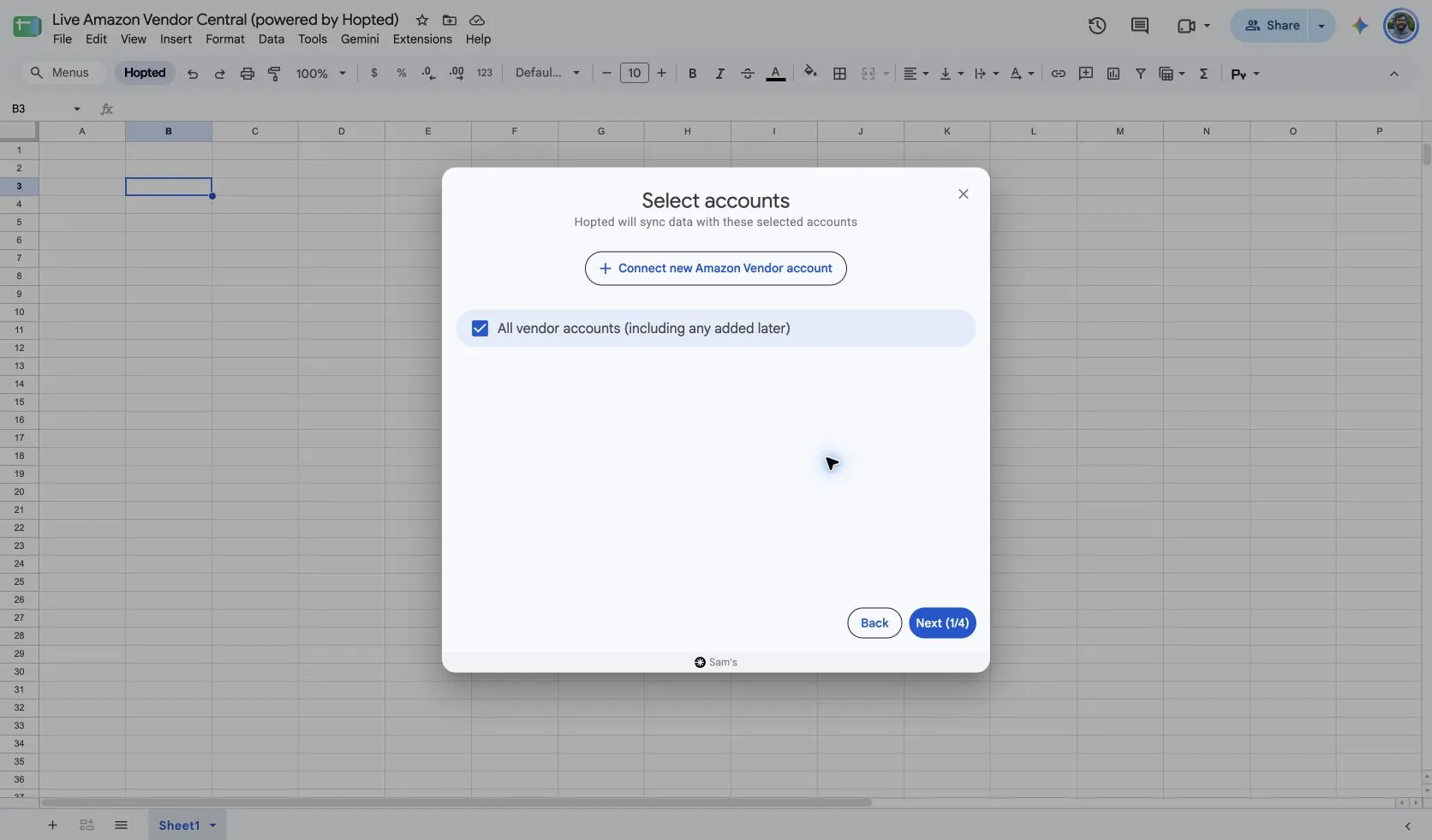
Install Hopted and sign in. Open your Google Sheet, click Hopted, then Add new data sync and Amazon Vendor Central. Select the vendor accounts to include. For a combined view, choose All vendor accounts (including any added later).
2. Choose the source, settings, and columns
Choose Listing Details in the source list and use Add beside the fields you need. Review the source settings where present. The screenshot below shows this source in the current Hopted picker.
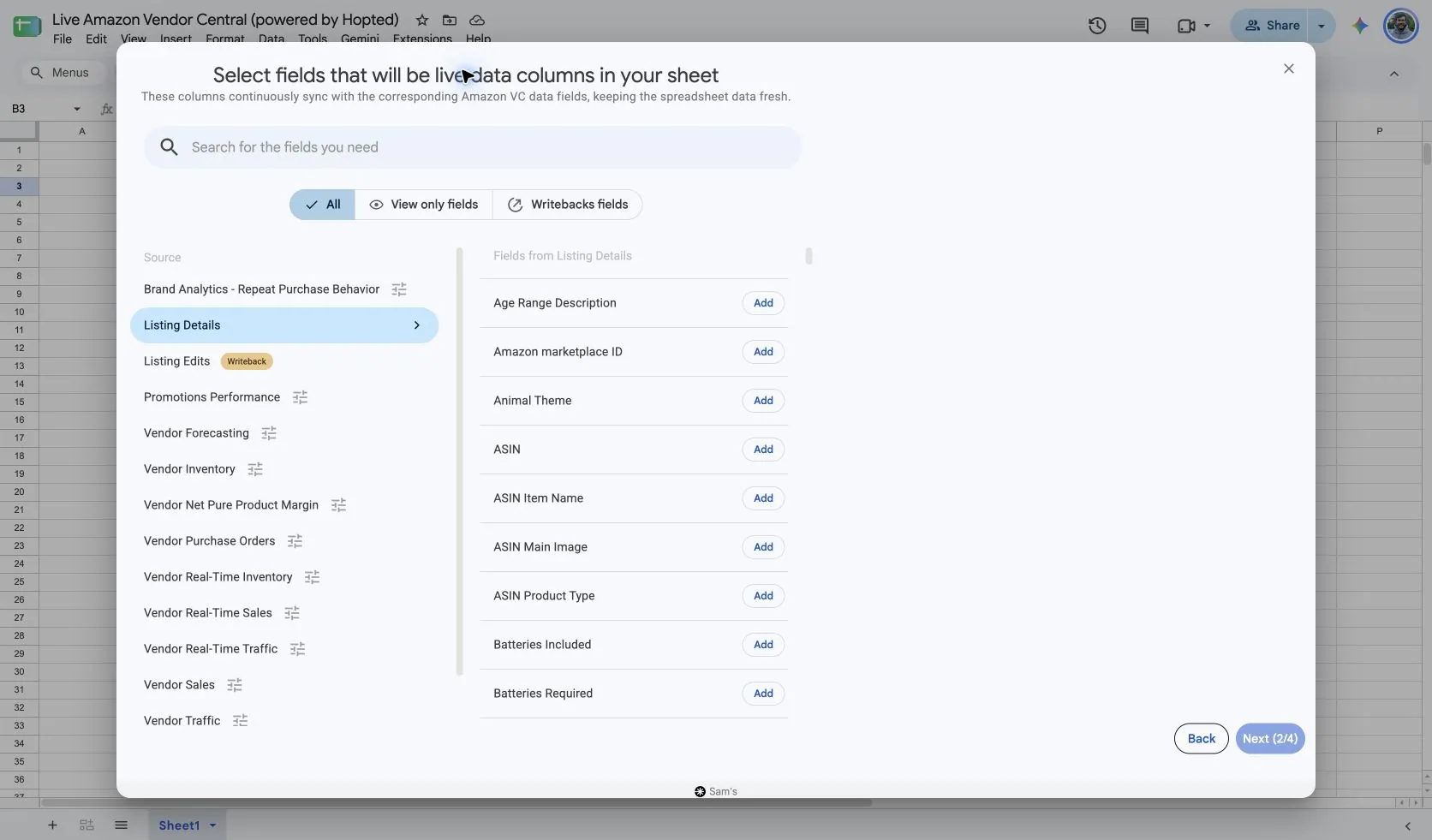
The verified Listing Details picker shows no date-range or reporting-period controls. Select the identity columns first, then add only the attributes needed for the audit. A title-and-image review does not need every dimension, safety, and variation field.
Keep Store name, Vendor Code, and Amazon marketplace ID visible if your sheet includes multiple connected accounts. Use a stable combination of account, marketplace, and SKU when matching rows; an ASIN alone can appear in more than one context.
3. Review optional filters
Leave filters unset for a broader import, or add a filter for the specific records you want to review. Check account, date-range, and filter choices when an expected result is missing.
4. Choose a refresh schedule
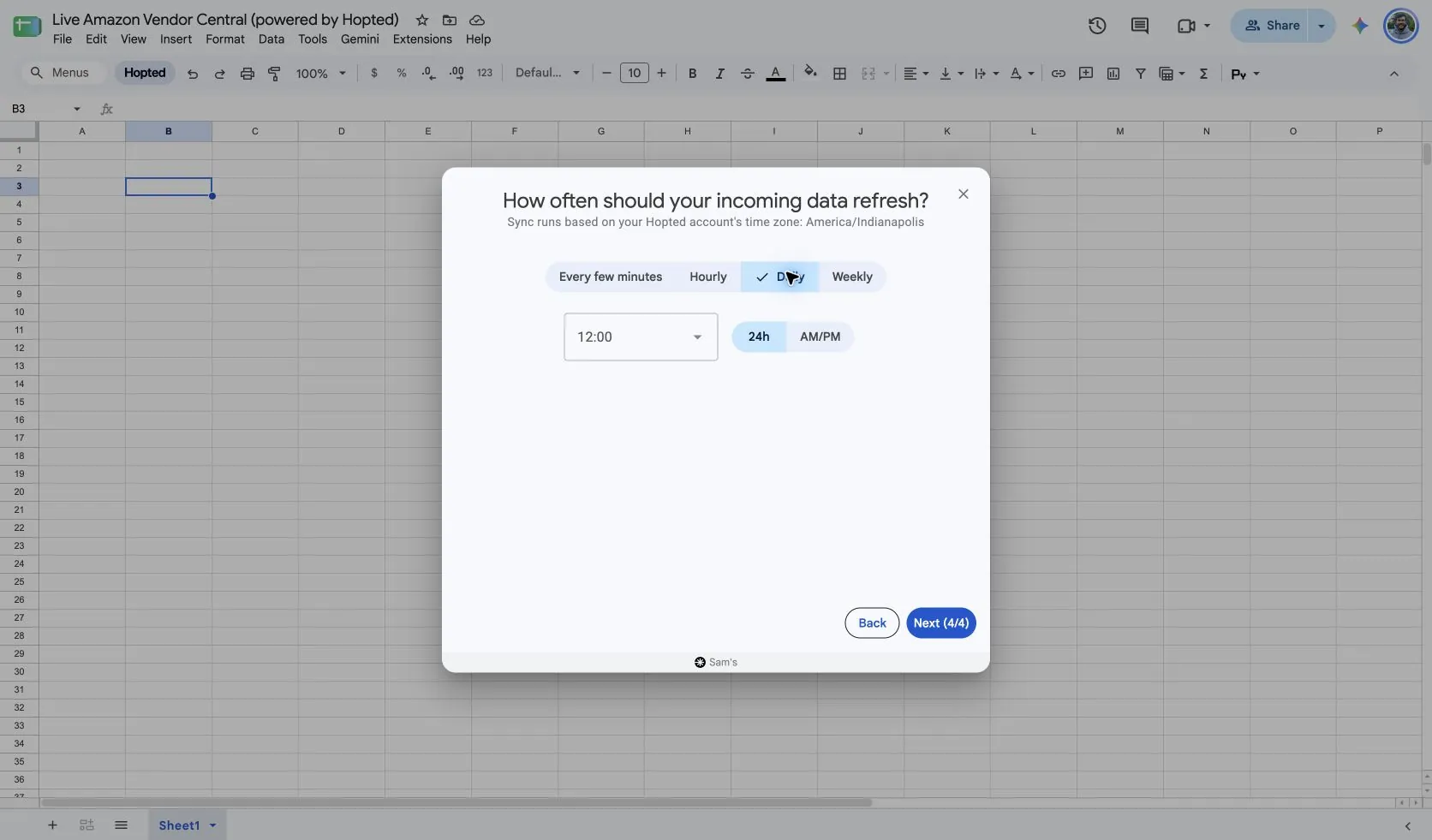
Hopted offers every-few-minutes, hourly, daily, and weekly schedules. The schedule uses the time zone shown for your Hopted account. Choose a cadence that fits the report and your review; a faster schedule cannot make Amazon publish data sooner.
5. Review and create the Sync
Check the accounts, selected fields, source settings, filters, and refresh schedule. Choose Create new Sync when the configuration is ready. Review the imported rows before adding calculations or sharing a dashboard.
How to use the report
- Create a content audit. Pull identifiers, Product name, Product Description, selected bullet fields, and image references. Filter for blank or unexpected values, then add your own review notes and an owner for each issue outside the imported columns.
- Enrich a Vendor Sales or Inventory review with listing names and product attributes. Match account, marketplace, and product identifiers carefully. Keep this catalog information separate from dated sales measures so a content refresh does not change the meaning of a sales period.
- Prepare a focused correction list. Read current values through Listing Details, then pair the relevant writable attributes from Listing Edits. Review the proposed before-and-after values in Writebacks before submitting any changes to Amazon.
What to check before comparing results
An attribute shown in the picker is not a promise that every vendor listing contains it. Amazon datasets differ between vendor and seller accounts, product types, and marketplaces; seller-oriented price or fulfillment fields may not apply. Contributed attributes and Amazon catalog summaries also serve different purposes. Check the product page when the question is what shoppers currently see.
Availability depends on the vendor account, marketplace, permissions, and the data Amazon supplies. Keep row dimensions intact when joining reports. For longer-term comparisons, review Hopted Data history.
Questions and answers
How do I export Listing Details to Google Sheets?
Open Hopted in Google Sheets, choose Amazon Vendor Central, select your vendor accounts, and choose Listing Details. Add the columns you need, review its settings and optional filters, then choose a refresh schedule and create the Sync.
Does this report show historical sales?
No. Use Vendor Sales for dated retail sales measures. Listing Details provides listing and product information for catalog review.
Can I edit every imported column?
No. Reading a field and writing it are separate capabilities. Choose supported fields from Listing Edits and review the intended change.
Why are some attributes empty?
A field may not apply to that product or vendor account, or Amazon may not return a value. Review the product type and marketplace before treating every blank as an error.
Sources and verification
Source names, example fields, and setup screens were checked in Hopted’s Vendor Central picker on October 14, 2026. Screenshots come from the supplied “Live Amazon Vendor Central (powered by Hopted)” Google Sheet.
See the Amazon Vendor Central connector for the connection overview, or return to the Vendor Central reports directory.