Listing Edits: review Vendor listing changes in Google Sheets
Prepare supported listing changes in Google Sheets, then review and submit them with Writebacks.
What Listing Edits does
Listing Edits is the outbound companion to Listing Details. It lets your team prepare supported product-attribute changes in Google Sheets and review them through Hopted Writebacks before submission. It is not a read-only performance report: keep the current listing values alongside the proposed edits, confirm the correct account and marketplace, and make the intended change clear to the person reviewing it.
Edit columns to start with
Choose a focused set of columns for your task. These are examples from Hopted’s current Vendor picker, rather than an exhaustive field list.
- Product name — Prepare a supported title correction using your approved product wording.
- Product Description — Draft the intended description while retaining the current value for comparison.
- Generic Keywords — Review a focused keyword update for the relevant product and marketplace.
- Main Product Image (MAIN) — Prepare an intended main-image reference for review before submission. Image edits contribute to the ASIN globally and may appear in other Amazon marketplaces, even when the writeback targets one marketplace. Avoid country-specific or language-specific image content.
- Brand — Keep a proposed brand correction tied to the correct listing and product context.
- Item Weight — Review weight values together with Item Weight Unit, avoiding unit mismatches.
- Last Writeback Issues — Inspect reported issues after a submission and use them to guide corrections.
Keep the listing’s SKU, ASIN, vendor account, and marketplace context beside the edit columns. Use the current values from Listing Details for comparison.
Set up Listing Edits with Listing Details
1. Connect Amazon Vendor Central to Google Sheets
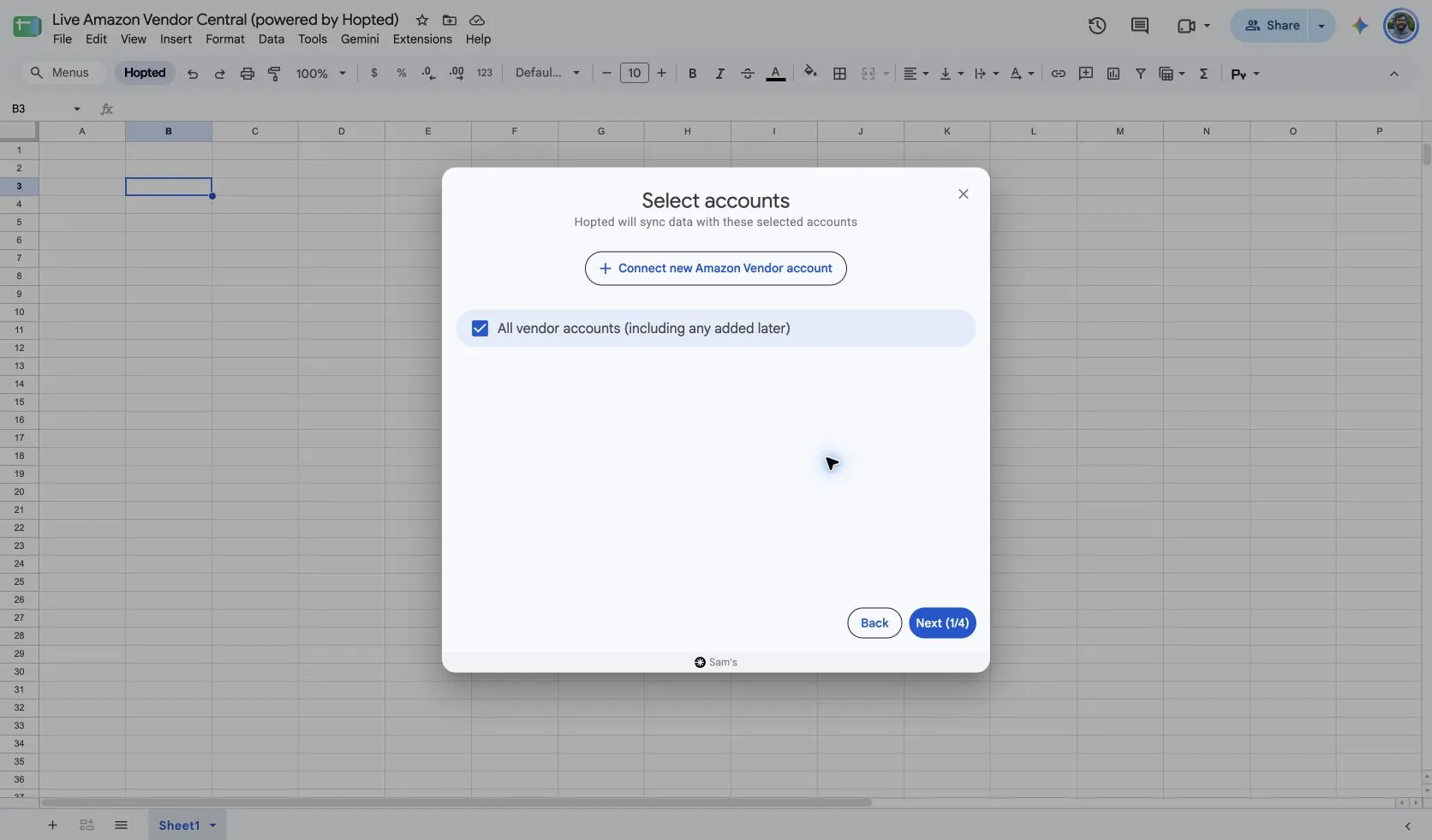
Install Hopted and sign in. Open your Google Sheet, click Hopted, then Add new data sync and Amazon Vendor Central. Select the vendor accounts to include. For a combined view, choose All vendor accounts (including any added later).
2. Pair Listing Details with Listing Edits
Choose Listing Details for the incoming listing columns, then add the Listing Edits fields marked Writeback. The screenshot below shows the available edit fields.
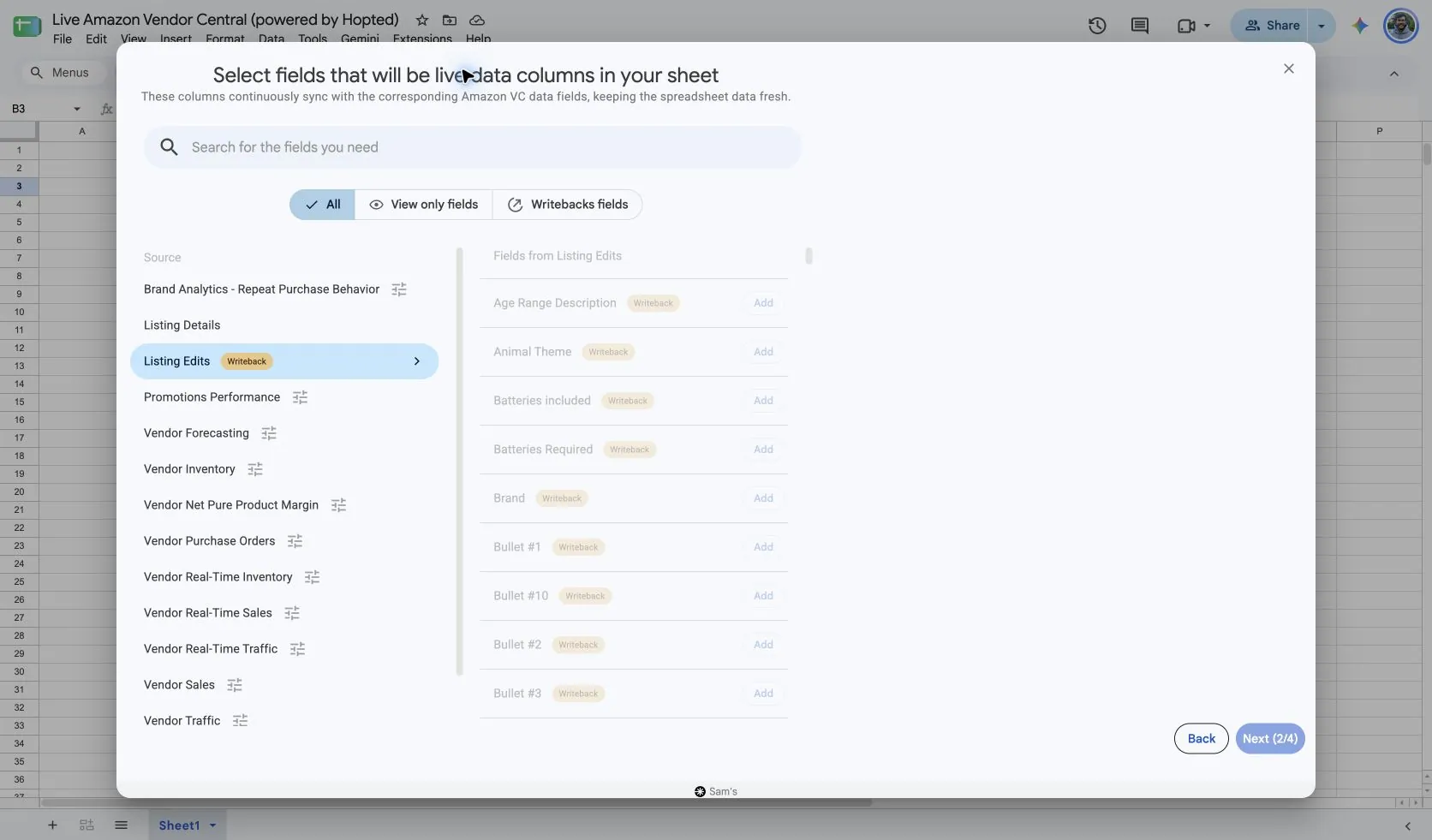
The verified Listing Edits picker marks its attribute fields with Writeback. Start with Listing Details to import SKU, ASIN, vendor account, marketplace, and current content. Add only the edit fields needed for the specific change; their presence does not mean every field is accepted for every vendor product.
This source has no reporting-period controls in the verified picker. A reporting refresh reads data; submitting an edit writes a change. Continue through the setup for the paired columns, make the intended edits in the sheet, then open Writebacks to review and submit them.
3. Confirm the listing identity and current values
Review the vendor account, marketplace, SKU, and ASIN before preparing an edit. Compare the proposed value with the imported current value. Keep a small, clearly identified set of products for the first review.
4. Review the proposed changes in Writebacks
Make the intended edits in the writeback columns, then open Writebacks in Hopted. Check the affected rows and the before-and-after values. A refresh schedule for Listing Details reads current data; it does not replace this review and submission step.
5. Submit the reviewed changes and check the result
Submit the changes you intend to send. Read Last Writeback Issues for any returned problems, refresh Listing Details, and check the affected listing. Correct unresolved issues before another reviewed submission.
How to review and verify your changes
- Correct one type of catalog content at a time. Compare the current Product name or Product Description with your proposed wording. Use a small, clearly identified group of listings so the reviewer can see which products and marketplaces will change.
- Review measurements as a pair. Check Item Weight and Item Weight Unit against the approved specification, then inspect the proposed values in Writebacks. Apply the same discipline to any other value-and-unit attributes selected for the task.
- Close the review loop after submission. Inspect Last Writeback Issues, refresh Listing Details, and check the relevant listing or product page. Keep a review note for unresolved rows rather than repeatedly submitting the same value without addressing the returned issue.
What to check before submitting
Use the Writebacks review to inspect each proposed change before submitting. Amazon determines which attributes are supported for the vendor, product type, and marketplace, and can return validation issues. A submitted update does not guarantee that a public product page immediately displays the new value.
Questions and answers
How do I prepare Vendor listing changes in Google Sheets?
Connect your Vendor account in Hopted and start with Listing Details for listing identity and current values. Add the supported Listing Edits fields marked Writeback, prepare the intended changes, then review and submit them through Writebacks.
Why pair this with Listing Details?
Listing Details supplies identity and current values. Listing Edits supplies the supported outgoing fields, making the intended before-and-after change easier to review.
Are edits sent by a scheduled report refresh?
Treat reading and writing as separate steps. Prepare the edits, inspect them in the Writebacks panel, and submit the changes you intend to make.
What should I do if Amazon rejects a change?
Read Last Writeback Issues, confirm the product and marketplace requirements, and correct the affected value before another reviewed submission.
Sources and verification
Source names, example fields, and setup screens were checked in Hopted’s Vendor Central picker on October 14, 2026. Screenshots come from the supplied “Live Amazon Vendor Central (powered by Hopted)” Google Sheet.
- Hopted Writebacks: review and submit workflow
- Amazon partial listing updates
- Amazon Listings Items API support considerations
See the Amazon Vendor Central connector for the connection overview, or return to the Vendor Central reports directory.