Switch the primary source of an existing sync
Change which report supplies your sync’s rows, review the columns, and reload the sheet.
The primary source is the report that defines which rows your sync imports. Adding fields from another report only adds columns to those rows.
Before you switch
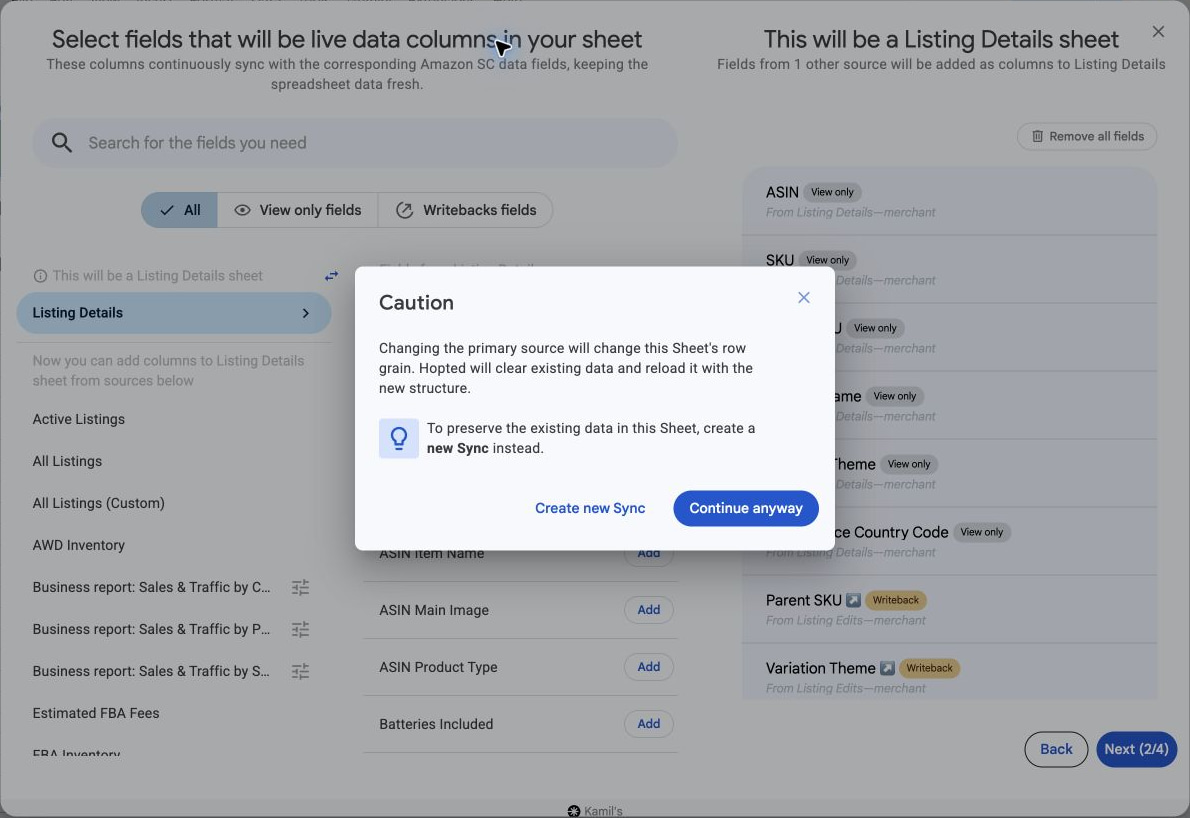
Changing the primary source clears the existing synced data and reloads the sheet with a new structure when you save. If your workbook already contains manual notes or custom column values, preserve them before continuing.
Preserve custom values before switching
The safest approach is to keep the original tab while preparing a replacement. Do not assume manual values will stay attached to the same products after the rows are reloaded.
- Save a backup of the current spreadsheet before making further changes.
- Create the replacement sync in a separate tab with the new primary source and the same account and marketplace. Choose Create new Sync at the warning in the steps below to keep the original report. Review the compatible columns you need.
- Allow the new tab to finish loading and check that the expected products appear.
- Transfer manual values by matching each row’s identifiers, not its position. For product reports with SKUs, match SKU plus account and marketplace. ASIN alone is not enough when one ASIN has several SKUs.
- Check unmatched or duplicate identifiers and a few known products. Paste the matched results as values if the custom fields should remain manually editable. Keep the original tab and backup until the transfer is verified.
Change the primary source
- Open the spreadsheet and select Hopted → Spreadsheet syncs. Find the sync for the intended tab and choose Menu → Edit to open its overview.
- Select Edit beside Your selected fields. In the field picker, find the This will be a … sheet label at the top of the source list.
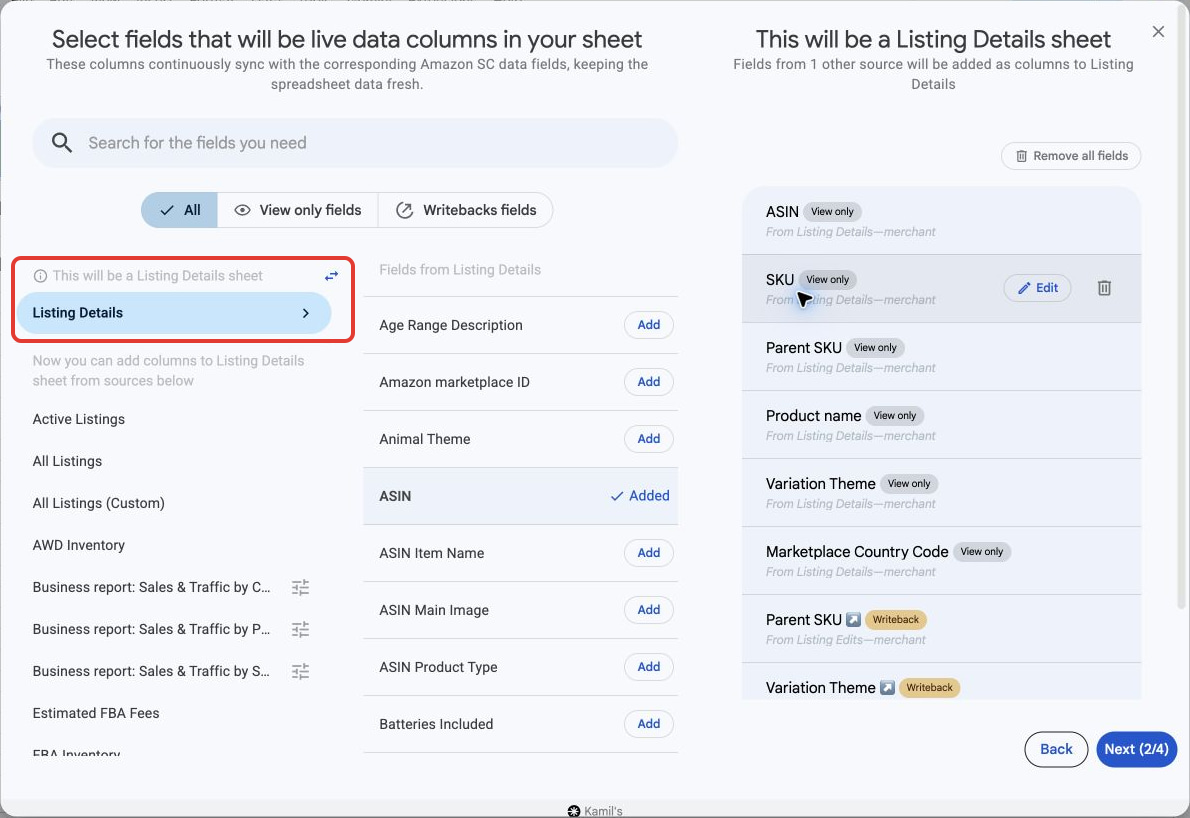
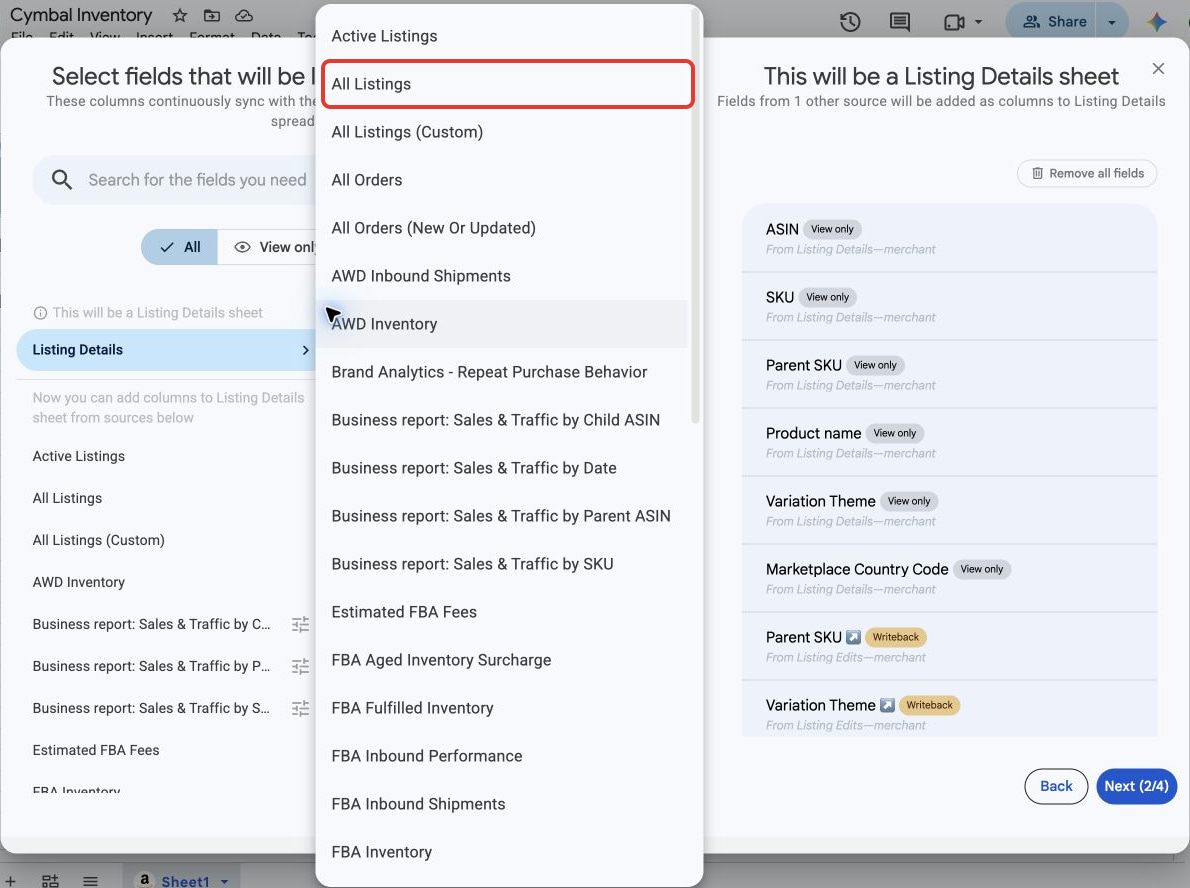
- Select the two-arrow button beside that label (Change primary source) and choose the new source. All Listings provides broader coverage than Active Listings; for virtual multipacks missing from that report, check Listing Details. See virtual multipacks and source coverage.
- Read the Caution warning. Choose Continue anyway to update this sync, or Create new Sync to keep the original report.
- Check the new primary-source label and configure any source parameters. Hopted removes incompatible fields, so review the remaining columns and add the fields you need.
- Review the import filters and schedule, then continue to the sync overview. Check the complete configuration and select Confirm changes.
Check the updated report
- Open the destination tab and allow the reload to finish.
- Check a few known SKUs or ASINs against the selected accounts, marketplaces and filters.
If products are still missing, see Why am I not seeing my full product catalog?.