Install Hopted and sign in
Add Hopted to Chrome and find it inside Google Sheets.
Hopted runs inside Google Sheets. Start with Chrome on your computer and a Google account that can edit the spreadsheet you want to use.
Install and open Hopted
- Open the official Hopted Chrome Web Store listing.
- Add the extension and review the permissions requested by Chrome.
- Open or reload a Google spreadsheet. Select the Hopted button in the Sheets toolbar.
- Complete the sign-in steps shown by Hopted. If you have been invited to an account, sign in with the email address that received the invitation.
Choose your next step
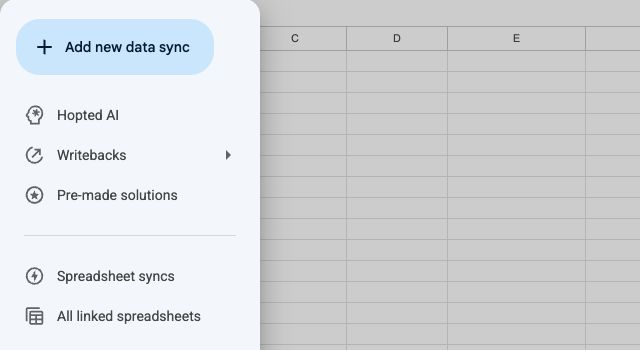
To let Hopted work with this spreadsheet, enable the spreadsheet. Then you can build a sync, use a pre-made solution, or describe what you need with Hopted AI when it is available in your account.
The Hopted account shown at the bottom of the menu determines which connected accounts, syncs and billing settings you are using. Check it when you belong to more than one account.
If the button is missing
Confirm that Hopted is enabled in the same Chrome profile as your spreadsheet, then reload the tab. Follow Restore the Hopted button if it still does not appear.