Create your first data sync
Choose an Amazon account, select columns, and bring live data into a sheet tab.
A Sync is a configured data import into a Google Sheets tab. Before you begin, enable the spreadsheet and make sure the correct Hopted account is selected.
Set up the import
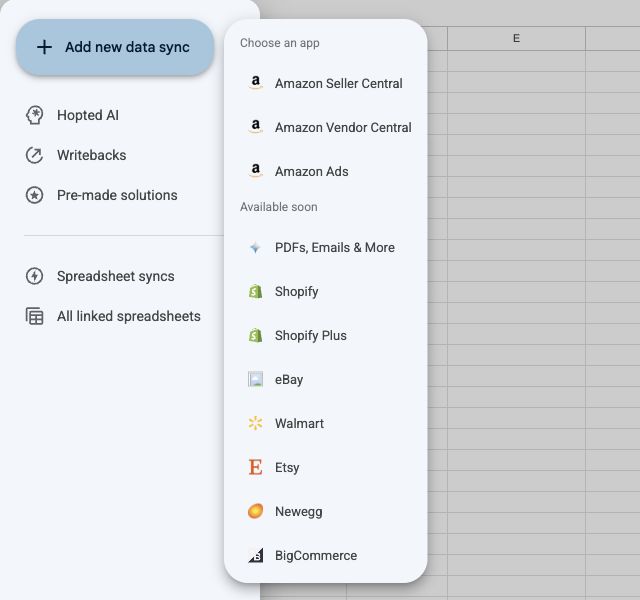
- Open Hopted and select Add new data sync. Choose Amazon Seller Central, Amazon Vendor Central, or Amazon Ads.
- Connect an account if needed. Select the accounts to include and, where offered, use Edit markets to choose marketplaces. Select Next (1/4).
- Choose a source, search for fields, and select Add for the columns you need. The starting report establishes what each row represents. Select Next (2/4).
- Add optional filters, or continue without filters. Select Next (3/4).
- Choose how often incoming data should refresh. Check the account time zone shown and continue.
- Review the accounts, fields, filters and schedule. Select Create new Sync to save it.
Check the first import
Open the destination tab and allow time for its initial data to arrive. The refresh schedule controls imports; it does not send edits back to Amazon. Amazon reports may have their own preparation and reporting delays.
You can find this configuration under Spreadsheet syncs. A change to one sync applies to that sync only.
Build a focused first report
Start with one source and a few recognizable fields, such as product identifiers and the business values you need. You can edit the sync later. To send listing changes to Amazon, follow Set up Writebacks.