Enable Hopted for a spreadsheet
Give Hopted the spreadsheet access it needs to keep your data updated.
Installing the extension and enabling a spreadsheet are separate steps. Hopted needs access to each spreadsheet where you want it to import and refresh data.
Share the spreadsheet with Hopted
- Open the spreadsheet and select Hopted.
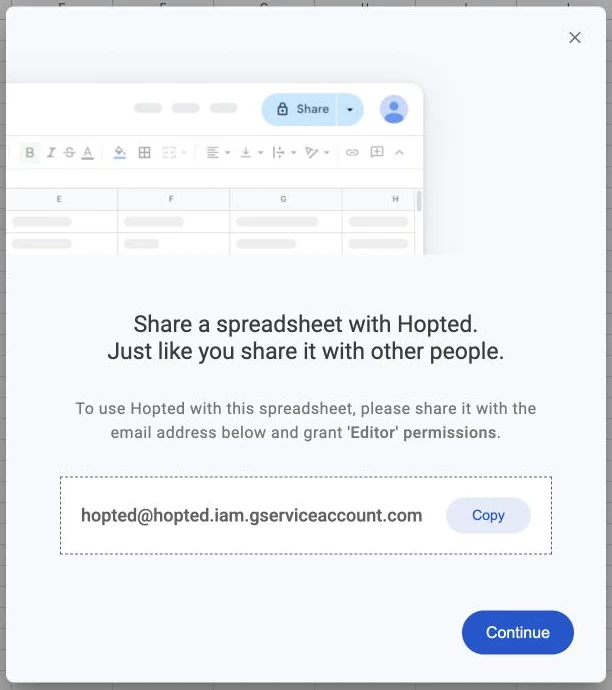
- When Hopted asks you to share the spreadsheet, copy the email address shown in that dialog. The standard Hopted sharing address is
hopted@hopted.iam.gserviceaccount.com; use the address displayed in your dialog. - Select Continue to open Google Sheets sharing. You can also open it with the spreadsheet's Share button.
- Paste the Hopted address into the sharing dialog's people field and select the matching address.
- Choose Editor in the access menu, then select Send or Share to apply it. Viewer or Commenter access does not let Hopted update your data.
- Return to the spreadsheet and open Hopted again.
You need permission to share the spreadsheet. If your organization limits external sharing, ask your Google Workspace administrator to help with the displayed Hopted address.
Start working with data
Once enabled, choose to build a sync, use a pre-made solution, or use Hopted AI when offered. Enabling a spreadsheet does not itself choose an Amazon account or create an import.
Hopted account membership and Google spreadsheet access serve different purposes. See Give teammates the right access.
If the spreadsheet belongs to another Hopted account
Check the account selector at the bottom of the Hopted menu. Switch to the account that owns the linked spreadsheet. If you are not a member, ask an existing admin for an invitation rather than setting up another copy of the sync.