Vendor Purchase Orders: export and sync to Google Sheets
Review Amazon retail procurement orders, item quantities, status, and shipping or delivery windows.
What this report tells you
Vendor Purchase Orders brings orders Amazon places with your vendor business into Google Sheets. Review order status, item quantities, and shipping or delivery windows in a shared working view. These are wholesale procurement orders, not shopper orders from Seller Central. Importing provides visibility; it does not acknowledge orders or submit shipment information.
Useful columns to start with
Choose a focused set of columns for your task. These are examples from Hopted’s current Vendor picker, rather than an exhaustive field list.
- Order Number — Identify the Amazon purchase order and avoid confusing it with a shopper order.
- Order State — Review the current reported purchase-order state.
- Order Date — Keep the order creation date visible, including for closed-order age filtering.
- Order Changed Date — Identify orders with a more recent reported change.
- Ship Window — Review the requested shipping window.
- Delivery Window — Keep the requested delivery window beside the shipping plan.
- Vendor SKU — Identify the item using your vendor product reference.
- ASIN — Match the order item to the Amazon product where supplied.
- Ordered Quantity — Review the quantity requested for the item.
- Unit Of Measure — Interpret quantities using their stated unit of measure.
- Net Cost — Review the reported item cost alongside quantity and units.
- Currency — Keep monetary context visible in mixed-account reviews.
Keep Store name, marketplace, date or time fields, and Currency where available. This context helps keep different accounts, periods, and monetary amounts distinct.
How to export Vendor Purchase Orders to Google Sheets
1. Connect Amazon Vendor Central to Google Sheets
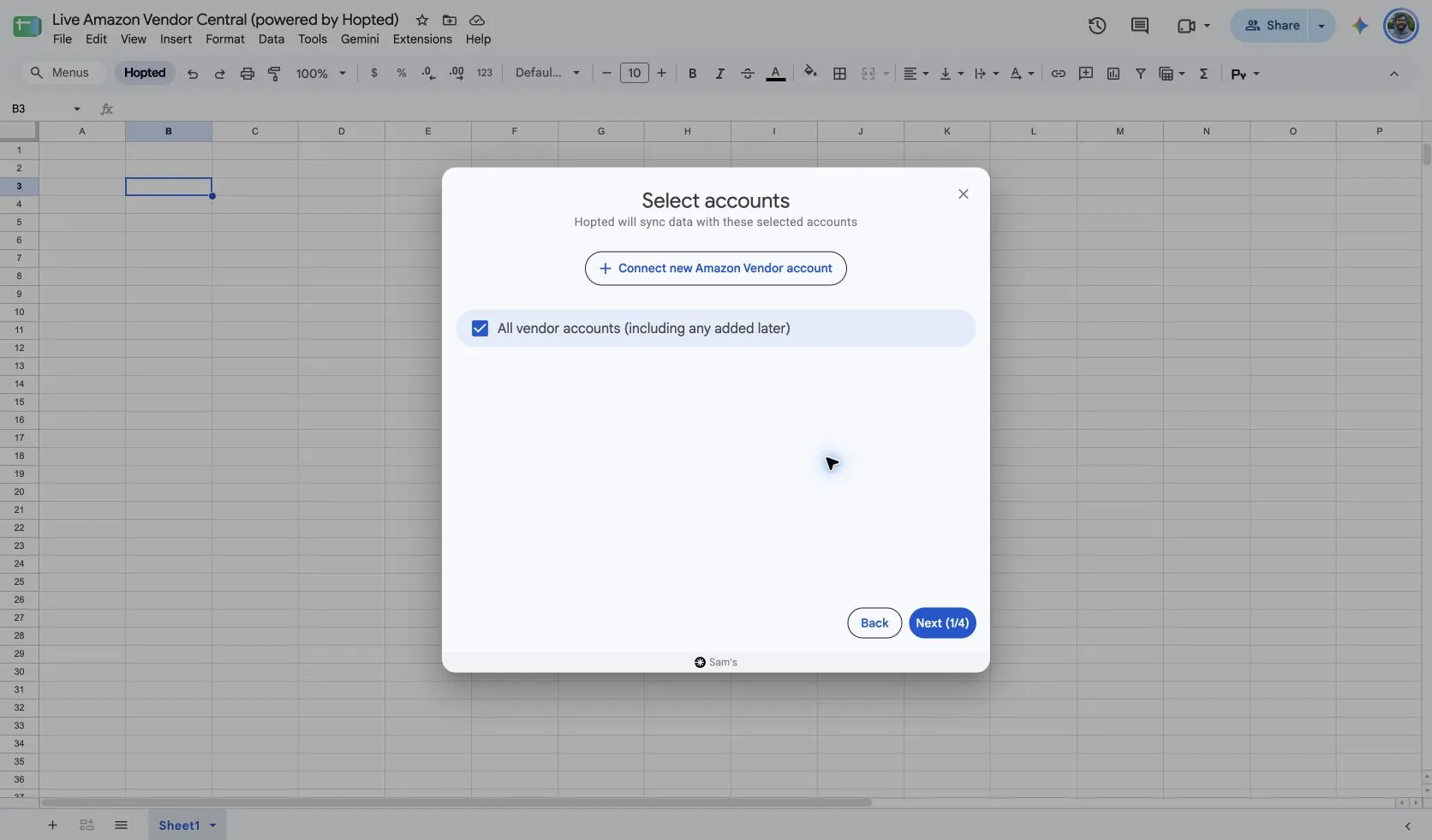
Install Hopted and sign in. Open your Google Sheet, click Hopted, then Add new data sync and Amazon Vendor Central. Select the vendor accounts to include. For a combined view, choose All vendor accounts (including any added later).
2. Choose the source, settings, and columns
Choose Vendor Purchase Orders in the source list and use Add beside the fields you need. Review the source settings where present. The screenshot below shows this source in the current Hopted picker.
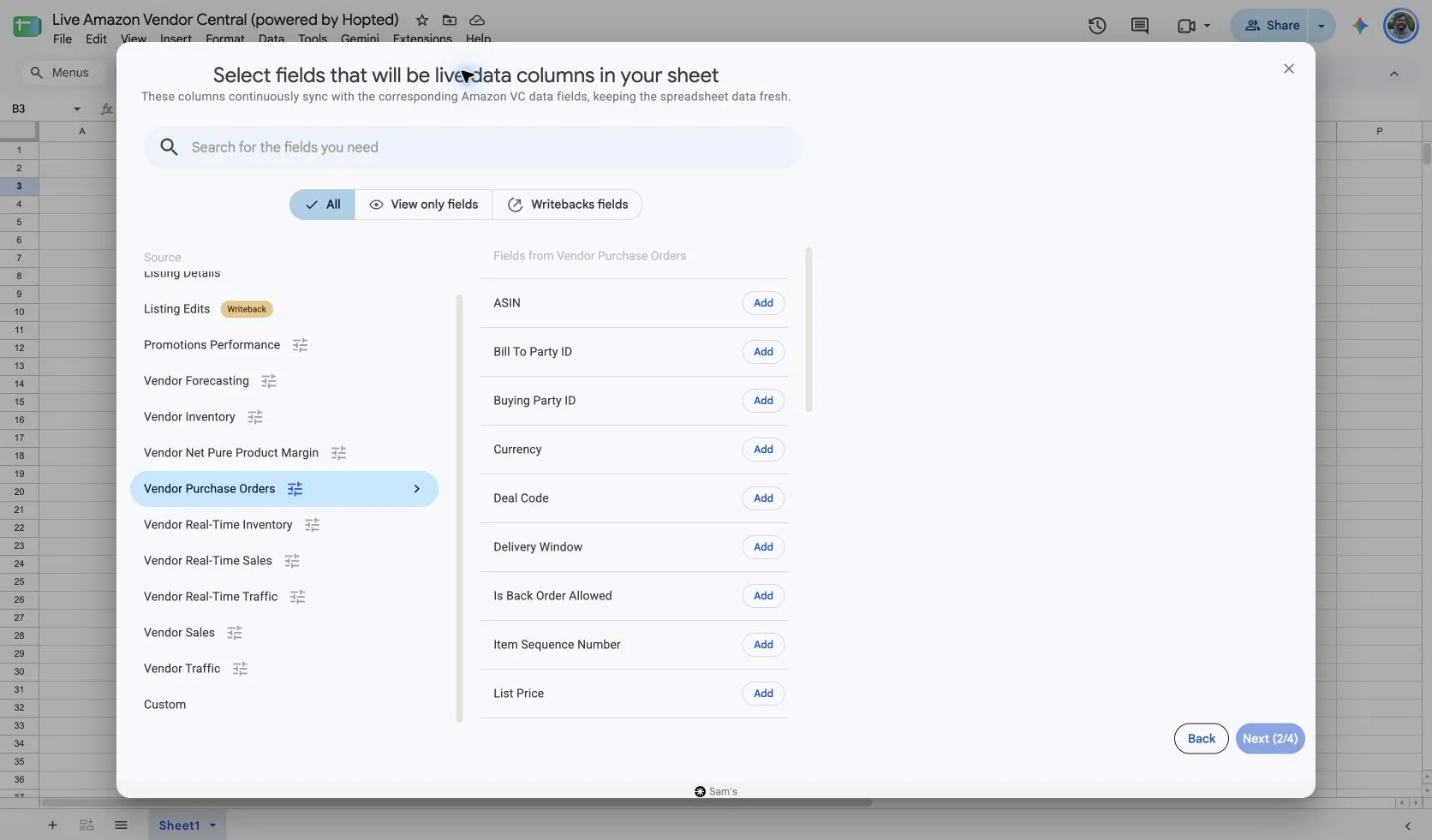
Select Vendor Purchase Orders in Hopted. The captured Ignore closed purchase orders older than this many days setting is 30 days. Choose a longer supported window if your review needs older closed orders.
The closed-order cutoff is based on the order’s creation date, rather than the date it was closed. Keep Order Date visible so readers understand why an older order may be outside the selected scope.
Select item fields such as Vendor SKU, Ordered Quantity, and Unit Of Measure. Keep Order Number with item detail: one purchase order can contain several products.
3. Review optional filters
Leave filters unset for a broader import, or add a filter for the specific records you want to review. Check account, date-range, and filter choices when an expected result is missing.
4. Choose a refresh schedule
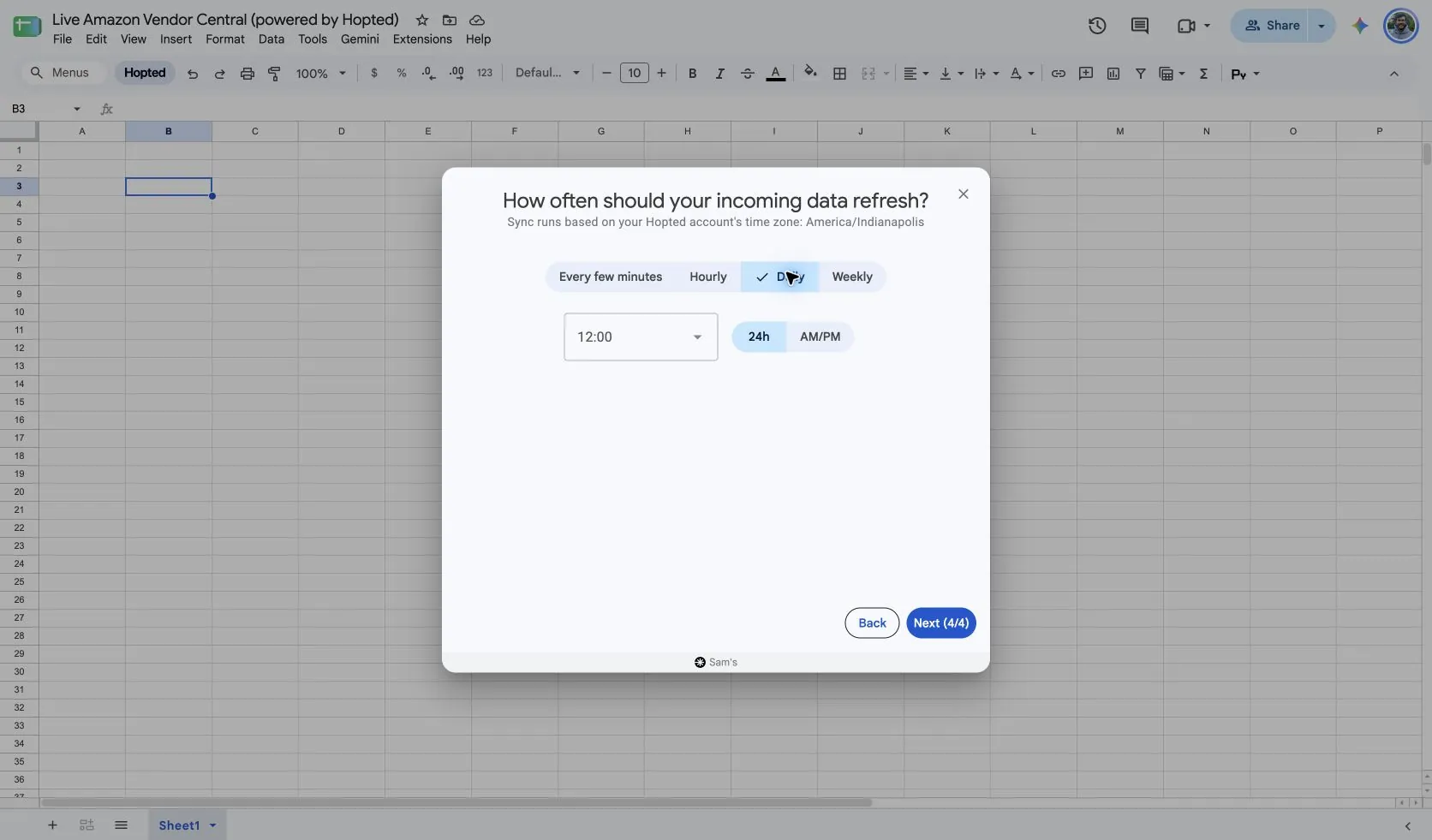
Hopted offers every-few-minutes, hourly, daily, and weekly schedules. The schedule uses the time zone shown for your Hopted account. Choose a cadence that fits the report and your review; a faster schedule cannot make Amazon publish data sooner.
5. Review and create the Sync
Check the accounts, selected fields, source settings, filters, and refresh schedule. Choose Create new Sync when the configuration is ready. Review the imported rows before adding calculations or sharing a dashboard.
How to use the report
- Build an open-order review using Order Number, Order State, Ship Window, and Delivery Window. Add your own owner and action notes separately from the imported fields so the team can prioritize follow-up without altering Amazon orders.
- Create an item-level supply view using Vendor SKU or ASIN, Ordered Quantity, and Unit Of Measure. Compare it with your internal available stock and production plan. Check pack or unit-size assumptions before adding quantities across products.
- Use Order Changed Date to focus on recently changed orders. Inspect the relevant order in Vendor Central before taking action. Retain recent closed orders for context within your selected window.
What to check before comparing results
This is a read/import workflow. It does not acknowledge purchase orders, issue invoices, book deliveries, send advance shipment notices, or resolve deductions. Complete those actions through the appropriate authorized workflow.
The retention setting limits older closed orders, so this sheet is not automatically a complete historical archive. Item rows can repeat Order Number; count distinct order numbers when calculating the number of purchase orders.
Keep Unit Of Measure and Unit Size with quantities. Case quantities may not equal individual units; multiplying Net Cost by a displayed quantity may not produce a comparable total.
Availability depends on the vendor account, marketplace, permissions, and the data Amazon supplies. Keep row dimensions intact when joining reports. For longer-term comparisons, review Hopted Data history.
Questions and answers
How do I export Vendor Purchase Orders to Google Sheets?
Open Hopted in Google Sheets, choose Amazon Vendor Central, select your vendor accounts, and choose Vendor Purchase Orders. Add the columns you need, review its settings and optional filters, then choose a refresh schedule and create the Sync.
Does importing a purchase order acknowledge it?
No. Importing only retrieves the reported order data. Acknowledgment is a separate action.
Why are some older closed orders missing?
The selected closed-order retention window filters them by their creation date. Increase the supported window if you need a broader operational review.
Sources and verification
Source names, example fields, and setup screens were checked in Hopted’s Vendor Central picker on October 14, 2026. Screenshots come from the supplied “Live Amazon Vendor Central (powered by Hopted)” Google Sheet.
See the Amazon Vendor Central connector for the connection overview, or return to the Vendor Central reports directory.