Create a missing Amazon parent SKU
When Amazon expands a variation family into another marketplace, it may copy the parent and child ASINs and create the child seller SKUs, but leave the parent seller SKU missing.
Without that SKU, you cannot submit the expected parent-child relationships from your seller account, and Amazon may eventually treat the children as standalone listings. This guide shows how to create the missing parent SKU from Google Sheets. Once it is ready, repair the variation family.
Before you begin
- Choose an existing child listing in the destination Amazon seller account and marketplace.
- Use variations with the same brand and a variation theme supported for the product.
- Make sure an admin of your Hopted account can review and submit the Writebacks.
Get started with the template
The template adds the configured columns and a START HERE guide to your Google spreadsheet.
- In your Google spreadsheet, open Hopted → Pre-made solutions.
- Find Create Parent SKUs (Writebacks) and select Use solution.
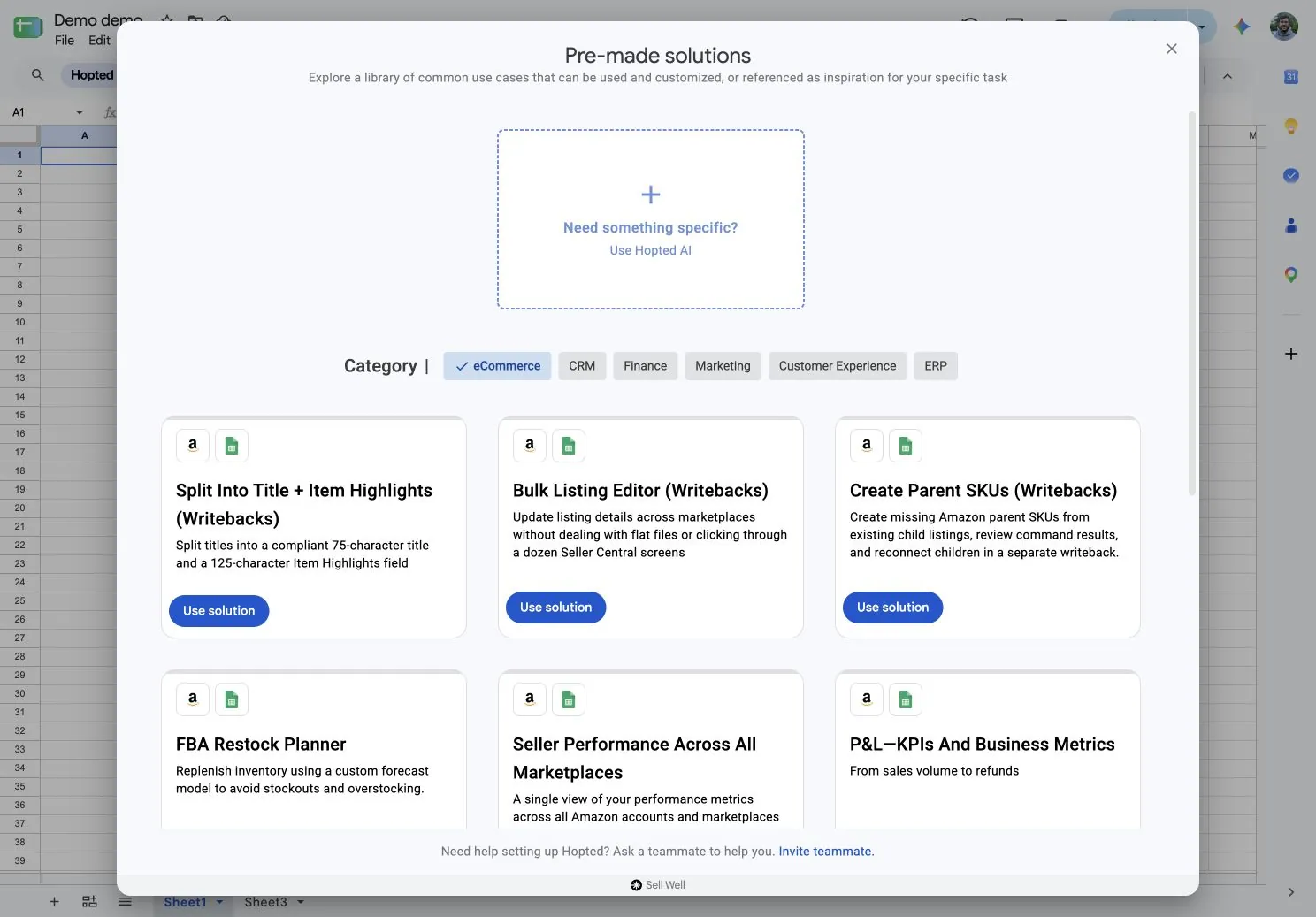
- Choose your Amazon Seller Central account and destination marketplaces when prompted.
- Open the copied Parent SKU Manager tab and wait for the child listings to sync.
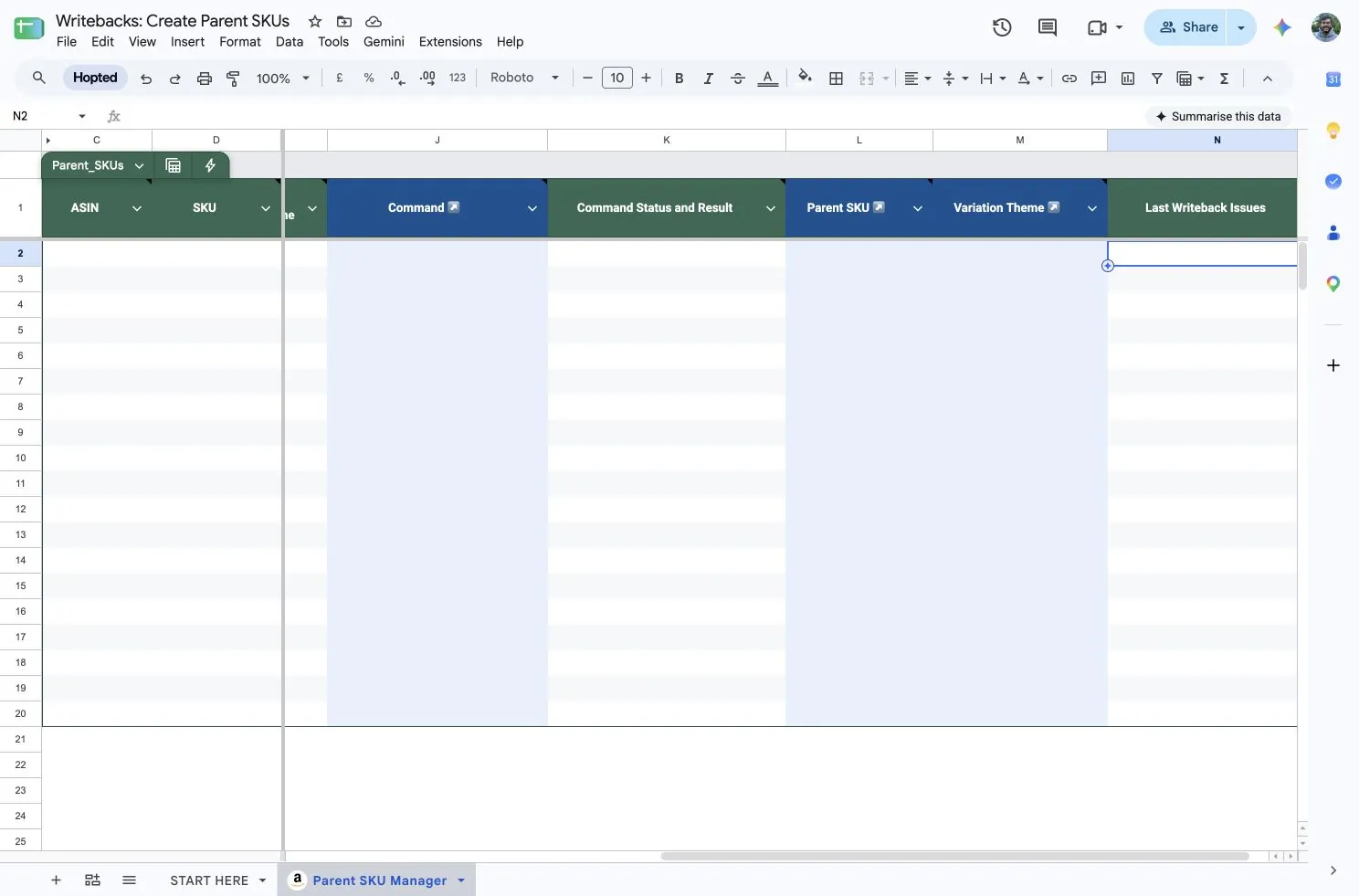
Once the child rows have loaded, continue with Create the parent. The template already includes the columns described in the manual setup below.
1. Add the columns
To choose the columns yourself:
- Create an Amazon Seller Central sync or edit an existing sync for the destination account and marketplace.
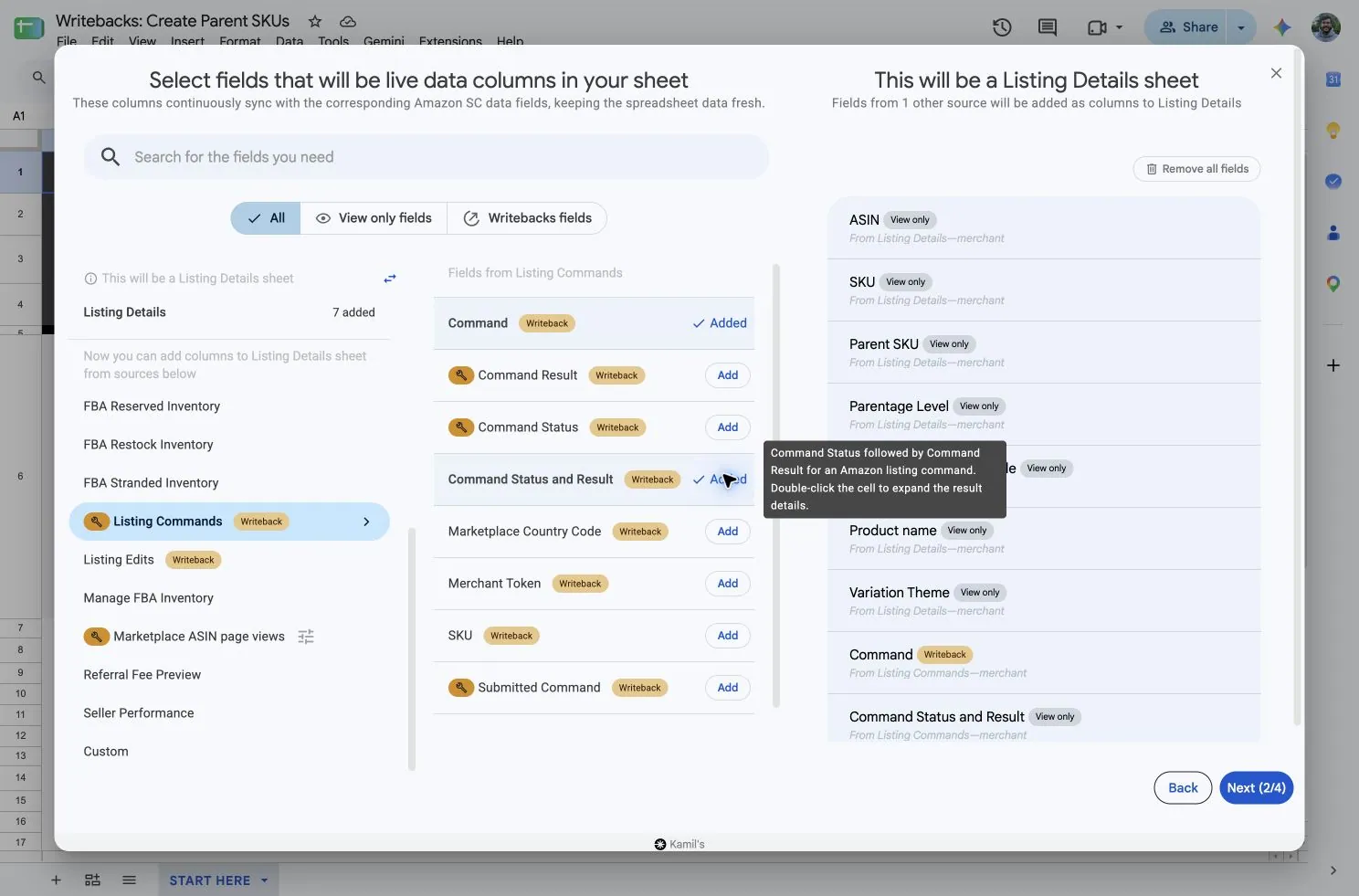
- First add a field from Listing Details to make it the primary source for the existing child rows. Include SKU, ASIN, and Marketplace Country Code so you can identify each destination.
- In the field picker, add Command and Command Status and Result from Listing Commands. The Command column is editable; the result column is view-only.
- Save the sync and wait for the child rows to import. If you use several sheet tabs, configure and save each sync separately.
If Listing Commands is missing from the field picker, contact Hopted to enable access.
2. Create the parent
- Choose one existing child row from the intended family in the destination marketplace.
- In that row’s Command cell, enter the command below, replacing
DEMO-PARENT-SAwith the real parent SKU you want to create. Use the seller SKU, not the parent ASIN.
CREATE_PARENT_SKU: DEMO-PARENT-SA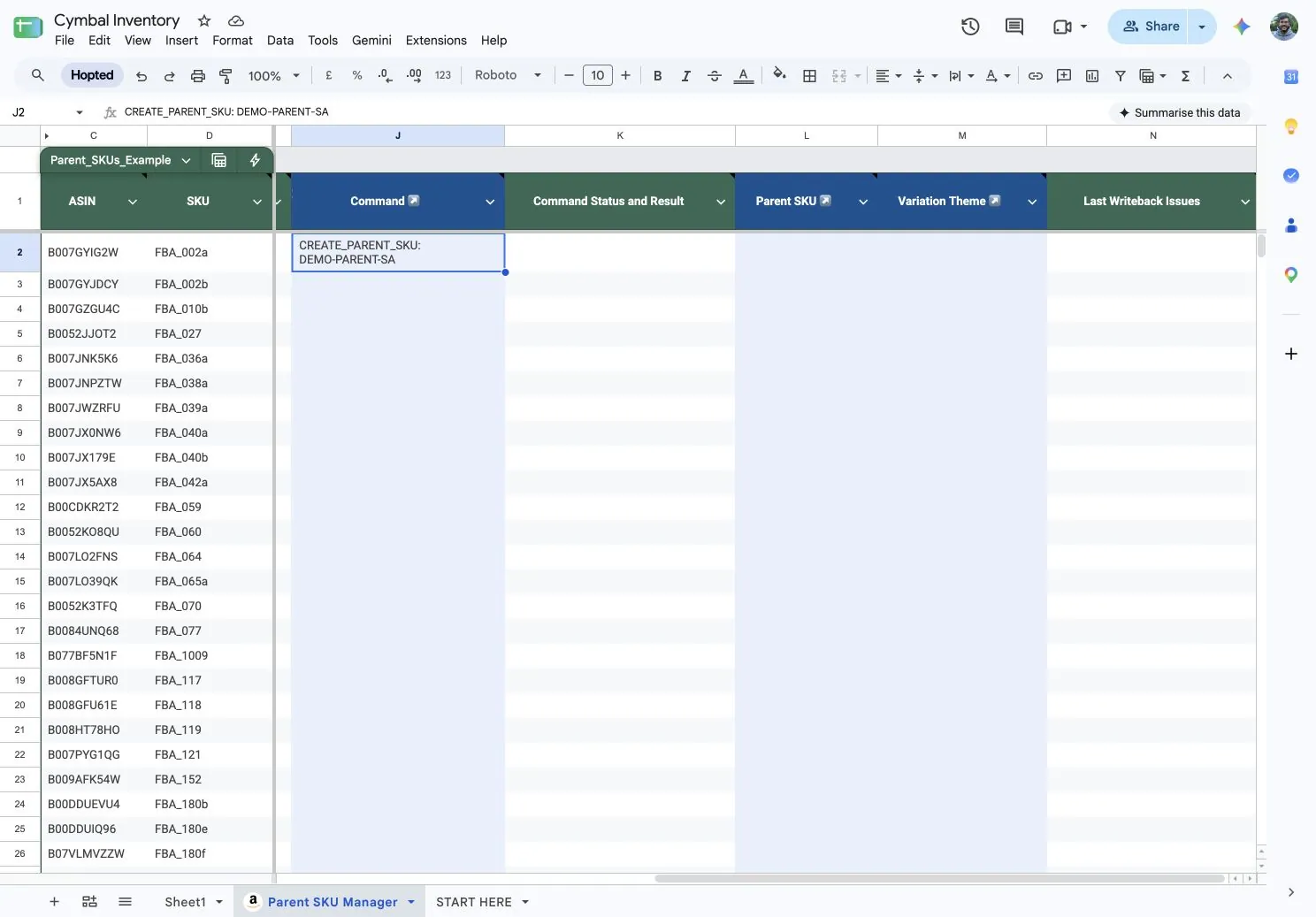
The parent SKU must contain 1–40 characters and no tabs or line breaks. Submit once per parent, seller account, and marketplace; you do not need the command on every child row.
- Select only the Command cell. Open Hopted → Writebacks → Edits in selected range.
- Wait for the review to load. Check the source child SKU, destination account, marketplace, and command. Exclude unrelated edits.
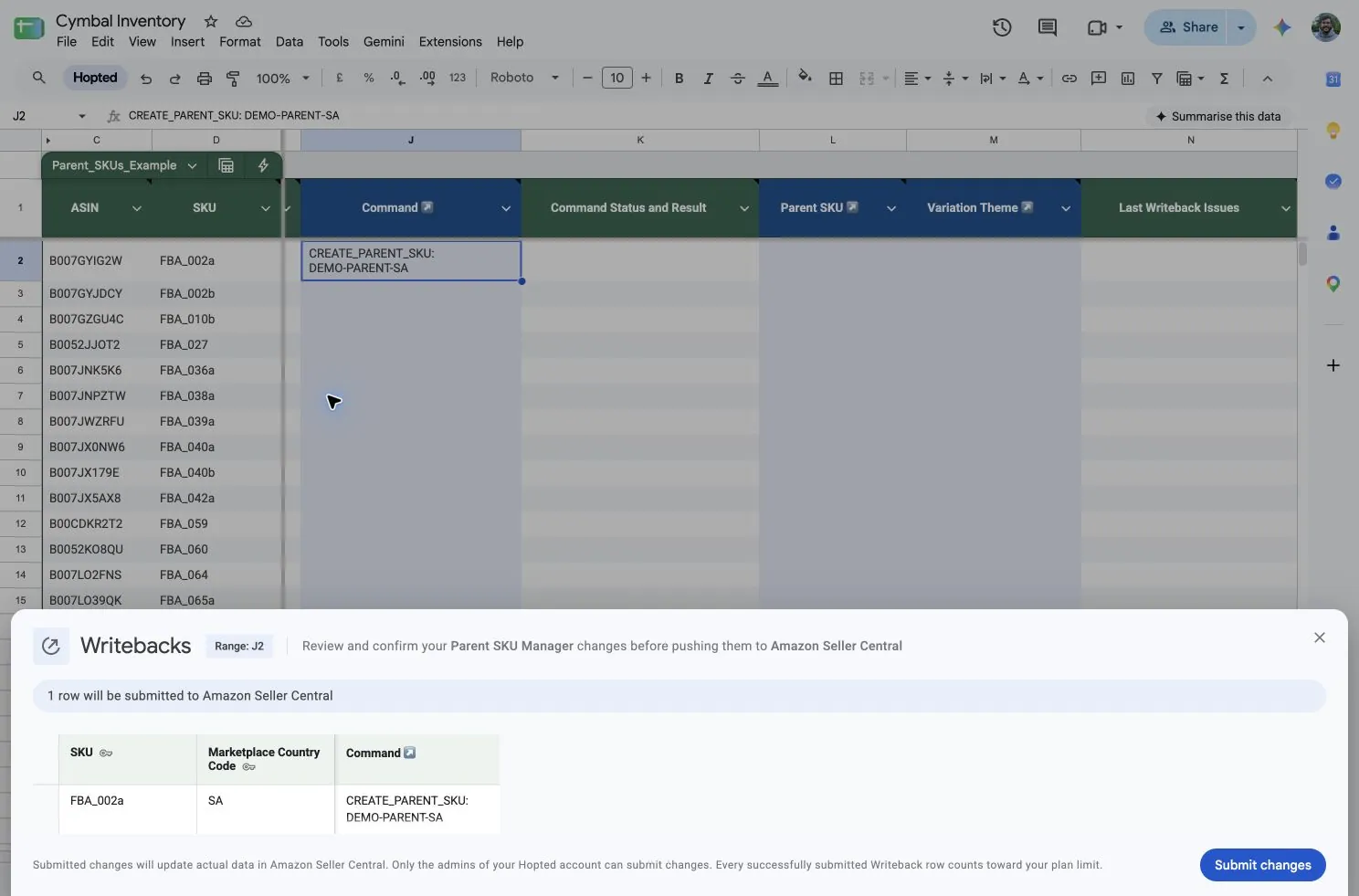
- Have an account admin select Submit changes.
Hopted uses your seller listing information first, with Amazon catalog information as a fallback. Typing a new row into the sheet does not create the parent; submitting the command does.
- To create parents in bulk, enter one command per parent, seller account and marketplace on the appropriate child rows.
- Review and submit them together through Writebacks.
3. Check the result and parent readiness
- Read Command Status and Result on the source child row.
- Double-click the cell to expand it. Status can be Pending, Processing, Completed, or Failed.
Completed does not always mean the parent is ready.
- If the result says Amazon accepted the submission for processing, wait and check the exact parent SKU in Seller Central for that marketplace.
- Confirm that the parent exists and has no blocking errors before continuing. A compatible existing parent is reported with its actual ASIN.
Next: connect the children
Creating the parent does not connect its children. Once the parent is ready, follow Build or repair Amazon variation families to submit the child relationships separately.
If the command fails
- Source SKU not found: use a child that exists in the selected seller account and destination marketplace.
- Parent already exists but is incompatible or has blocking errors: check that SKU in Seller Central and resolve the reported problem before retrying.
- Missing product information or variation theme: correct the source listing or use another suitable child from the same family. Read the full result for the missing requirement.
- Temporary Amazon error: Hopted may retry automatically. Check the current result before submitting the same command again.
If you need help resolving an error, see Troubleshoot Writebacks.