Build or repair Amazon variation families
Connect existing child listings to the right parent directly from Google Sheets. Build a family from standalone listings, or reconnect children that have become separated.
Before you begin
- Use an existing parent SKU and child listings in the same Amazon seller account and marketplace.
- Use variations with the same brand and a variation theme supported for the product.
- Make sure an admin of your Hopted account can review and submit the Writebacks.
If the parent SKU is missing, create it first and confirm it is ready before connecting the children.
1. Add the columns
- Create or edit a sync for the child listings in the destination account and marketplace.
- First add a field from Listing Details as the primary source. Include SKU, ASIN, the current Parent SKU and Variation Theme, plus Marketplace Country Code.
- Add editable Parent SKU and Variation Theme from Listing Edits, with Last Writeback Issues for the results.
- Save the sync and wait for the child rows to import.
Check each column’s source: Listing Details shows the current state; Listing Edits is where you prepare changes.
2. Connect or reconnect the children
- On each intended child row, enter the same parent seller SKU in the editable Parent SKU column. Use the SKU, not the parent ASIN.
- Check Variation Theme and the attributes it requires, such as size or color. Use the valid theme and values for that product and marketplace.
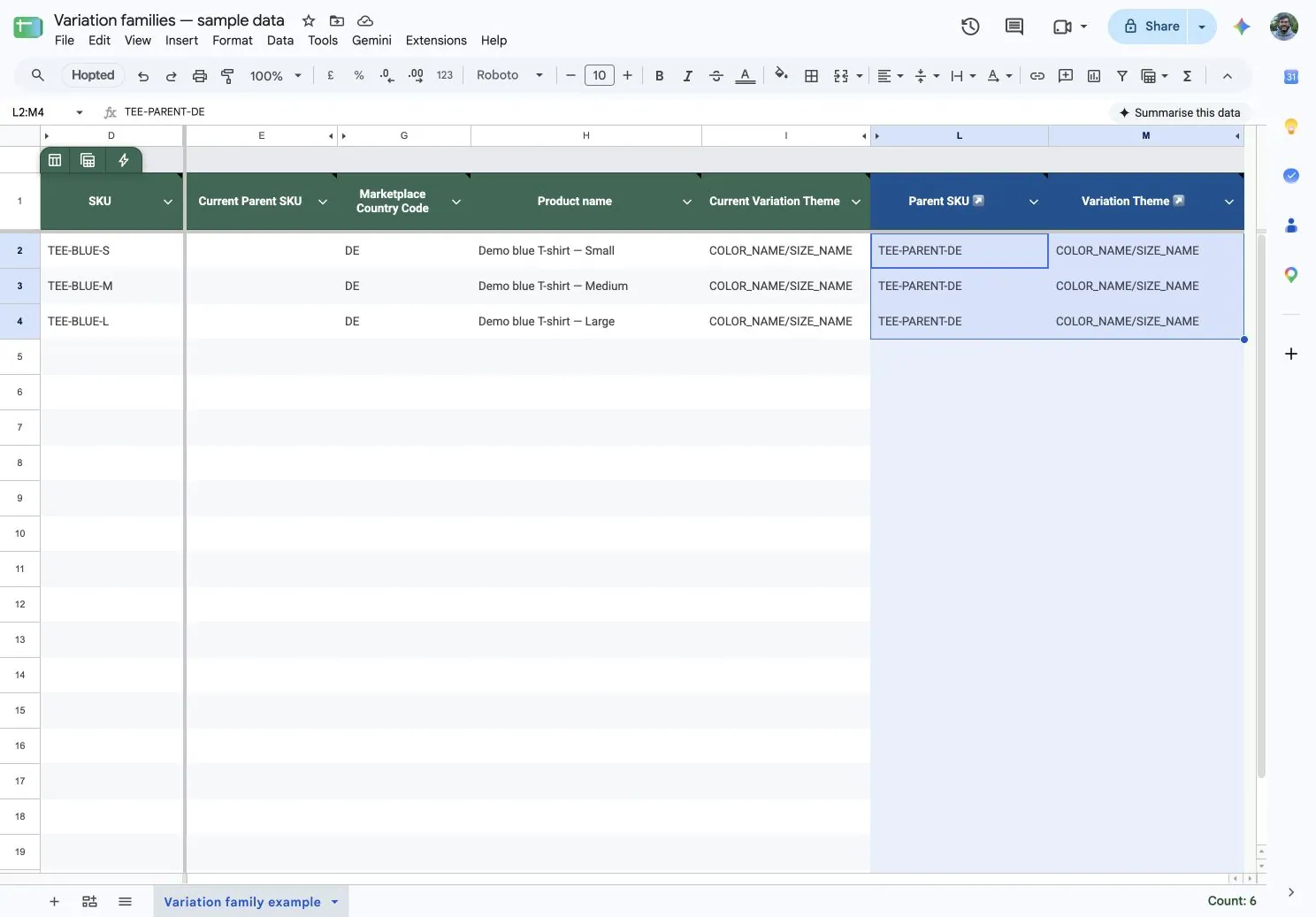
You can prepare several families in one sheet: each child gets the parent SKU for its own family. Use imported child rows; adding a new row to the sheet does not create an Amazon listing.
3. Review and submit the family updates
- Select only the Parent SKU cells and any variation fields you deliberately changed.
- Open Hopted → Writebacks → Edits in selected range. Wait for the complete review to load.
- Check the child SKUs, destination account, marketplace and proposed values. Exclude unrelated edits, including blank cells that would clear a supported field.
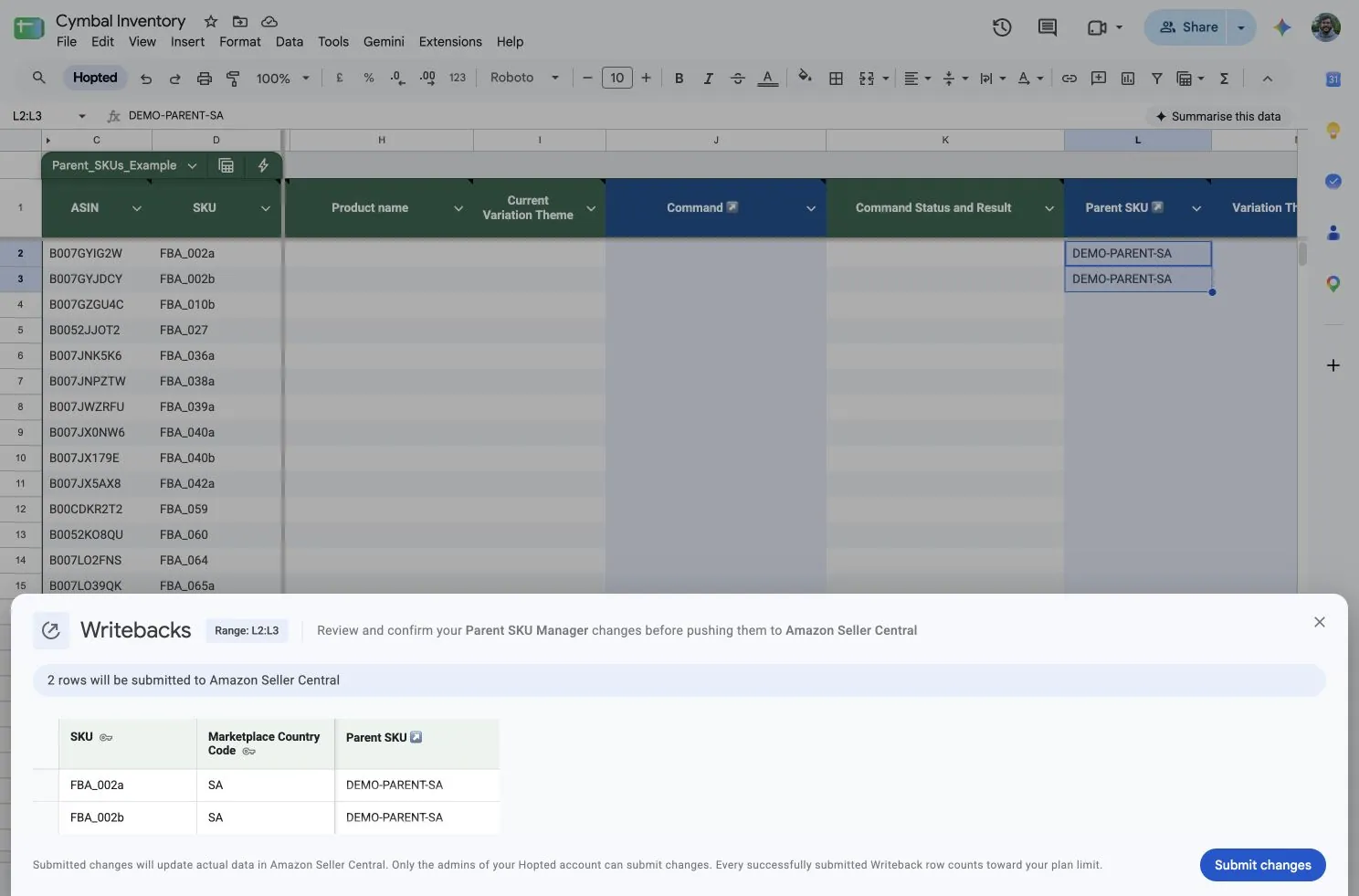
- Have an account admin select Submit changes.
4. Check the resulting family
- Check the completion email and Last Writeback Issues.
- Confirm the intended children appear under the right parent in Seller Central for that marketplace.
A successful submission does not confirm the family is already updated. Wait for processing and check the result before sending the same edits again.
If the family is still incorrect
- Parent SKU missing:
- Create the parent and confirm it is ready.
- Submit the child updates separately.
- Variation theme or attributes rejected: check the product’s supported theme and required values, including size or color.
- Changes not reflected: read the reported issues and check the exact seller account and marketplace before retrying.
If you need help resolving an error, see Troubleshoot Writebacks.