Promotions Performance: export and sync to Google Sheets
Review promotion funding, product sales, revenue, and campaign status in Google Sheets.
What this report tells you
Promotion revenue is only one part of the review. Vendor teams also need to see which products sold, how much funding supported the promotion, and whether the promotion has finished. Hopted brings those details into one spreadsheet so you can compare campaigns, prepare a post-promotion review, and trace results to the relevant vendor code and funding agreement.
Useful columns to start with
Choose a focused set of columns for your task. These are examples from Hopted’s current Vendor picker, rather than an exhaustive field list.
- Promotion ID — Identify each promotion reliably even when names look similar.
- Promotion Name — Make the review readable for colleagues who plan and fund deals.
- Promotion Type — Compare like-for-like types rather than mixing different promotional mechanics.
- Status — Separate pending or canceled promotions from the campaigns you intend to analyze.
- Start DateTime — Check when the promotion starts, alongside End DateTime.
- Vendor Code — Keep the funding relationship clear across connected vendor accounts.
- Product Revenue — Review an included ASIN using product revenue and its currency code.
- Product Units Sold — Compare product unit volume within each promotion.
- Product Amount Spent — Keep product-level funding beside sales, using its matching currency code.
- Funding Agreement ID — Connect a promotion review to the relevant funding agreement.
Keep Store name, marketplace, date or time fields, and Currency where available. This context helps keep different accounts, periods, and monetary amounts distinct.
How to export Promotions Performance to Google Sheets
1. Connect Amazon Vendor Central to Google Sheets
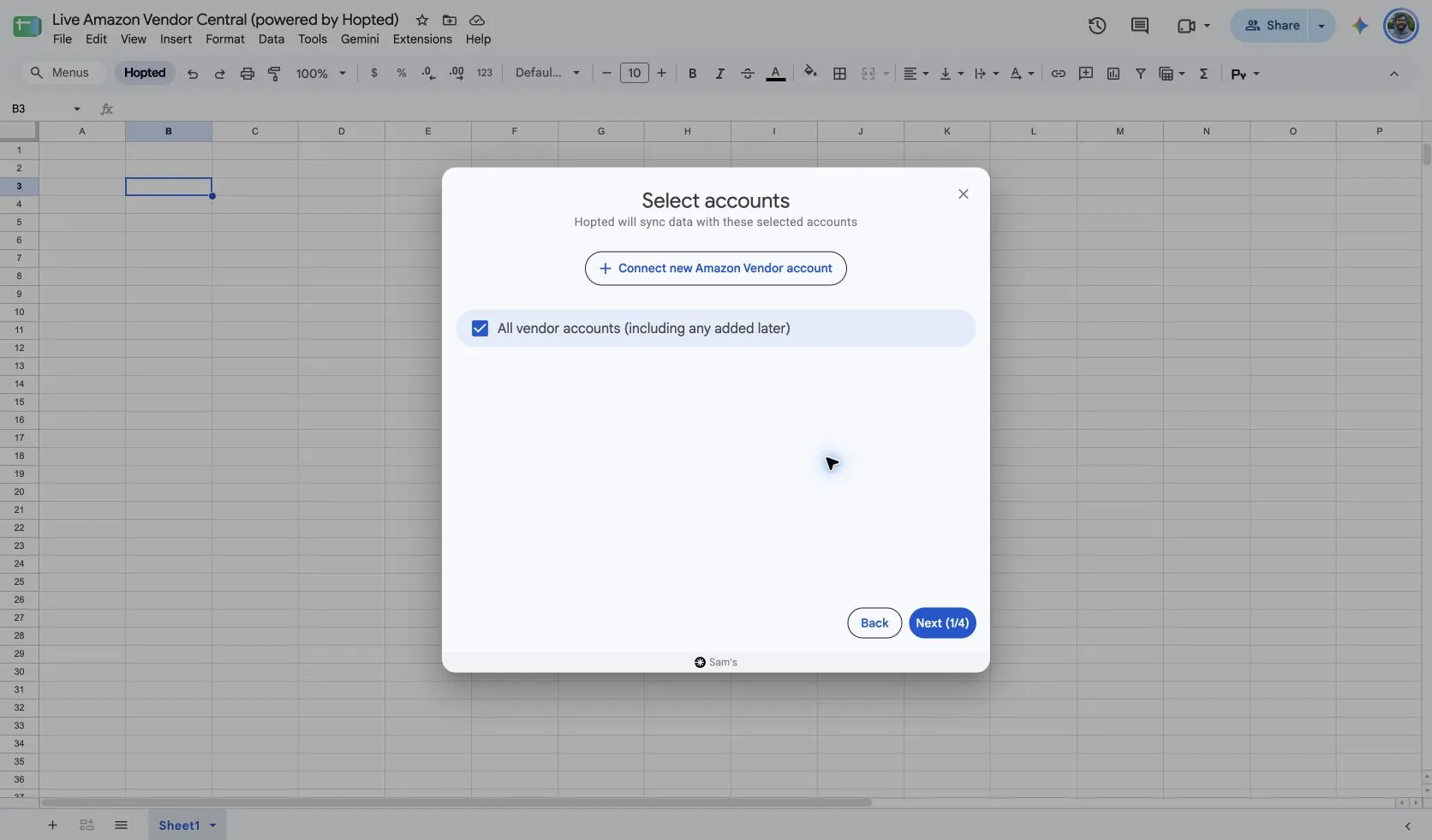
Install Hopted and sign in. Open your Google Sheet, click Hopted, then Add new data sync and Amazon Vendor Central. Select the vendor accounts to include. For a combined view, choose All vendor accounts (including any added later).
2. Choose the source, settings, and columns
Choose Promotions Performance in the source list and use Add beside the fields you need. Review the source settings where present. The screenshot below shows this source in the current Hopted picker.
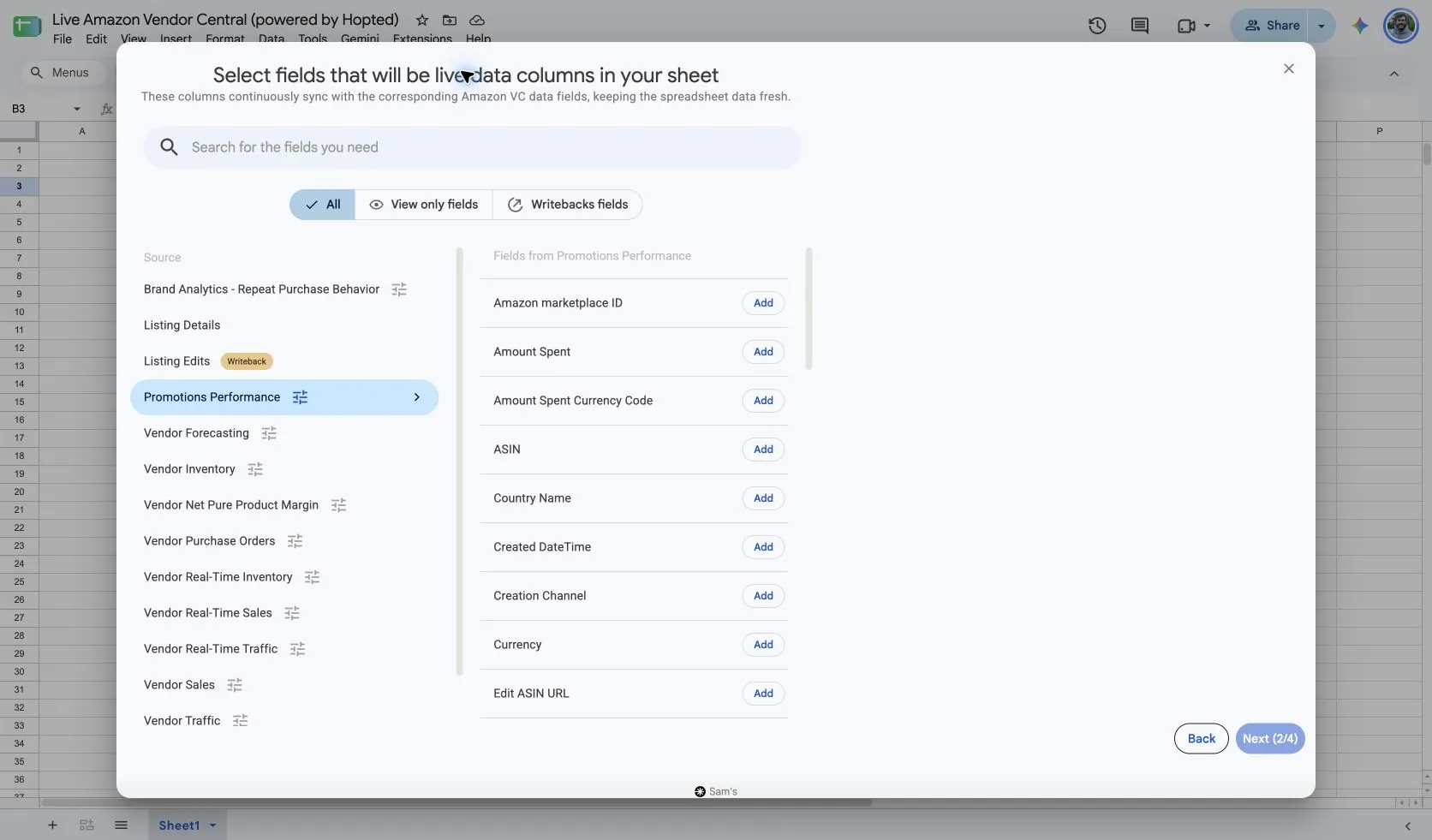
The verified setup shows two separate controls: Include records from and Include promotions from, both set to Last 30 days. Review both before continuing. Keep promotion Start DateTime and End DateTime visible so your spreadsheet makes the selected campaign window clear.
Amazon selects promotions by their start date-time. A campaign that began before your selection may be absent even if it ran during the period you are reviewing. Widen the promotion selection when reviewing an older campaign.
3. Review optional filters
Leave filters unset for a broader import, or add a filter for the specific records you want to review. Check account, date-range, and filter choices when an expected result is missing.
4. Choose a refresh schedule
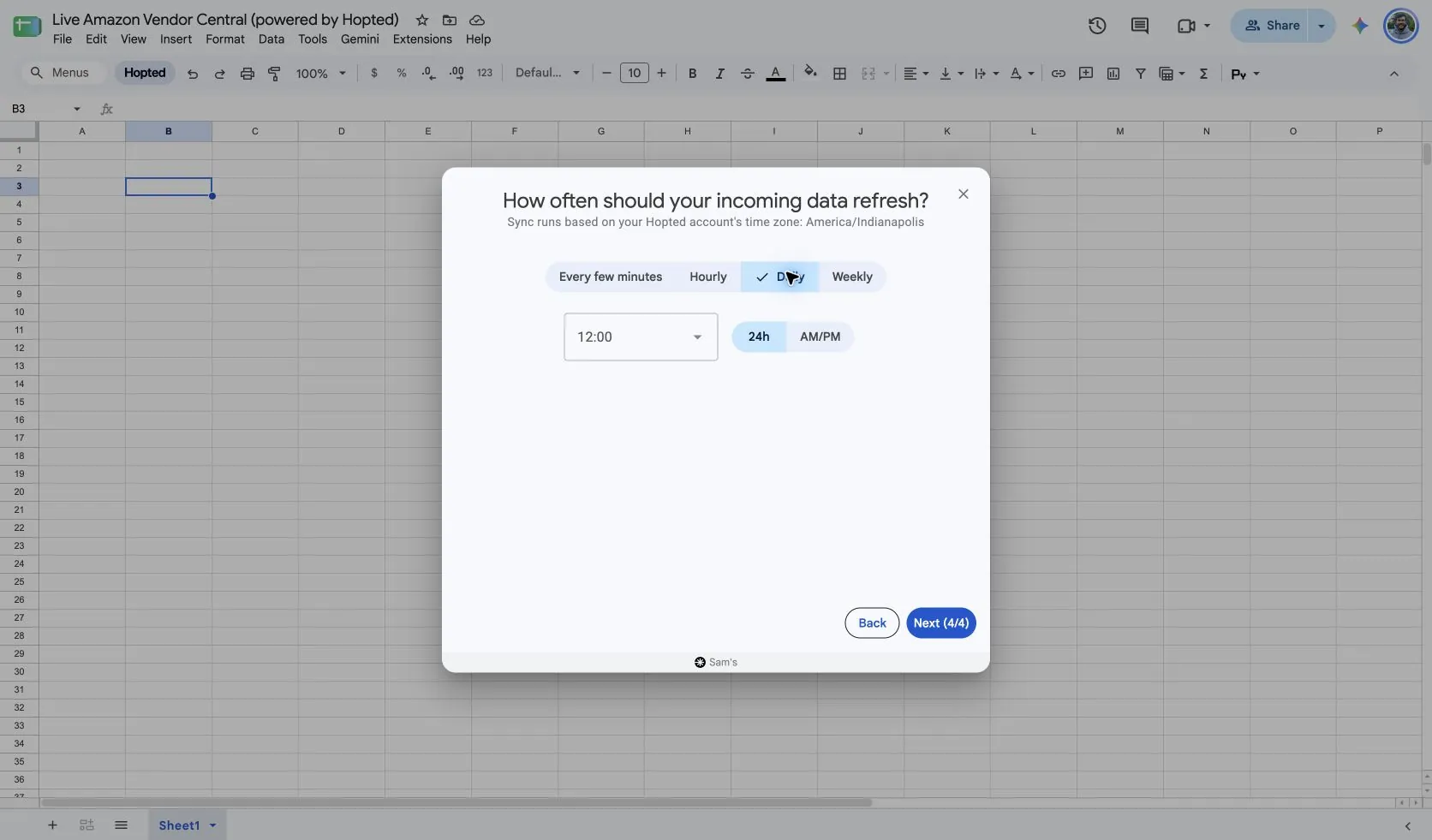
Hopted offers every-few-minutes, hourly, daily, and weekly schedules. The schedule uses the time zone shown for your Hopted account. Choose a cadence that fits the report and your review; a faster schedule cannot make Amazon publish data sooner.
5. Review and create the Sync
Check the accounts, selected fields, source settings, filters, and refresh schedule. Choose Create new Sync when the configuration is ready. Review the imported rows before adding calculations or sharing a dashboard.
How to use the report
- Prepare a completed-promotion review. Filter by the relevant vendor account and promotion, check its status and end date, then compare product units, revenue, and funding. Keep a short note with the decision to repeat, adjust, or investigate the promotion.
- Find differences within a multi-product promotion. Use Promotion ID with ASIN, then sort Product Revenue or Product Units Sold to see which products contributed. Join Listing Details when the product names need a clearer catalog reference.
- Build a funding comparison using the same currency and promotion type. If using promotion-wide Revenue or Amount Spent, count each Promotion ID once; use Product Revenue and Product Amount Spent for an ASIN-level view.
What to check before comparing results
Promotion totals and product totals answer different questions. Do not sum a repeated campaign total across product rows. Amount Spent refers to promotion funding, not Amazon Ads click spend. The report updates daily; an active promotion is cumulative through the preceding day. Revenue and funding alone do not establish net profit or incremental sales.
Availability depends on the vendor account, marketplace, permissions, and the data Amazon supplies. Keep row dimensions intact when joining reports. For longer-term comparisons, review Hopted Data history.
Questions and answers
How do I export Promotions Performance to Google Sheets?
Open Hopted in Google Sheets, choose Amazon Vendor Central, select your vendor accounts, and choose Promotions Performance. Add the columns you need, review its settings and optional filters, then choose a refresh schedule and create the Sync.
Is this an Amazon Ads campaign report?
No. It covers retail promotions. Use the Amazon Ads directory for sponsored campaign delivery, clicks, and advertising cost.
Why is an older promotion missing?
Check Include promotions from and the actual promotion start date. The start date determines whether Amazon includes the promotion.
When should I review final results?
Amazon documents complete information once the promotion ended at least one day before the request. Check the end date before calling an active result final.
Sources and verification
Source names, example fields, and setup screens were checked in Hopted’s Vendor Central picker on October 14, 2026. Screenshots come from the supplied “Live Amazon Vendor Central (powered by Hopted)” Google Sheet.
See the Amazon Vendor Central connector for the connection overview, or return to the Vendor Central reports directory.