Vendor Real-Time Sales: export and sync to Google Sheets
Track hourly ordered units and revenue for vendor ASINs, including cancellation adjustments.
What this report tells you
Vendor Real-Time Sales reports ordered units and ordered revenue at hourly granularity for your vendor products. Exporting it to Google Sheets gives you a practical view of demand during promotions, launches, and other short-term events. These are customer orders for Amazon retail products, rather than purchase orders placed with your company. The report complements standard Vendor Sales; it should not be presented as a final shipped-sales or settlement record.
Useful columns to start with
Choose a focused set of columns for your task. These are examples from Hopted’s current Vendor picker, rather than an exhaustive field list.
- ASIN — Match each hourly result to a product.
- Start Time — Identify the beginning of the reported interval.
- End Time — Keep the interval end visible when comparing hourly results.
- Ordered Units — Review customer-ordered units, with cancellation adjustments.
- Ordered Revenue — Review hourly ordered product sales as reported at generation time.
- Currency — Retain monetary context and separate currencies in comparisons.
- Marketplace Country Code — Keep results from different marketplaces separate.
- Store name — Retain connected-account context for shared reviews.
Keep Store name, marketplace, date or time fields, and Currency where available. This context helps keep different accounts, periods, and monetary amounts distinct.
How to export Vendor Real-Time Sales to Google Sheets
1. Connect Amazon Vendor Central to Google Sheets
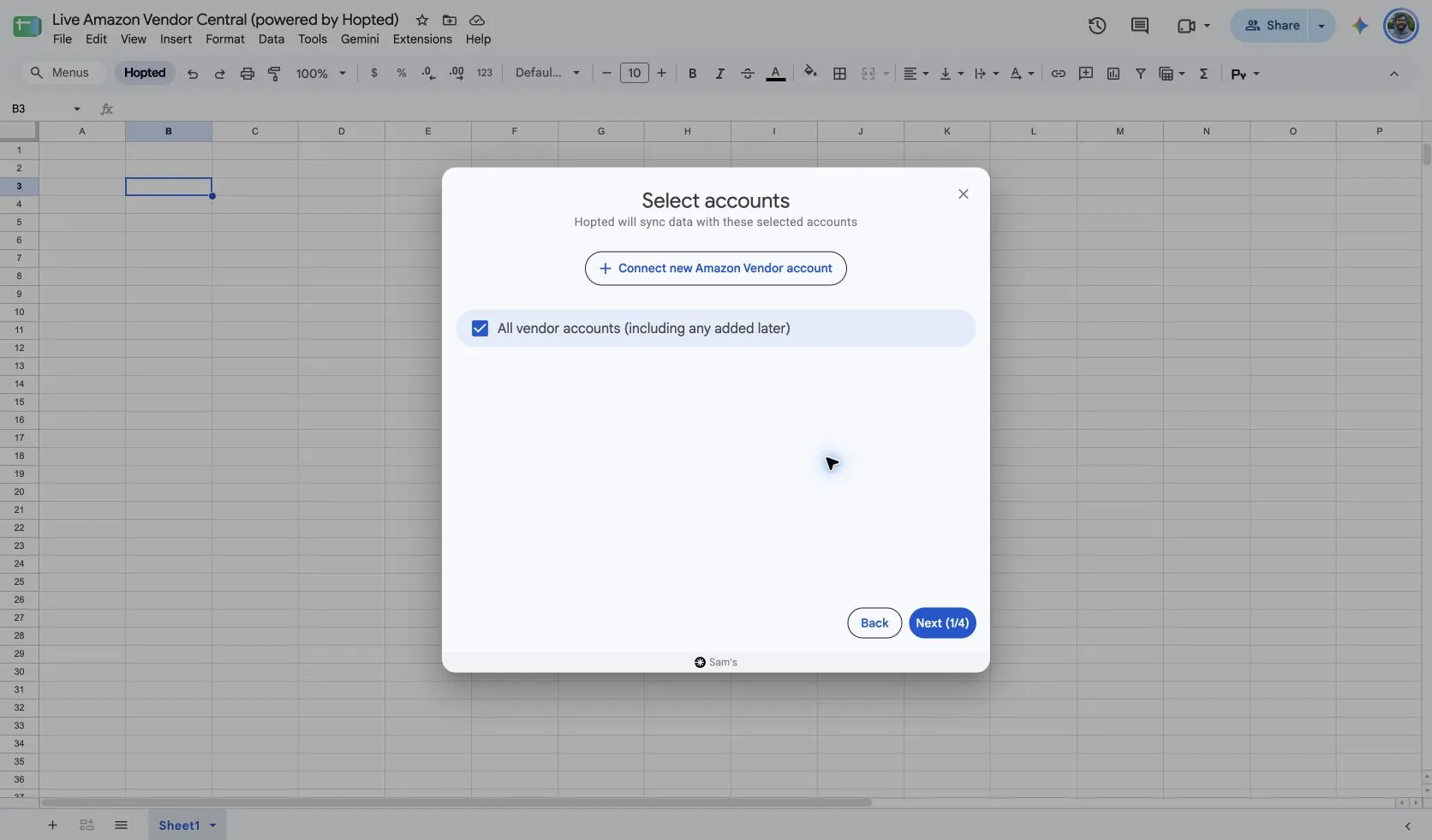
Install Hopted and sign in. Open your Google Sheet, click Hopted, then Add new data sync and Amazon Vendor Central. Select the vendor accounts to include. For a combined view, choose All vendor accounts (including any added later).
2. Choose the source, settings, and columns
Choose Vendor Real-Time Sales in the source list and use Add beside the fields you need. Review the source settings where present. The screenshot below shows this source in the current Hopted picker.
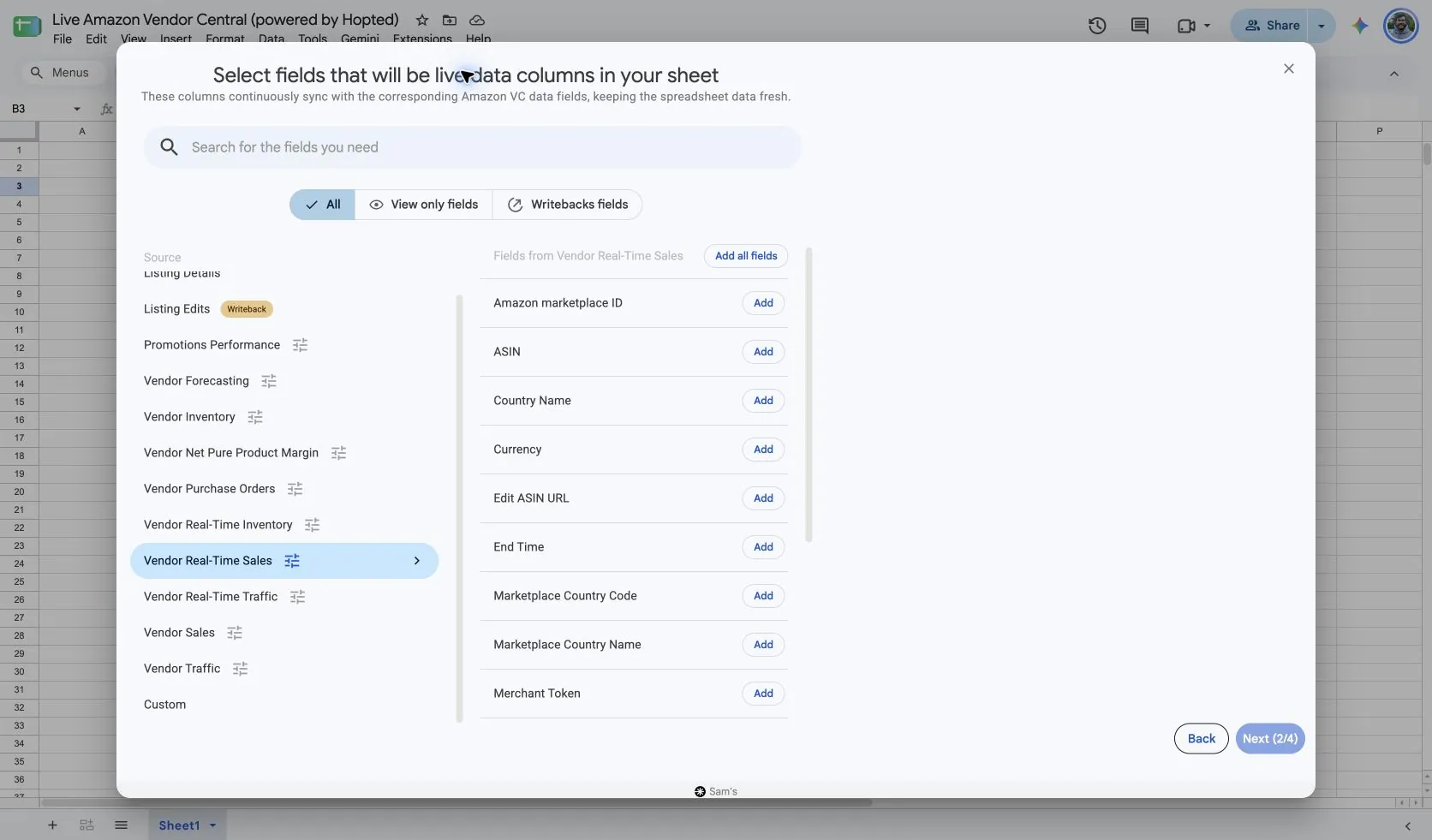
Select Vendor Real-Time Sales in Hopted. Use Include records from: Last 24 hours to begin a recent-demand review. Keep ASIN, Start Time, and End Time visible before adding totals or charts.
Choose a supported longer range when investigating a multi-day event. Hopted allows up to 30 days of lookback and a maximum 14-day span for this source. Recent incomplete hours should not be treated as final.
If you compare sales with Real-Time Traffic or Real-Time Inventory, use matching marketplaces, ASINs, and hour boundaries. A full day and a rolling 24-hour range can cover different observations.
3. Review optional filters
Leave filters unset for a broader import, or add a filter for the specific records you want to review. Check account, date-range, and filter choices when an expected result is missing.
4. Choose a refresh schedule
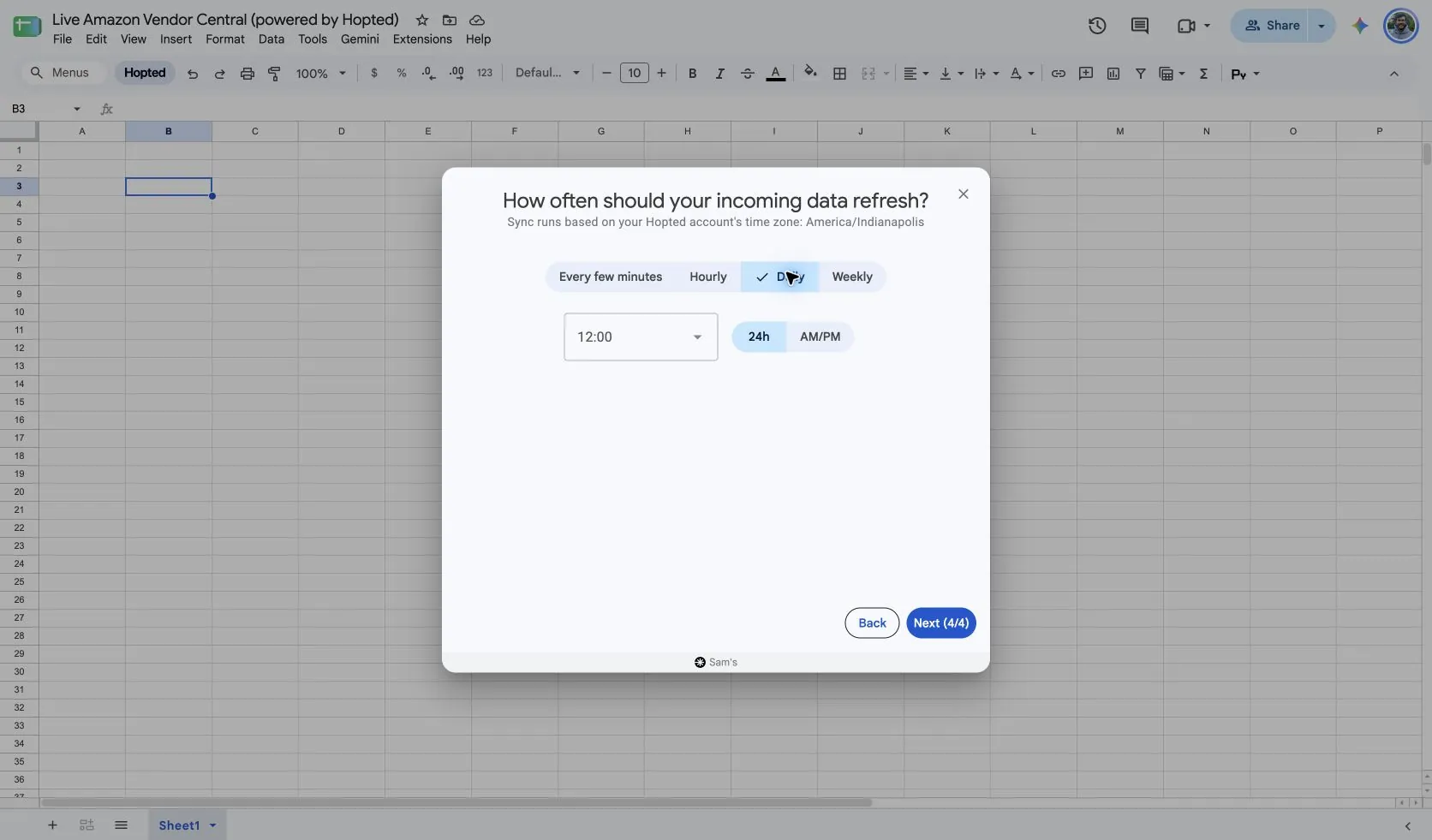
Hopted offers every-few-minutes, hourly, daily, and weekly schedules. The schedule uses the time zone shown for your Hopted account. Choose a cadence that fits the report and your review; a faster schedule cannot make Amazon publish data sooner.
5. Review and create the Sync
Check the accounts, selected fields, source settings, filters, and refresh schedule. Choose Create new Sync when the configuration is ready. Review the imported rows before adding calculations or sharing a dashboard.
How to use the report
- Chart ordered units and revenue for a selected ASIN across completed hours. Identify the shape of demand during a promotion and compare it with the event timing you recorded. Keep the result descriptive unless you have evidence that the promotion caused the change.
- Compare ordered demand with Vendor Real-Time Inventory during the same hours. This helps you prioritize availability investigation when strong demand and a lower available balance appear together. It does not replace receipts or purchase-order detail.
- Use a consistent set of ASINs to prepare an event review. Keep hourly results separate from the standard Vendor Sales report, then compare completed-period totals only after aligning the date scope and the type of sales being measured.
What to check before comparing results
Ordered Units is adjusted for cancellations and can be negative when cancellations exceed new orders. Ordered Revenue is also adjusted for cancellations. A negative observation is therefore not automatically a sync error.
Hourly ordered results are not shipped revenue, final recognized revenue, or payments due to your business. Use standard Vendor Sales for its shipped measures and your financial records for cash or account reconciliation.
Amazon’s available hourly figures can change, and a refresh is constrained by report generation and your schedule. Do not promise minute-by-minute freshness. Separate currencies before calculating a revenue total, and keep the time range visible.
Availability depends on the vendor account, marketplace, permissions, and the data Amazon supplies. Keep row dimensions intact when joining reports. For longer-term comparisons, review Hopted Data history.
Questions and answers
How do I export Vendor Real-Time Sales to Google Sheets?
Open Hopted in Google Sheets, choose Amazon Vendor Central, select your vendor accounts, and choose Vendor Real-Time Sales. Add the columns you need, review its settings and optional filters, then choose a refresh schedule and create the Sync.
Why can Ordered Units be negative?
Amazon adjusts the measure for cancellations. An interval can be negative when cancellations exceed new orders.
Is Ordered Revenue the same as Shipped Revenue?
No. Ordered Revenue describes customer orders; Shipped Revenue describes shipped customer sales in the standard Vendor Sales report.
Sources and verification
Source names, example fields, and setup screens were checked in Hopted’s Vendor Central picker on October 14, 2026. Screenshots come from the supplied “Live Amazon Vendor Central (powered by Hopted)” Google Sheet.
See the Amazon Vendor Central connector for the connection overview, or return to the Vendor Central reports directory.