Vendor Real-Time Traffic: export and sync to Google Sheets
Follow hourly detail-page glance views and compare product interest during short-term events.
What this report tells you
Vendor Real-Time Traffic provides hourly detail-page Glance Views for your vendor products. In Google Sheets, it helps you inspect interest around a promotion, launch, or sudden sales change while keeping product and marketplace context visible. The report complements standard Vendor Traffic, which is better suited to completed reporting-period reviews. It is a retail traffic report, rather than an advertising-delivery report or a record of unique visitors.
Useful columns to start with
Choose a focused set of columns for your task. These are examples from Hopted’s current Vendor picker, rather than an exhaustive field list.
- ASIN — Identify the product whose detail page received views.
- Start Time — Keep the beginning of each reported hour visible.
- End Time — Identify the interval end when aligning hourly reports.
- Glance Views — Review reported product detail-page views during the interval.
- Marketplace Country Code — Separate traffic observations by marketplace.
- Store name — Preserve account context when reviewing multiple connections.
- Product page URL — Open the product page during investigation of a change.
Keep Store name, marketplace, date or time fields, and Currency where available. This context helps keep different accounts, periods, and monetary amounts distinct.
How to export Vendor Real-Time Traffic to Google Sheets
1. Connect Amazon Vendor Central to Google Sheets
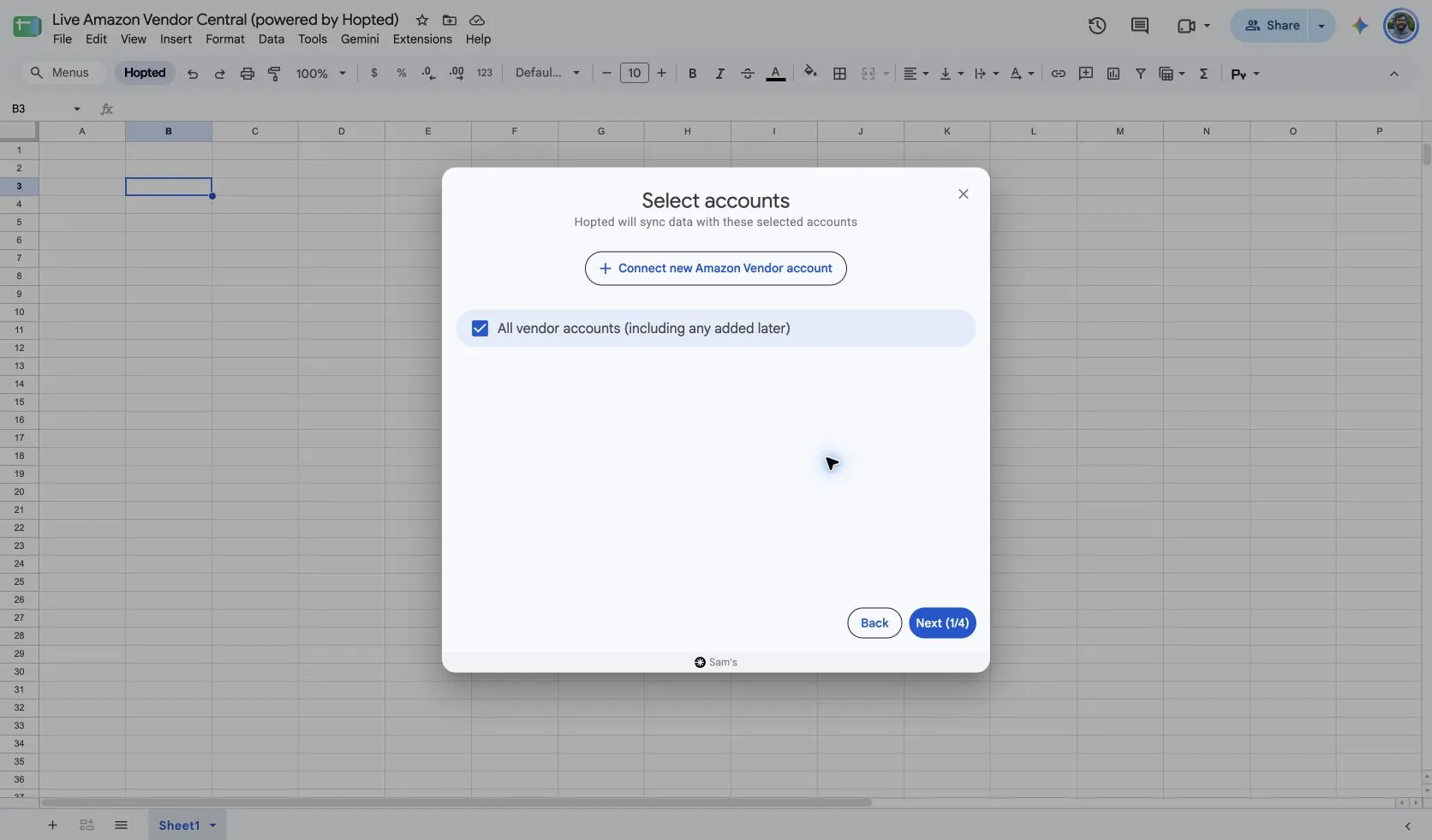
Install Hopted and sign in. Open your Google Sheet, click Hopted, then Add new data sync and Amazon Vendor Central. Select the vendor accounts to include. For a combined view, choose All vendor accounts (including any added later).
2. Choose the source, settings, and columns
Choose Vendor Real-Time Traffic in the source list and use Add beside the fields you need. Review the source settings where present. The screenshot below shows this source in the current Hopted picker.
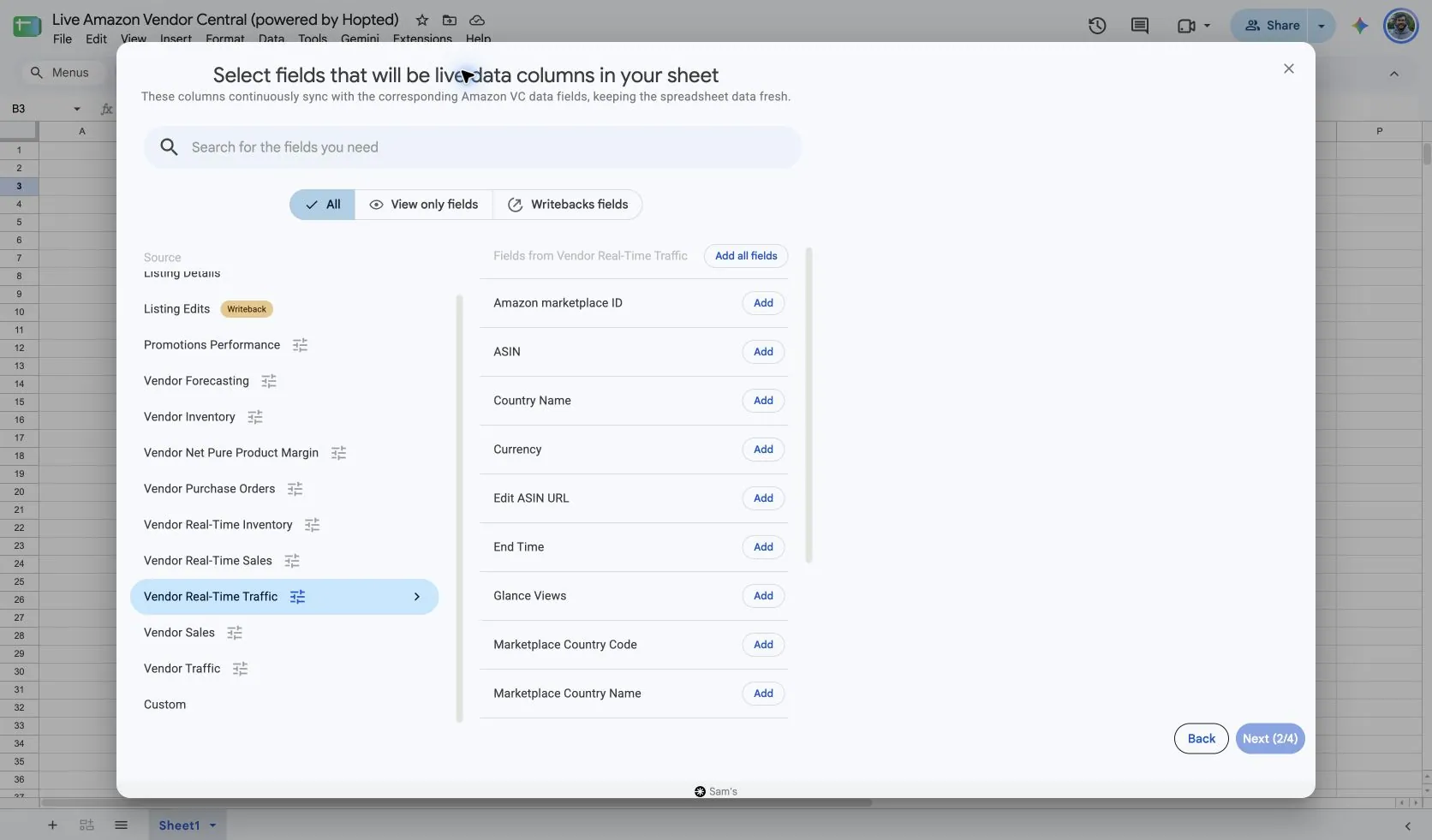
Select Vendor Real-Time Traffic in Hopted and begin with Include records from: Last 24 hours. Keep ASIN and both time columns in the sheet so readers can see exactly which interval each value covers.
Hopted permits up to 30 days of lookback with a maximum 14-day span for this source. Its requested end time includes a longer delay buffer than Real-Time Sales or Inventory, so the latest visible hour may differ between these reports.
3. Review optional filters
Leave filters unset for a broader import, or add a filter for the specific records you want to review. Check account, date-range, and filter choices when an expected result is missing.
4. Choose a refresh schedule
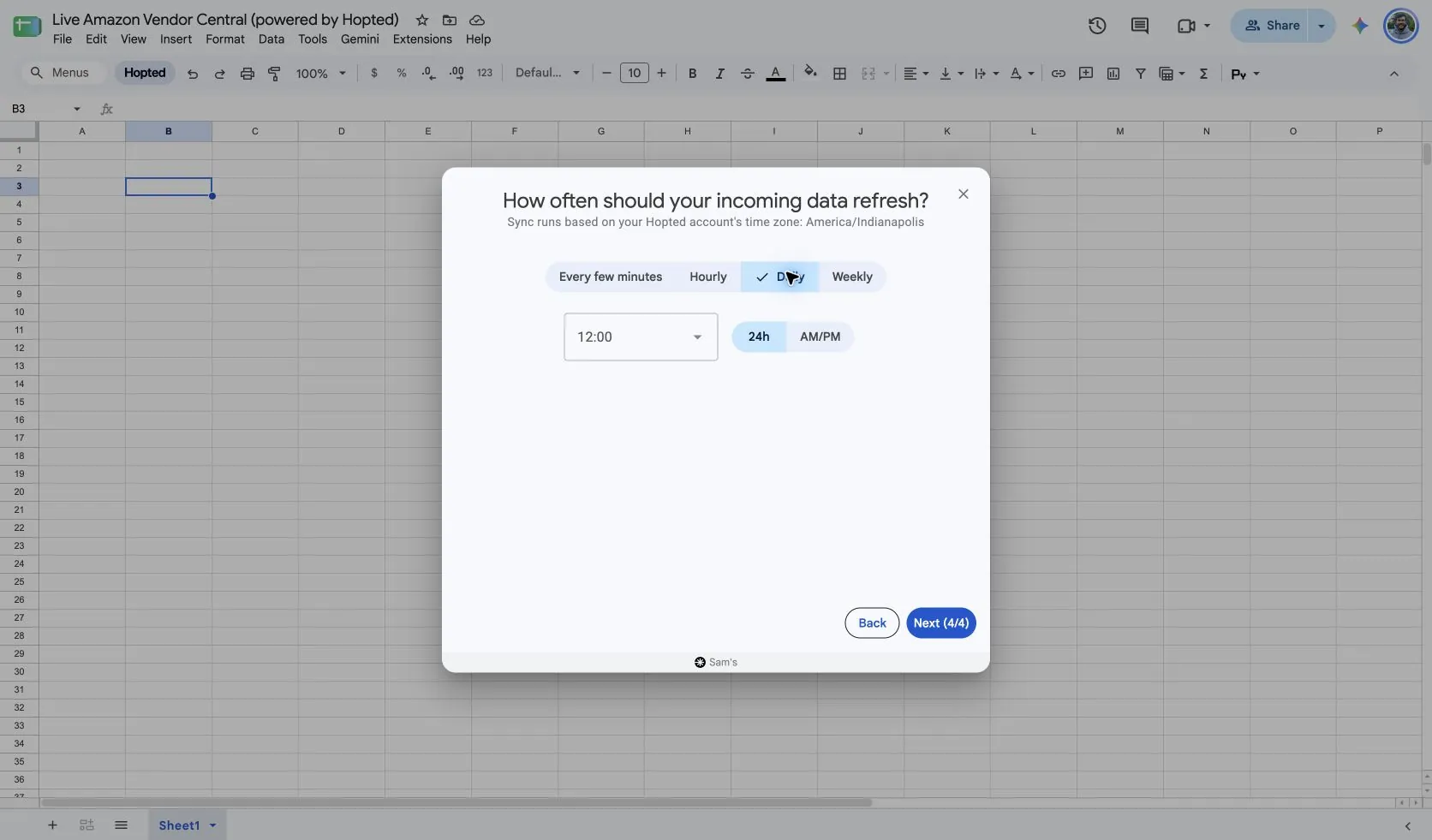
Hopted offers every-few-minutes, hourly, daily, and weekly schedules. The schedule uses the time zone shown for your Hopted account. Choose a cadence that fits the report and your review; a faster schedule cannot make Amazon publish data sooner.
5. Review and create the Sync
Check the accounts, selected fields, source settings, filters, and refresh schedule. Choose Create new Sync when the configuration is ready. Review the imported rows before adding calculations or sharing a dashboard.
How to use the report
- Chart Glance Views by hour for a single ASIN and marketplace. Compare the pattern with your recorded promotion or content-change timing. Treat a coinciding movement as an observation to investigate, not proof of causation.
- Compare the same hours with Vendor Real-Time Sales. This helps you review demand relative to detail-page interest. If you create a units-per-view indicator, label it clearly and avoid describing it as unique-customer conversion.
- Use hourly observations to select products for a fuller completed-period review. Bring those ASINs into standard Vendor Traffic and Vendor Sales, using aligned dates, before making longer-term planning conclusions.
What to check before comparing results
Glance Views are detail-page views rather than unique shoppers, sessions, ad clicks, or advertising impressions. Use Amazon Ads reports when the question is about paid-media delivery or attributed advertising outcomes.
Hourly traffic can differ from concluded-day dashboard results. Different publication timing, time boundaries, and later processing can affect the comparison. Preserve the reported interval and compare completed periods before treating a difference as an error.
“Real-Time” describes an hourly report, not a promise of immediate updates. Amazon data availability, report generation, and the refresh schedule all affect when a new observation reaches the sheet.
Availability depends on the vendor account, marketplace, permissions, and the data Amazon supplies. Keep row dimensions intact when joining reports. For longer-term comparisons, review Hopted Data history.
Questions and answers
How do I export Vendor Real-Time Traffic to Google Sheets?
Open Hopted in Google Sheets, choose Amazon Vendor Central, select your vendor accounts, and choose Vendor Real-Time Traffic. Add the columns you need, review its settings and optional filters, then choose a refresh schedule and create the Sync.
Are these views unique visitors?
No. Glance Views count product detail-page views. They do not provide a unique-visitor count.
Why is the newest traffic hour older than the newest sales hour?
The sources have different availability timing and requested-end buffers. Compare a shared set of completed hours rather than assuming the newest records align.
Sources and verification
Source names, example fields, and setup screens were checked in Hopted’s Vendor Central picker on October 14, 2026. Screenshots come from the supplied “Live Amazon Vendor Central (powered by Hopted)” Google Sheet.
See the Amazon Vendor Central connector for the connection overview, or return to the Vendor Central reports directory.