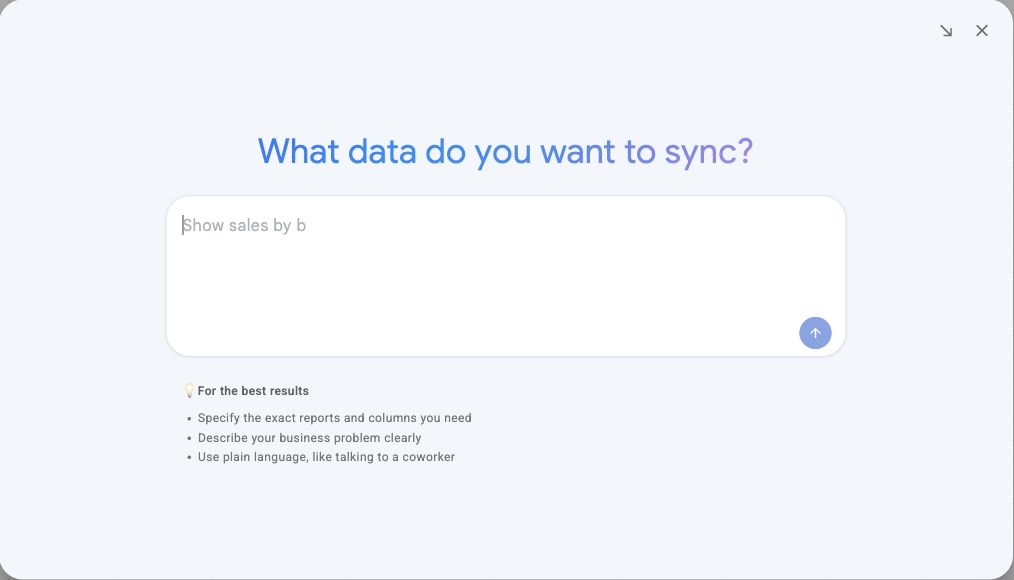
Create a sync with Hopted AI
Describe your reporting task in plain language and review the proposed setup.
When Hopted AI is available in your Hopted menu, you can describe the data sync you want instead of configuring every choice manually.
Describe your task
- Open the intended spreadsheet, enable Hopted, and check the selected Hopted account.
- Select Hopted AI from the menu.
- Explain the business task, reports, columns, accounts or marketplaces, reporting period and refresh frequency you need.
- Send your request and answer any clarifying questions.
For example: “Create a report of my products with inventory, and refresh it every four hours.” Add the specific account or marketplace when you only want part of your business included.
Review before applying
Read the proposal carefully. Check the data sources, account scope, fields, filters and schedule. If it is right, choose Yes, apply this proposal. If something needs changing, tell Hopted AI what to do differently.
If Hopted offers a solution template, use Use solution template and complete any account selection it requests. See Use a pre-made solution.
Verify the result
Open the resulting sheet and check Spreadsheet syncs for the saved configuration. Allow time for initial imports. Verify the output against your reporting goal before relying on it.
Applying a sync proposal configures incoming data. Sending edits to Amazon requires the separate Writebacks review and submission.