Filter the rows imported by a sync
Set optional import filters to keep the rows relevant to your report.
Sync filters decide which entries belong in the imported data. They are separate from Google Sheets filters, which hide or show rows already in a sheet.
Add an import filter
- After selecting fields, open the optional filter step.
- Select Add and choose an available field or condition.
- Set the comparison and value using the options offered for that field. Dates, numbers and text have different choices.
- Finish the condition, review any filter groups, and continue to the schedule.
- Check Optional filters on the overview before creating the sync or confirming your changes.
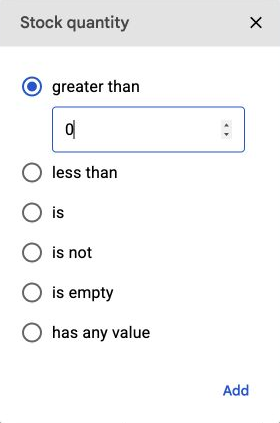
Check the intended result
Start with a simple condition and confirm that an example row you expect to include satisfies it. If you use relative dates such as days ago, the matching entries change as time passes.
A filter limits the report; it does not delete records at Amazon. When you change an existing sync's filters, its refreshed rows can change to match the new configuration.
Change or remove a filter
Open Spreadsheet syncs, choose the sync and select Edit. Change or remove the relevant condition, review the overview, and select Confirm changes.
If rows are unexpectedly missing, check import filters before reconnecting accounts or making another sync. See Missing rows or unexpected values.