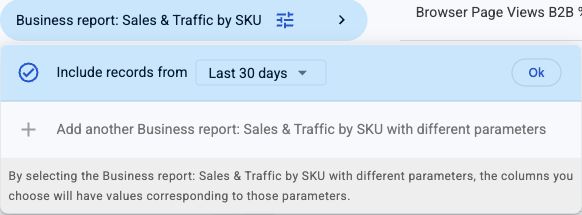
Compare reporting periods side by side
Add the same report with different date choices and give each set of columns clear names.
You can show two reporting periods beside each other without making two separate reports, when the selected source offers Add another … with different parameters.
Add the first period
- Choose the report that should define your rows, or add a compatible sales report to an existing product-based setup.
- Open the report's options beside its name.
- Set Include records from to the first period, such as Previous calendar month where offered.
- Add the business columns you need from that version of the report.
Add a separate period
- Open the report's options again and choose Add another … with different parameters.
- Choose the second period, such as Calendar month: 2 months ago where offered.
- Add the corresponding columns from this second version.
- Check the source and period shown beneath each selected column. Give the columns clear names, such as “Sales — previous month” and “Sales — two months ago.”
- Review the complete configuration and confirm your changes.
Keep the periods independent
Editing an existing report's options changes the context for columns using that version of the report. It does not create a second comparison period. Use Add another when you need both periods at once.
Keep other choices the same—accounts, marketplaces, row detail and vendor view, where relevant—when the purpose is a period comparison.
Use comparable windows
“Last 30 days” and “Previous calendar month” describe different windows. A current month is incomplete, and calendar months have different lengths. Relative periods also move forward on later refreshes. Choose periods that match the question you are answering.
See Choose reporting dates for rolling and calendar windows.