How to Automatically Pull, Sync, and Analyze Your Amazon "Sales & Traffic by Parent ASIN" Report in Google Sheets
Your product variations might be hiding your true performance. When you look at sales by individual child SKU (size/color), the data is too scattered to see the big picture. Are your "Running Shoes" actually growing, or is it just the "Blue Size 10" spiking while the rest tank? The Sales & Traffic by Parent ASIN Report is the only way to aggregate performance at the product family level. This guide shows you how to stop manually summing up variations and start analyzing product lines. We'll cover how to automatically pull your Parent ASIN report directly into Google Sheets to build a live brand performance dashboard.
How to Automatically Sync & Import the Sales & Traffic by Parent ASIN Report to Google Sheets (The Hopted Way)
Using an Amazon to Google Sheets integration like Hopted, you set up the connection once, and your data flows automatically.
Step 1.
Install the Hopted browser extension and sign in using your Google Account.
Step 2.
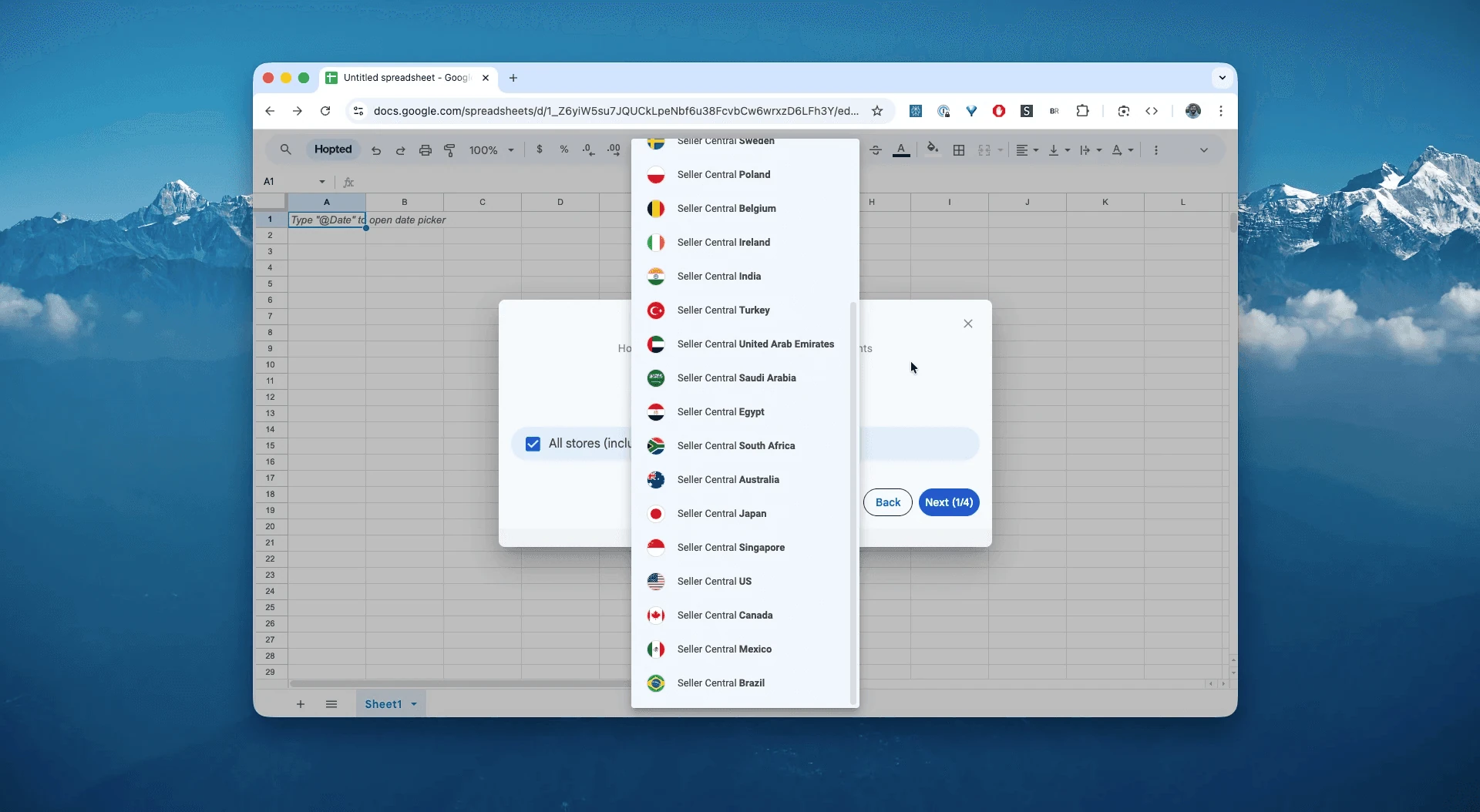
Securely connect your Amazon Seller Central to Google Sheets using Hopted's integration wizard.
Step 3.
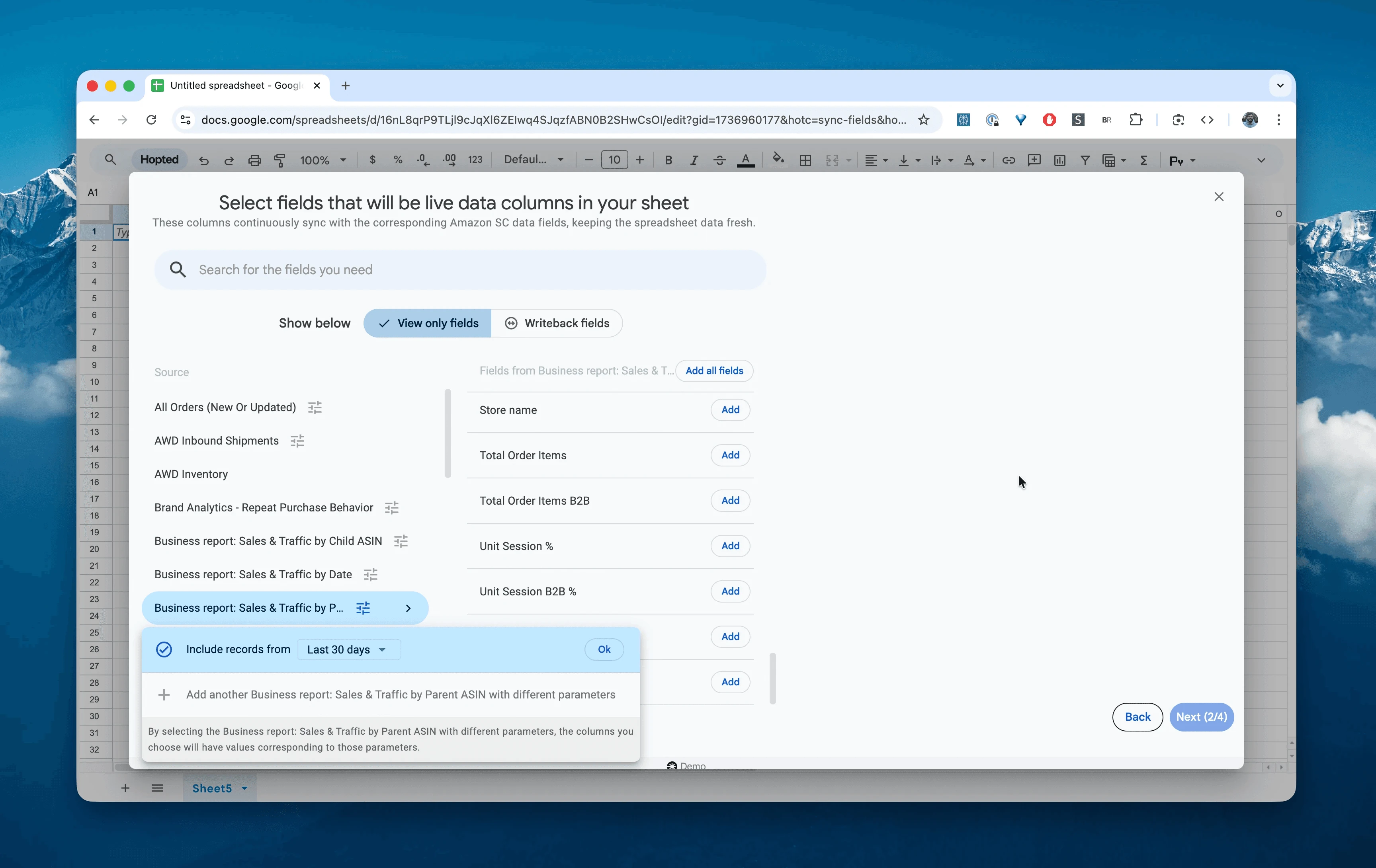
In Google Sheets, from the list of available Amazon Seller Central reports, select "Business report: sales and traffic by parent" for a specific date range. This can be as recent as the "Last 24 hours" or a custom range going as far back as 730 days. For this example, we'll select "Include records for the last 30 days".
Step 4.
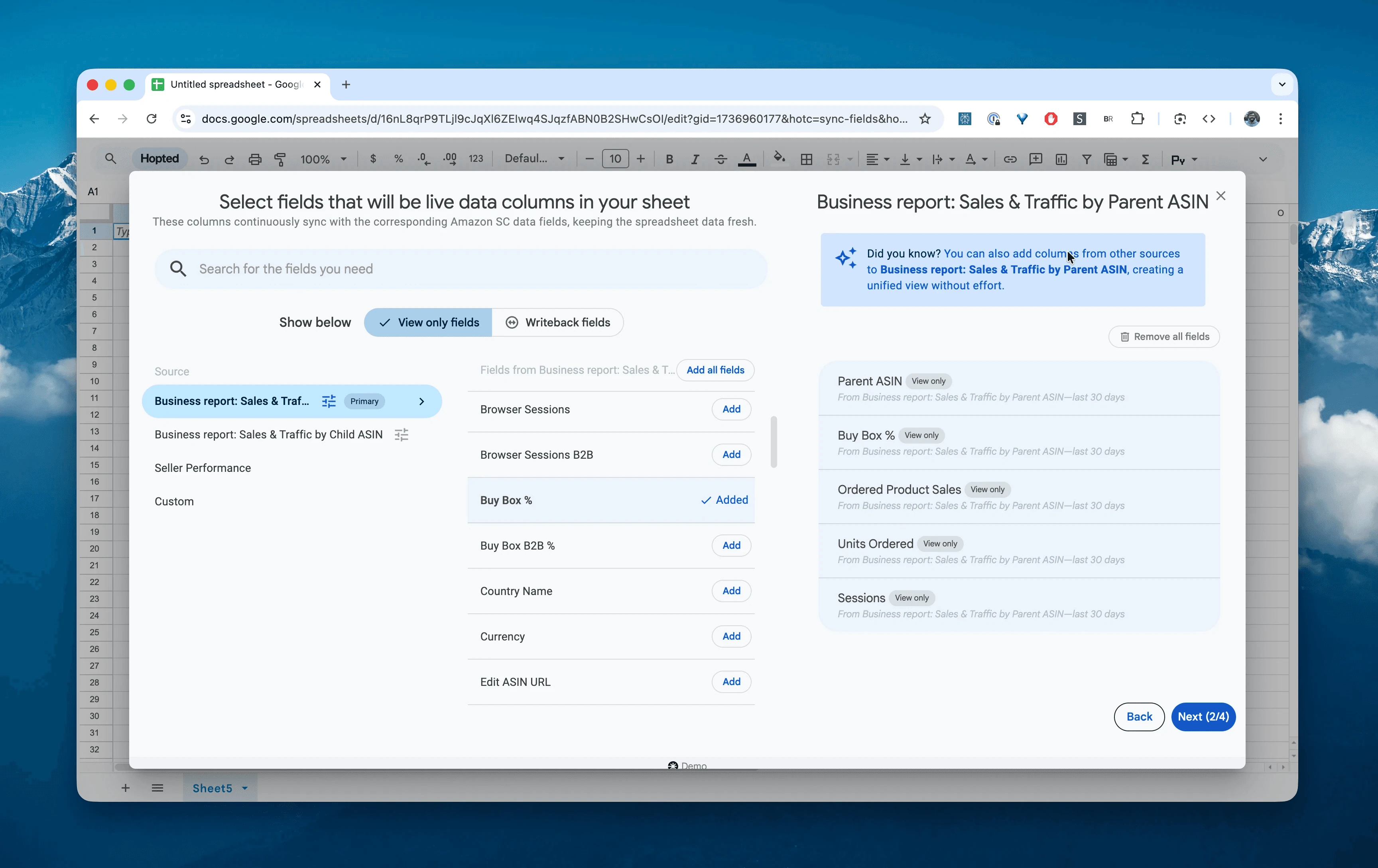
Select columns that you need: Parent ASIN, Ordered Product Sales, Unit Session %, Sessions, Buy Box %, and other B2B specific fields.
Step 5.
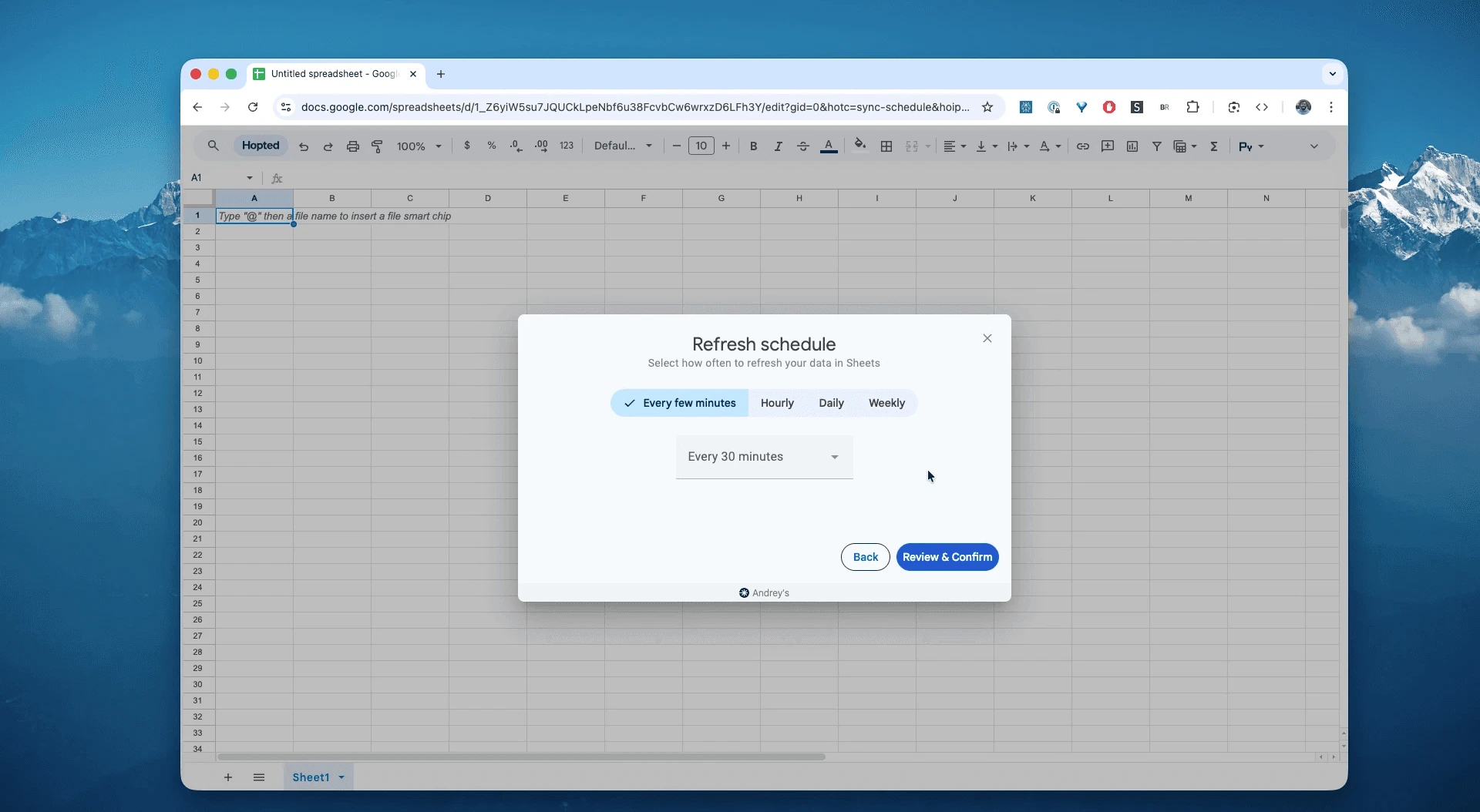
Set your schedule. Choose how often you want to export and refresh your product family analytics—every hour, every day, or less frequent.
Step 6.
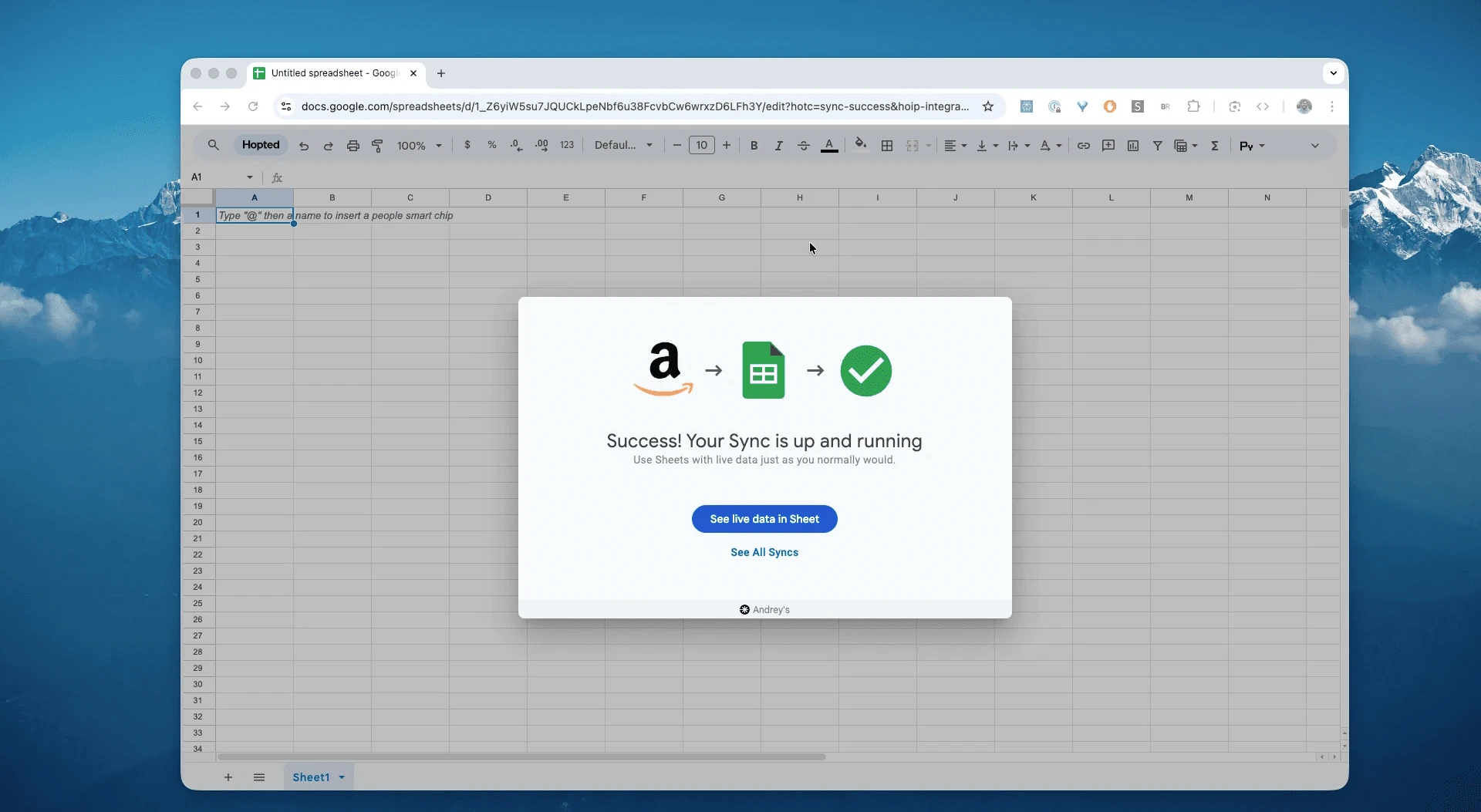
Save your data pipeline. This will export your Parent ASIN sales data from Seller Central into spreadsheets instead of dealing with flat files. The analytics in your spreadsheets will be up to date forever.
What is the Amazon Sales & Traffic by Parent ASIN Report?
This report provides a consolidated view of your sales and traffic metrics, grouped by the Parent ASIN. Instead of seeing 50 rows for every size and color of a t-shirt, you see one row for the "T-Shirt" family. This is essential for understanding the overall health of a product line, regardless of how sales are distributed among variations.
This report provides key metrics, including:
Ordered Product Sales: Total revenue for the entire product family.
Unit Session % (Conversion Rate): The aggregated conversion rate for the family.
Sessions & Page Views: Total traffic landing on any variation within the family.
Buy Box %: How often your offers won the Buy Box across the entire family.
B2B Metrics: Specific views for Business-to-Business sessions and sales.
This makes it the single source of truth for answering questions like:
Which product families are my true bestsellers, ignoring variation noise?
Which Parent ASINs have high traffic but low Unit Session % (bad conversion)?
How is my Mobile App traffic performing compared to Browser traffic for this product?
Which product lines are driving the most B2B Sales?
Are my "Sessions" growing month-over-month for my core product lines?
How to Analyze & Track Your Parent ASIN Performance in Spreadsheets
Now that you have a live feed, you can move from data entry to data analysis. This is the real power of analyzing your Amazon Seller Central data in spreadsheets and building your Amazon excel-like template.
Here are 4 Amazon spreadsheet template ideas you can build immediately:
Template 1: The "Product Family" Leaderboard
Identify your "Hero" products instantly. When you look at child SKUs, a popular sock might look like a slow seller because sales are split across 10 colors. Aggregating by Parent ASIN reveals the true volume.
How to build it: Use a Pivot Table (or simple Sort).
Rows:
Parent ASIN(andStore nameif you have multiple brands).Values:
SUM of Ordered Product SalesandSUM of Units Ordered.Sort: Sort by "Ordered Product Sales" from High to Low.
What it shows you: The undeniable truth of your 80/20 rule. You will likely find that a handful of Parent ASINs drive the vast majority of your revenue.
Template 2: The "Traffic Leaks" Audit (High Traffic, Low Conversion)
Find product families that are wasting your ad spend.
How to build it: Filter your data.
Filter: Filter for
Sessions> [Your Average Traffic Baseline, e.g., 1000].Sort: Sort by
Unit Session %from Low to High.What it shows you: This highlights Parent ASINs that get plenty of eyeballs (Sessions) but fail to convert (Low Unit Session %). These are your top priorities for listing optimization (images, A+ content) or price reviews.
Template 3: The "B2B Opportunity" Finder
Amazon Business is a growing channel often ignored by sellers. This report breaks out B2B performance explicitly.
How to build it: A simple comparison table.
Rows:
Parent ASIN.Values:
Ordered Product Sales B2BandUnit Session B2B %.Formula: Calculate B2B Share:
=(Ordered Product Sales B2B) / (Ordered Product Sales).What it shows you: Pinpoint products that have a surprisingly high share of B2B sales. You might discover that your "Office Desk Lamp" sells 40% to businesses, signaling you should offer Quantity Discounts to boost that segment further.
Common workflows this report unlocks
Ad Budget Allocation: Shift ad spend toward Parent ASINs with the highest Unit Session %.
Listing Optimization: Identify low-converting families to overhaul titles and bullets.
Platform Strategy: Compare Mobile App Sessions vs. Browser Sessions to see where your customers shop.
B2B Pricing: Spot high B2B demand families to implement tiered business pricing.
FAQ about Sales & Traffic by Parent ASIN
Q: What is the difference between Parent ASIN and Child ASIN reporting? Child ASIN reporting shows data for the specific item bought (e.g., Red Shirt, Size M). Parent ASIN reporting sums up the data for all variations under that parent (e.g., The Shirt Model). Use Parent reporting for high-level strategy and Child reporting for inventory replenishment.
Q: Why do my "Sessions" numbers look different in the Parent report? If a customer visits 3 different child variations of the same product in one visit, Amazon considers this 1 Session for the Parent ASIN. However, if you summed the sessions of the Child report, it might count as 3. The Parent ASIN report removes this duplication for a cleaner view of traffic.
Q: Can I see B2B specific performance in this report? Yes. This report includes specific columns like Ordered Product Sales B2B, Units Ordered B2B, and Unit Session B2B %, allowing you to isolate your business customer performance.
Q: How do I track Mobile App vs. Browser traffic? The report provides Browser Sessions and Mobile App Sessions as separate columns. Browser sessions can come from desktop or mobile browsers. You can use Hopted to calculate the ratio in Google Sheets to compare these ways of accessing Amazon.
Q: How is Hopted different from other Amazon seller software? Most Amazon tools force you into their rigid dashboards and pre-built reports. You have to change your workflow to fit their software. With Hopted is the opposite. It’s a flexible data automation layer that works directly inside your existing spreadsheets (like Google Sheets). Instead of forcing you to learn a new system, Hopted brings all your scattered Amazon data (sales, inventory, orders, etc.) right to you. You can build the fully custom reports and automations you need, not the ones a rigid tool dictates.