Amazon Seller Analytics Tools for Google Sheets
Bring your sales, inventory, fees, returns, and Amazon Ads data into one workbook. Build the dashboards your team needs, with scheduled imports across accounts and marketplaces.
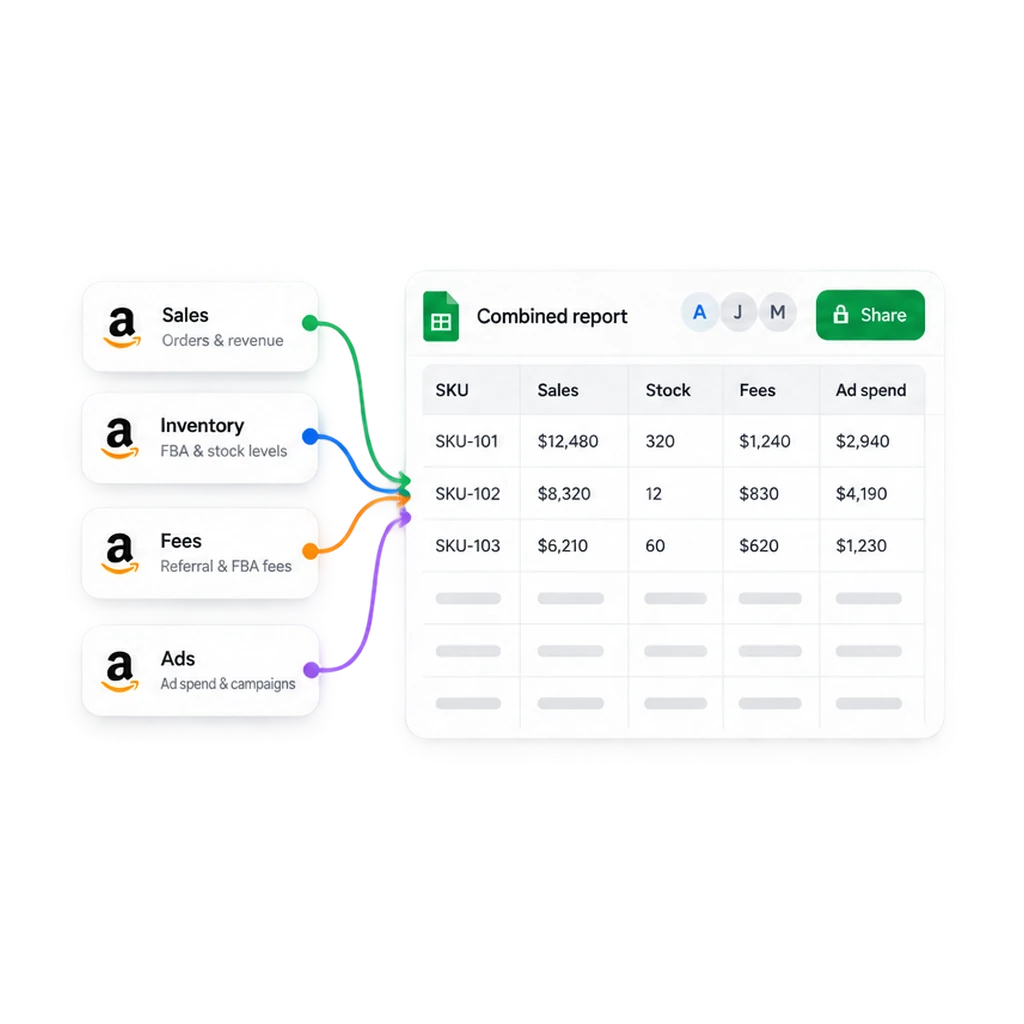
Turn separate reports into better business questions
Sales and advertising together
Compare total sales with ad spend by period and marketplace. Calculate TACOS as ad spend divided by total sales; keep Amazon Ads attributed sales separate from total sales.
Sales in their stock context
Review SKU sales beside available and reserved stock. Investigate whether a sales change coincides with limited availability, then move into your replenishment workflow.
Fees and returns beside revenue
Compare Amazon fee and return data with sales trends. For profit calculations, add your cost of goods and other expenses using consistent periods and currencies.
A repeatable portfolio review
Compare brands, accounts, and marketplaces in a shared workbook. Keep source identifiers, reporting periods, and currencies visible so totals and comparisons remain meaningful.
Is Hopted the right analytics tool for your team?
Hopted imports the source data
Seller Central supplies orders, business reports, inventory, fees, financial transactions, and returns. The separate Amazon Ads connector supplies campaign, product, targeting, and search-term reports. Availability depends on your Amazon access.
You define the analysis
Choose compatible reports and joining fields. You supply costs, currency conversion, metric definitions, formulas, and dashboard layout. Check date ranges and attribution windows before comparing totals.
For teams that work in Sheets
A good fit for sellers, brands, and agencies that want flexible reporting on their own Amazon business and already use spreadsheets for weekly reviews.
Choose it for your own business data
Hopted brings your connected account data into Sheets. It does not provide competitor sales estimates or market-wide product research, and this workflow does not automatically optimize PPC bids.
Start with one recurring business review
Connect your data, define the questions, and keep the same workbook ready for the next review.
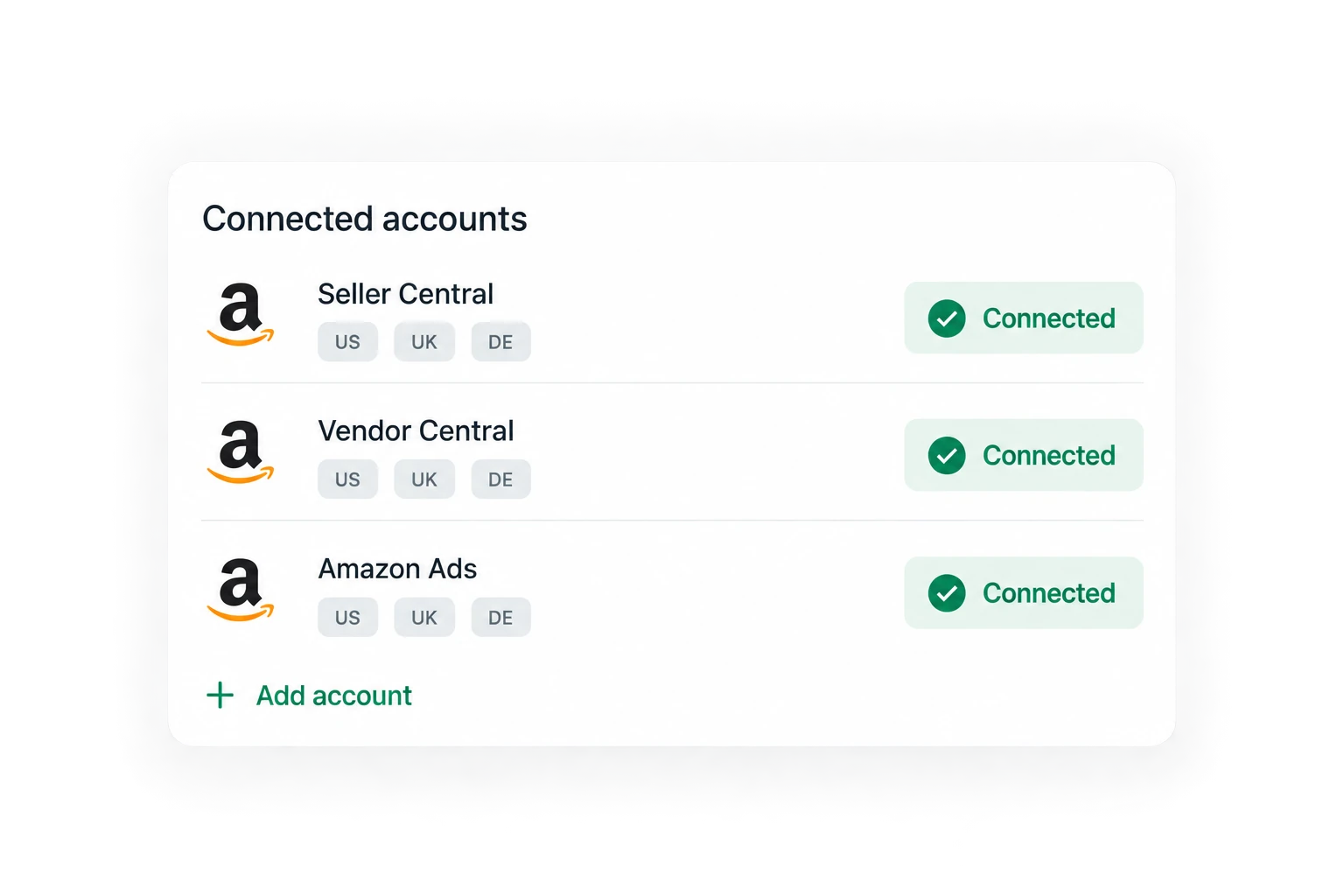
1. Connect your Amazon accounts
Install Hopted in Chrome, open Google Sheets, and authorize Amazon Seller Central. Connect Amazon Ads separately for PPC reporting.
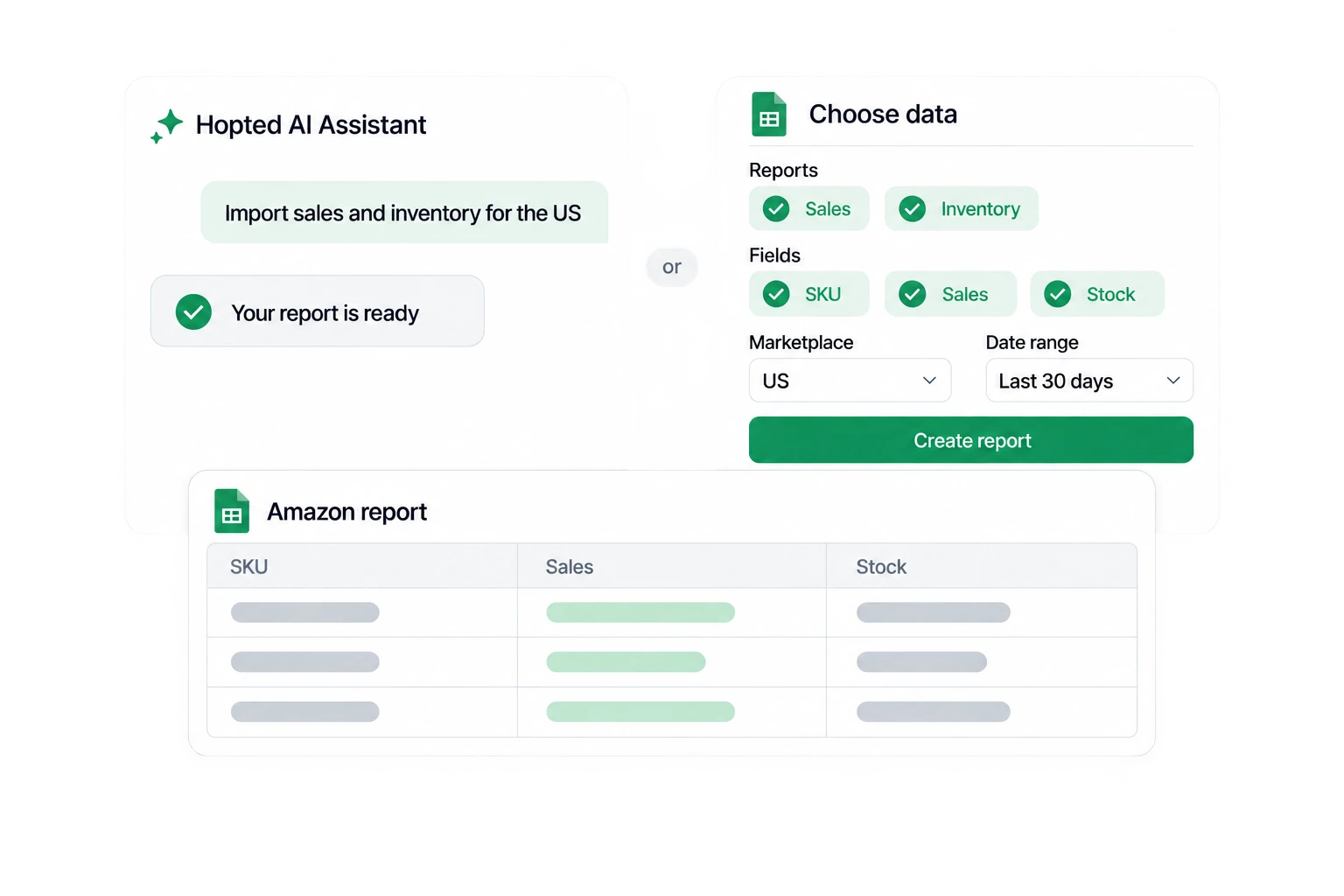
2. Choose reports and build your view
Choose reports, fields, marketplaces, and dates. Combine compatible data, then add your formulas, costs, pivots, and charts in Sheets.
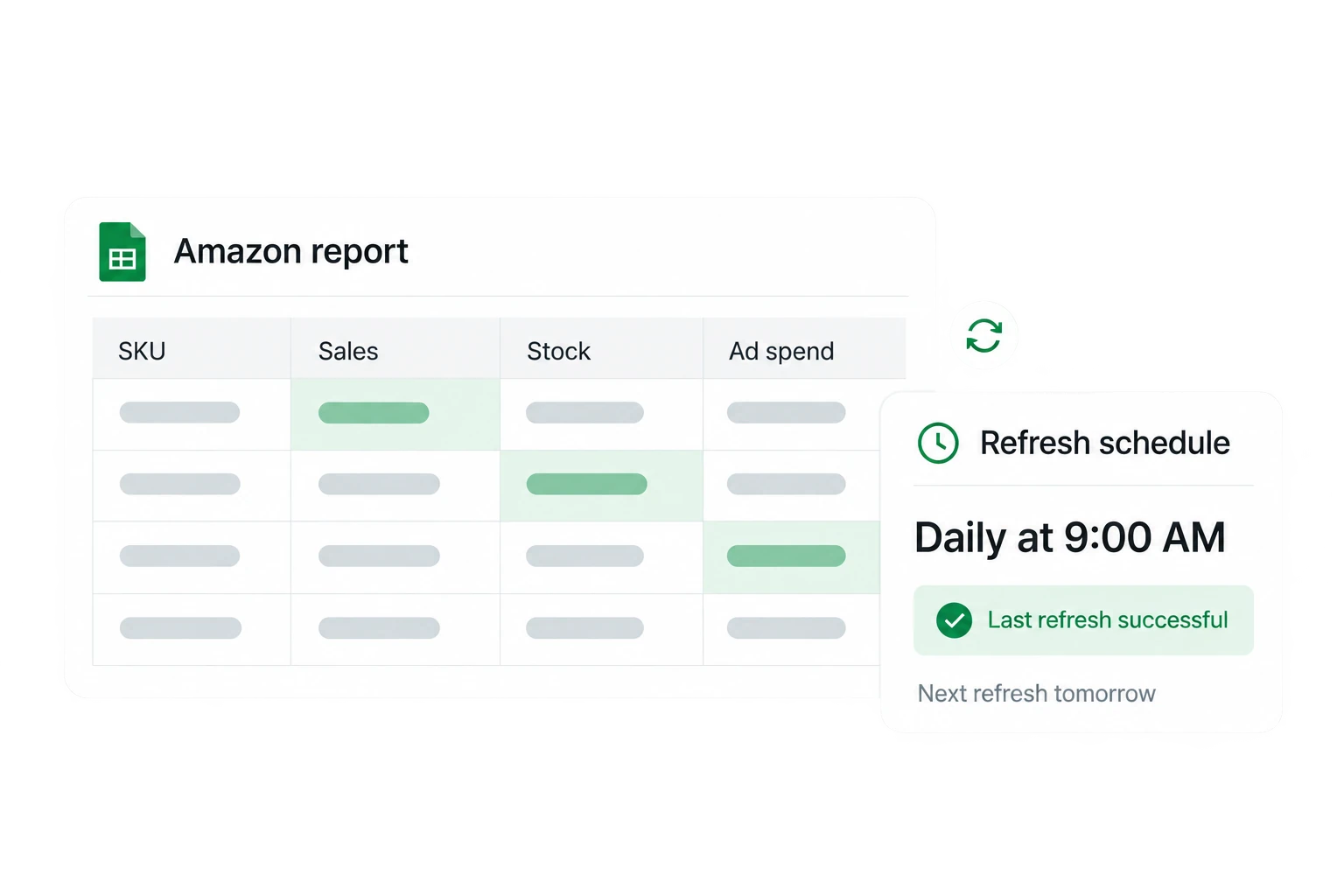
3. Schedule imports and review
Set a refresh schedule, such as daily before your team review. Hopted updates linked data while preserving your formulas and formatting.
Amazon seller analytics FAQ
Analyze your connected Amazon business using sales, inventory, fees, returns, and advertising reports. Bring compatible data into one workbook and build your own dashboards, rather than switching between separate CSV exports.
This workflow starts with imported reports. You choose the dashboard layout, formulas, and business rules in Google Sheets. Hopted keeps linked data refreshed; it does not supply a finished analytics dashboard through this page.
Yes. Choose connected accounts and supported marketplaces for your reports. Keep account and marketplace identifiers visible, and convert currencies yourself before adding monetary totals across markets.
Scheduled imports run in the background even when the Sheet is closed. Freshness depends on the selected schedule and Amazon’s report availability. Advertising attribution can change after the initial report, so a refresh is not a real-time guarantee.
Seller analytics connects several business questions in one recurring review. Financial analysis focuses on fees, transactions, and your profit model; inventory management focuses on stock and replenishment. Use those pages for the more specialized workflows.
Start the 7-day free trial, connect your Amazon accounts, and test one report and one dashboard question. Review pricing for plan limits before expanding the workbook to more reports.
Take the next step.
Work with Amazon data in Google Sheets — without manual exports.
