Set a refresh schedule and time zone
Choose when incoming data refreshes and understand the timing of Amazon reports.
Search results
A refresh schedule controls when Hopted imports incoming data. It does not automatically submit outgoing Writebacks.
Choose a schedule
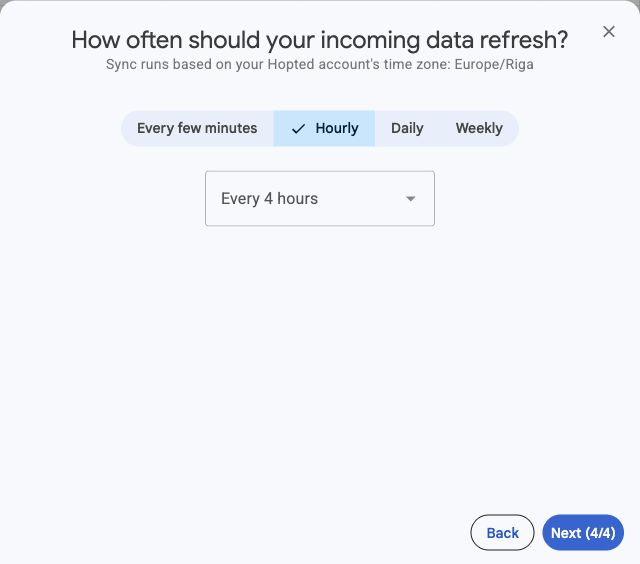
- During sync setup, continue to How often should your incoming data refresh? To change an existing sync, open it from Spreadsheet syncs and select Edit.
- Choose an available frequency: every few minutes, hourly, daily, or weekly. Select the interval, time or days offered for that option.
- Check the Hopted account time zone displayed above the schedule.
- Continue to the overview and create the sync or select Confirm changes.
Understand availability and timing
Refresh choices depend on your plan and account capacity. If Hopted asks you to upgrade or add capacity, review the offer or choose a supported frequency.
More frequent refreshes do not make Amazon prepare source reports faster. The first import and large reports can take longer than later updates. A selected schedule is not a promise that every Amazon metric changes at that exact time.
Change the account time zone
Open Settings → General and choose the account time zone. This is shared by the account's sync schedules, so review the effect on other scheduled reports. See Manage account settings.
For stale data, follow Data is not refreshing.