Your Amazon catalog is likely full of "zombie" listings. Old products, duplicate SKUs, and incorrect shipping templates can sit unnoticed in your account for years. Worse, a single product assigned to the wrong "Shipping Group" can wipe out your profit margin on every sale. The All Listings Report is your master database—the only way to audit the status and settings of every single SKU you have ever created. This guide shows you how to stop clicking through pages of inventory and start auditing your catalog. We'll cover how to automatically pull your All Listings report directly into Google Sheets to build a live catalog health dashboard.

How to Automatically Sync & Import the All Listings Report to Google Sheets (The Hopted Way)
Using an Amazon to Google Sheets integration like Hopted, you set up the connection once, and your data flows automatically.
Step 1.
Install the Hopted browser extension and sign in using your Google Account.
Step 2.
Securely connect your Amazon Seller Central to Google Sheets using Hopted's integration wizard.
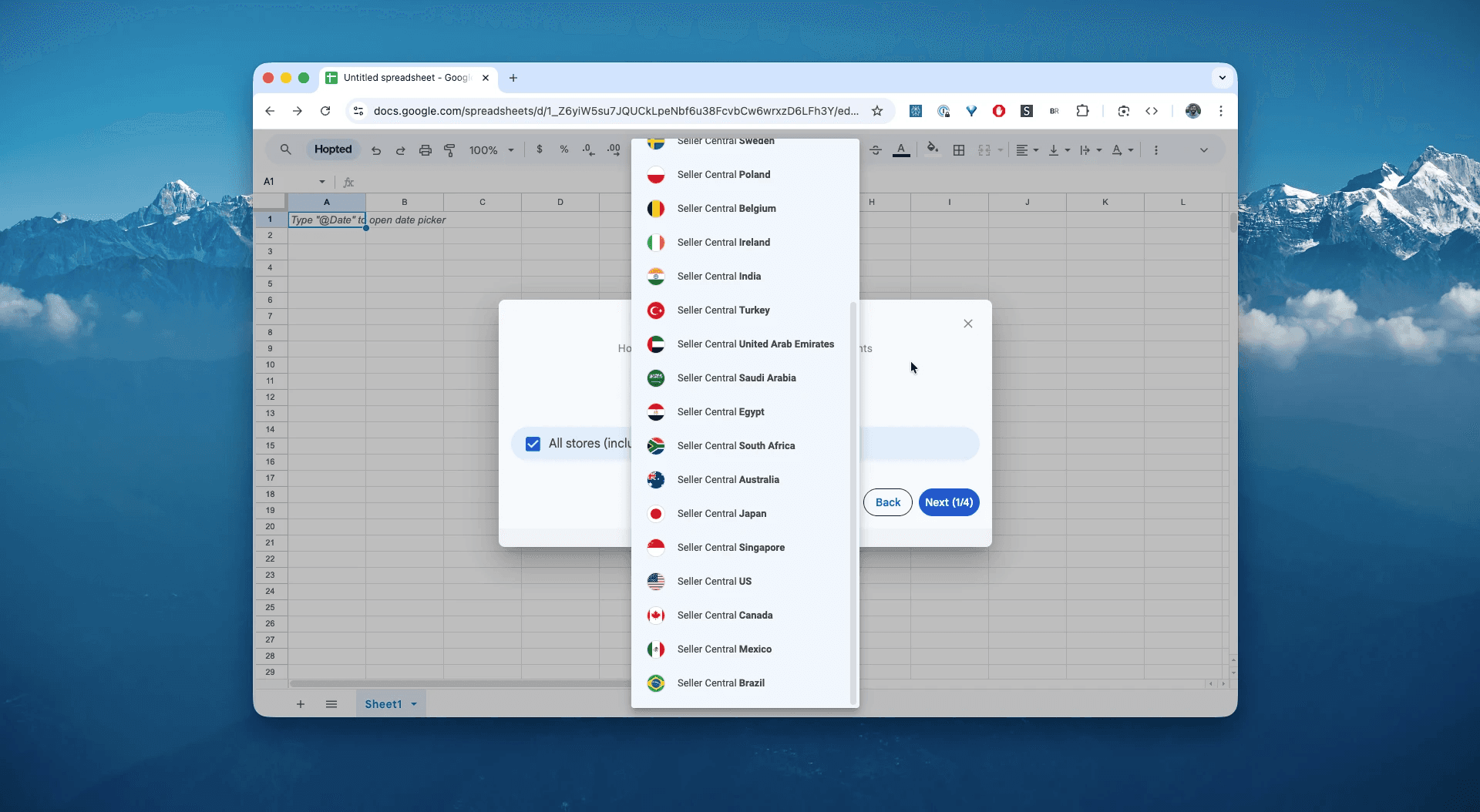
Step 3.
In Google Sheets, from the list of available Amazon Seller Central reports, select "All Listings Report". This pulls your entire catalog, including active, inactive, and incomplete listings.
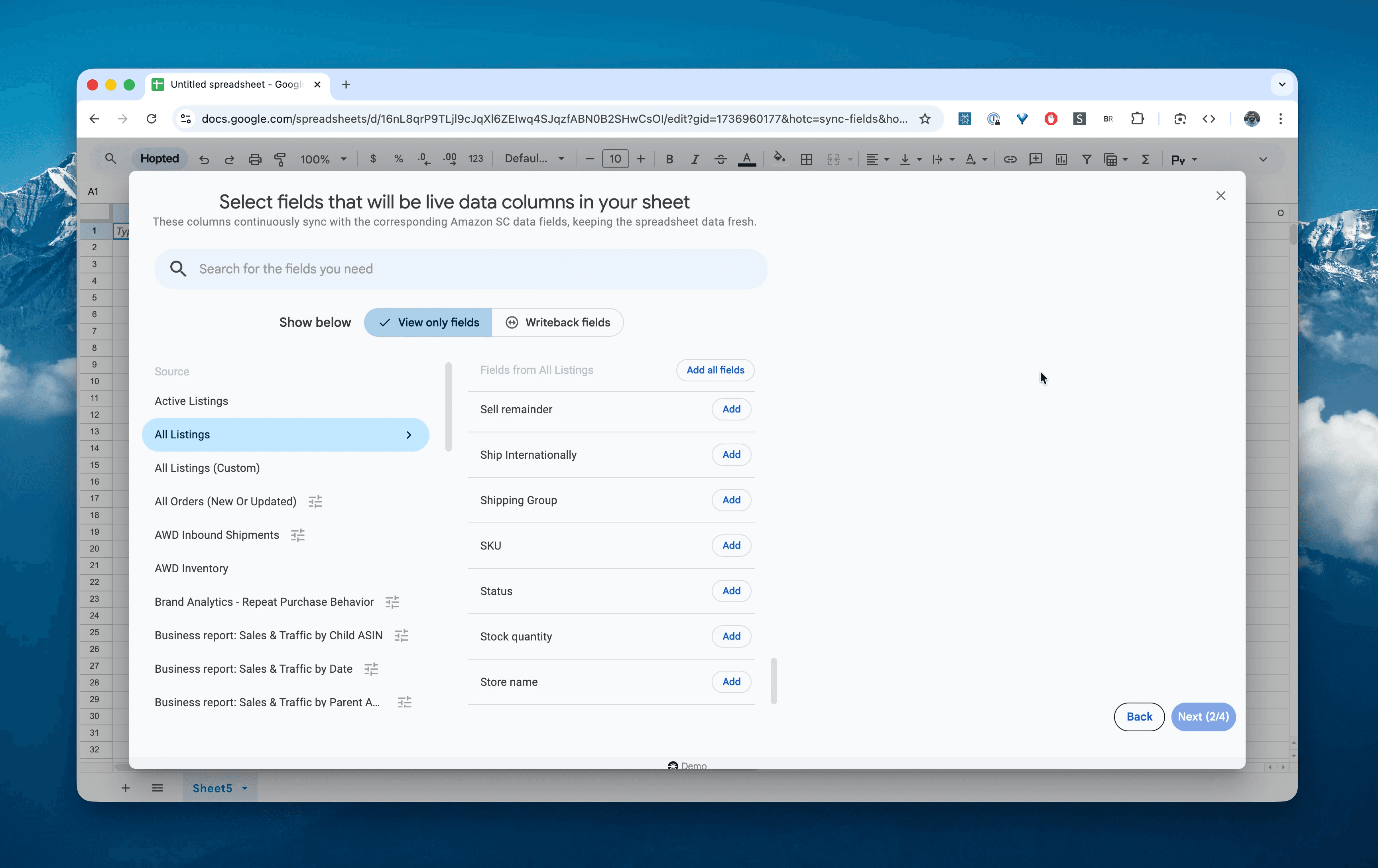
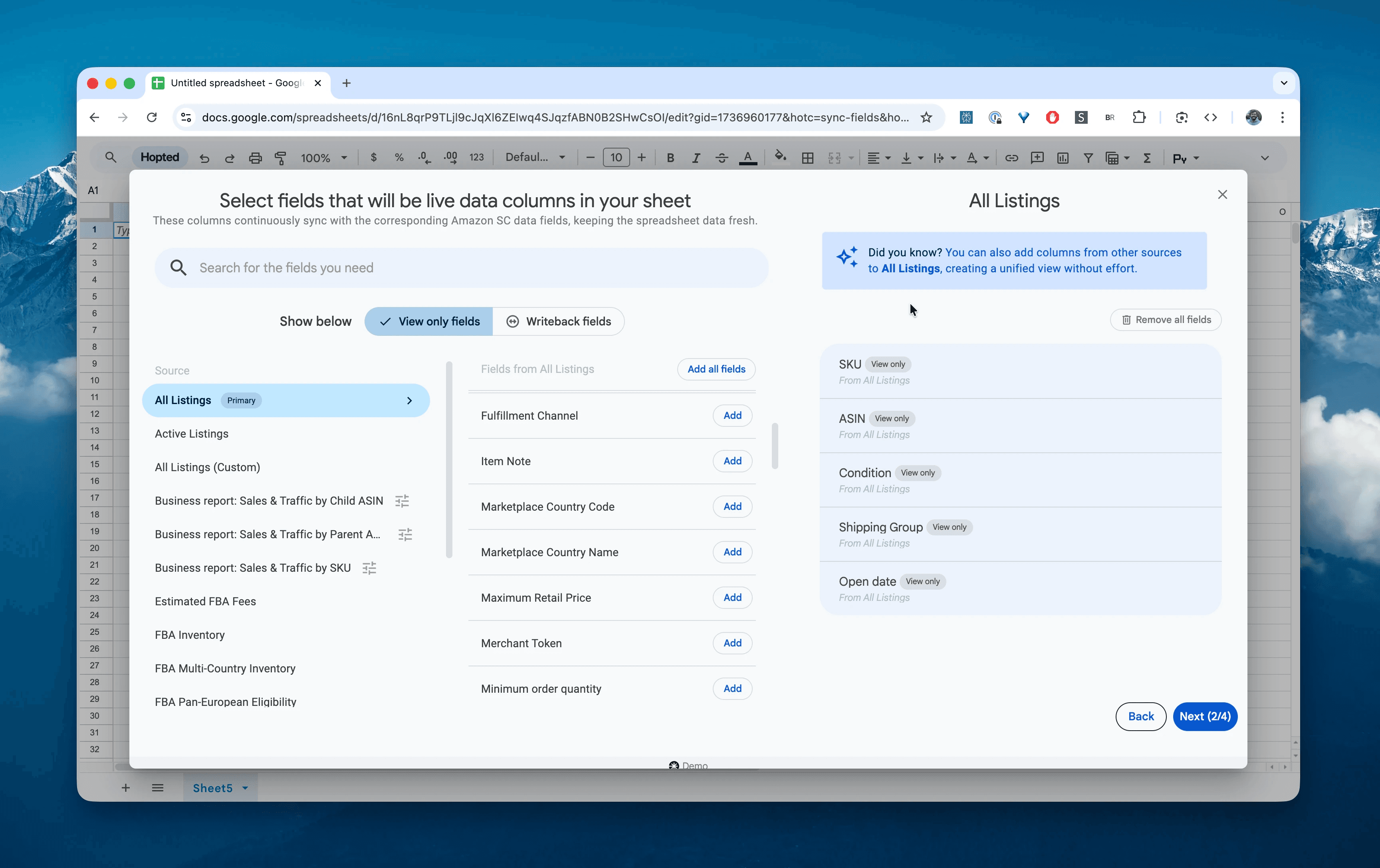
Step 4.
Select columns that you need: SKU, Product Name, Status, Shipping Group, Quantity Price, and Open Date.
Step 5.
Set your schedule. Choose how often you want to export and refresh your catalog status—daily is usually best for catching sudden status changes or shipping setting errors.
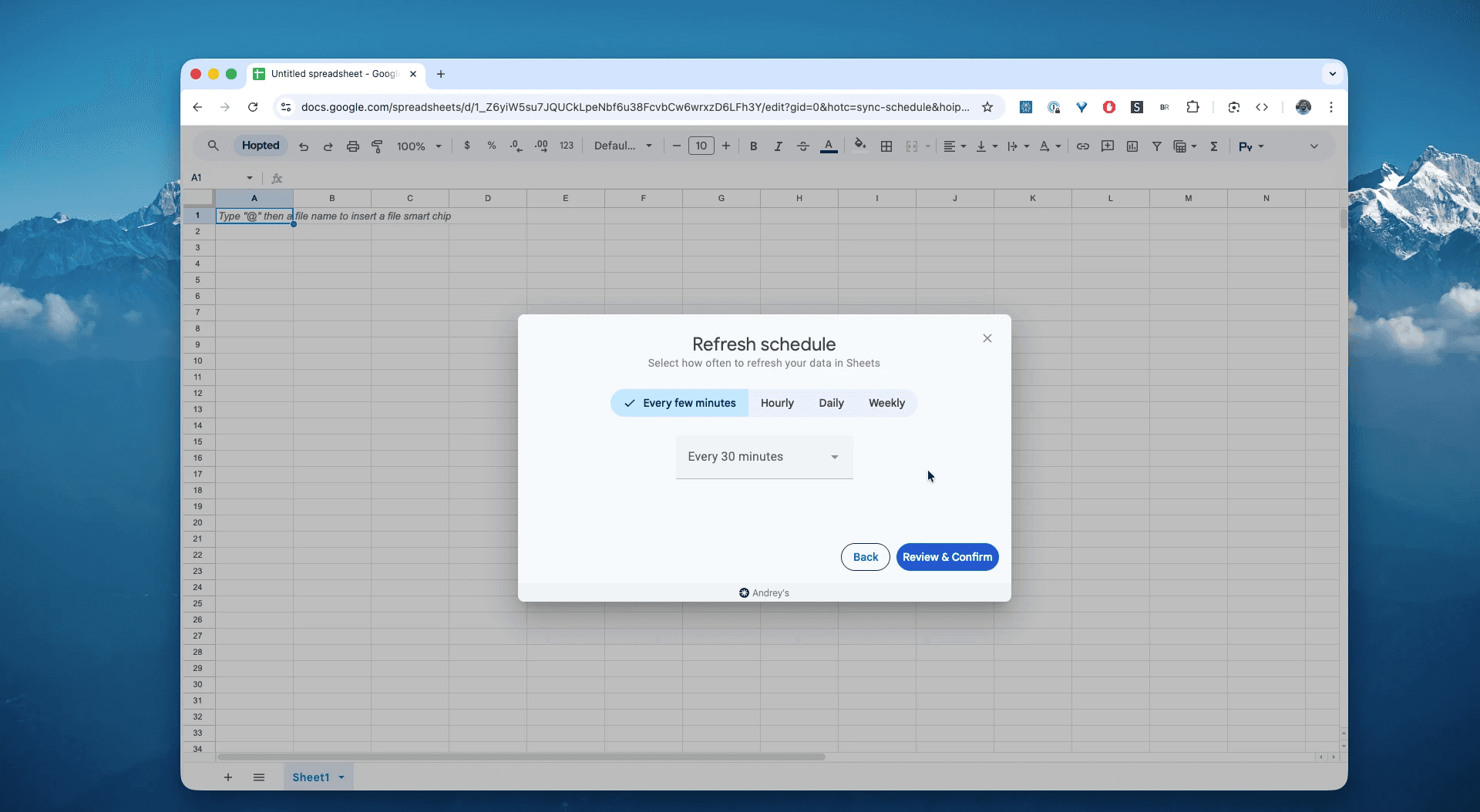
Step 6.
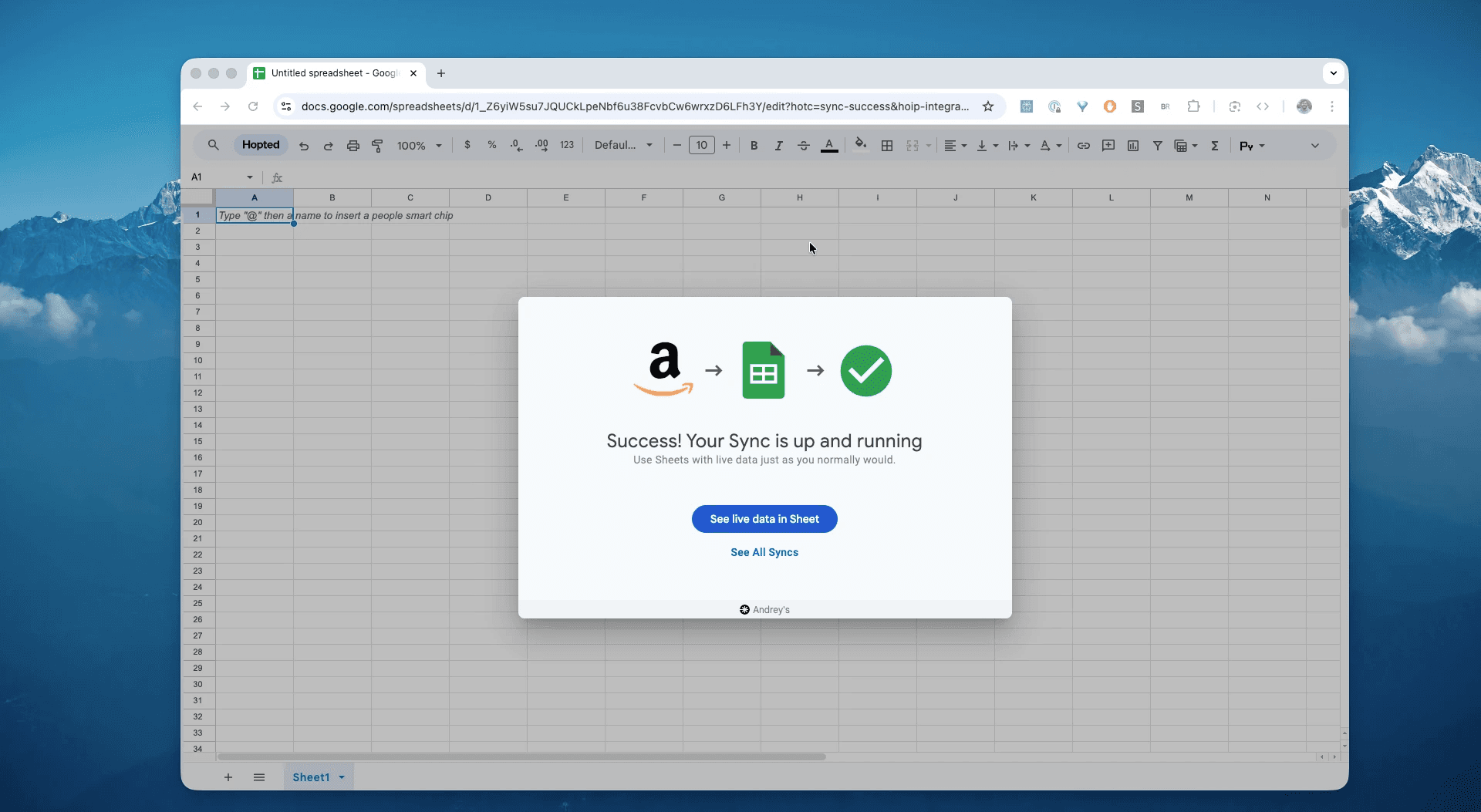
Save your data pipeline. This will export your full catalog data from Seller Central into spreadsheets automatically. Your catalog backup in your spreadsheets will be up to date forever.
What is the Amazon All Listings Report?
This report is a snapshot of every product listing associated with your seller account, regardless of whether it has stock or is currently buyable. Unlike the "Active Listings Report," this includes Inactive, Out of Stock, and Closed listings. It is the fundamental "Master List" for auditing your account's health and configuration.
This makes it the single source of truth for answering questions like:
Which listings are marked **Inactive** but should be selling right now?Do any of my heavy products have the wrong **Shipping Group** (e.g., Free Shipping) applied?Which SKUs have I set up with **Quantity Price** tiers for B2B customers?How many "ghost" SKUs created years ago are cluttering my account?Is my **Minimum Order Quantity** set correctly for my low-margin items?
How to Analyze & Track Your All Listings in Spreadsheets
Now that you have a live feed, you can move from data entry to data analysis. This is the real power of analyzing your Amazon Seller Central data in spreadsheets and building your Amazon excel-like template.
Here are 2 Amazon spreadsheet template ideas you can build immediately:
Template 1: The "B2B Pricing" Validator
If you sell to businesses, you likely set up volume discounts. This report exposes those hidden columns.
How to build it: Filter for B2B columns.
Columns:
SKU,Price,Quantity Price 1,Quantity Lower Bound 1.Formula: Check the discount:
=1 - (Quantity Price 1 / Price).What it shows you: This confirms your volume tiers are active. You can easily see if a SKU is missing a bulk discount (
Quantity Price 1is empty) or if the discount is too steep, protecting your margins on bulk orders.
Template 2: The "Incomplete Listing" Diagnostic
Listings usually get stuck as "Incomplete" for one of three reasons: missing price, missing quantity, or missing product IDs. This template isolates those listings and highlights exactly which data point is missing so you can fix them in bulk.
How to build it: Filter and Conditional Formatting.
Filter: Filter your
Statuscolumn to show only "Incomplete".Columns to View:
SKU,Product Name,Price,Stock quantity, andProduct ID.Visual Aid: Apply Conditional Formatting to the
Price,Stock quantity, andProduct IDcolumns. Set the rule: "Cell is empty" (or "Equal to 0") → Highlight Red.What it shows you: This creates a visual "To-Do" list.
Red Price? You created the listing but forgot to set the offer price.
Red Quantity? You forgot to input your initial stock count.
Red Product ID? The ASIN/UPC link failed.
Action: You can now simply fill in the blanks in your spreadsheet, upload the corrections to Seller Central, and turn these "Incomplete" drafts into "Active" revenue generators.
Common workflows this report unlocks
Migration Planning: If you move to a new Shopify store or ERP, this is the cleanest export of your product titles and SKUs.
Repricing Configuration: Use the
Maximum Retail PriceandPricecolumns to audit your floor and ceiling limits.Inventory Cleanup: Identify SKUs with
Open Date> 5 years ago withInactivestatus to delete and declutter Seller Central.
FAQ about Amazon All Listings Report
Q: What is the difference between "Active Listings Report" and "All Listings Report"? The "Active Listings Report" only shows products currently available for sale. The "All Listings Report" shows everything—active, inactive, out of stock, and suppressed. You need "All Listings" for a full audit.
Q: Does this report show my FBA fees? No. This report focuses on listing configuration (price, shipping, status). For fees, you should sync the FBA Fee Preview Report using Hopted.
Q: Why does my listing show "Inactive" in this report? A listing can be inactive for many reasons: zero quantity (Stock quantity = 0), closed by you, suppressed by Amazon due to image issues, or blocked. This report helps you identify whichSKUs are inactive so you can investigate.
Q: Can I see my Merchant (FBM) shipping settings here? Yes. The Shipping Group column tells you exactly which shipping template is assigned to each SKU. This is the fastest way to audit shipping settings across thousands of products.
Q: How is Hopted different from other Amazon seller software? Most Amazon tools force you into their rigid dashboards and pre-built reports. You have to change your workflow to fit their software. With Hopted is the opposite. It’s a flexible data automation layer that works directly inside your existing spreadsheets (like Google Sheets). Instead of forcing you to learn a new system, Hopted brings all your scattered Amazon data (sales, inventory, orders, etc.) right to you. You can build the fully custom reports and automations you need, not the ones a rigid tool dictates.



Hopted,
explained.
Watch the film