Duplikat-Synchronisierung
Duplikat-Synchronisierung
24.02.2026
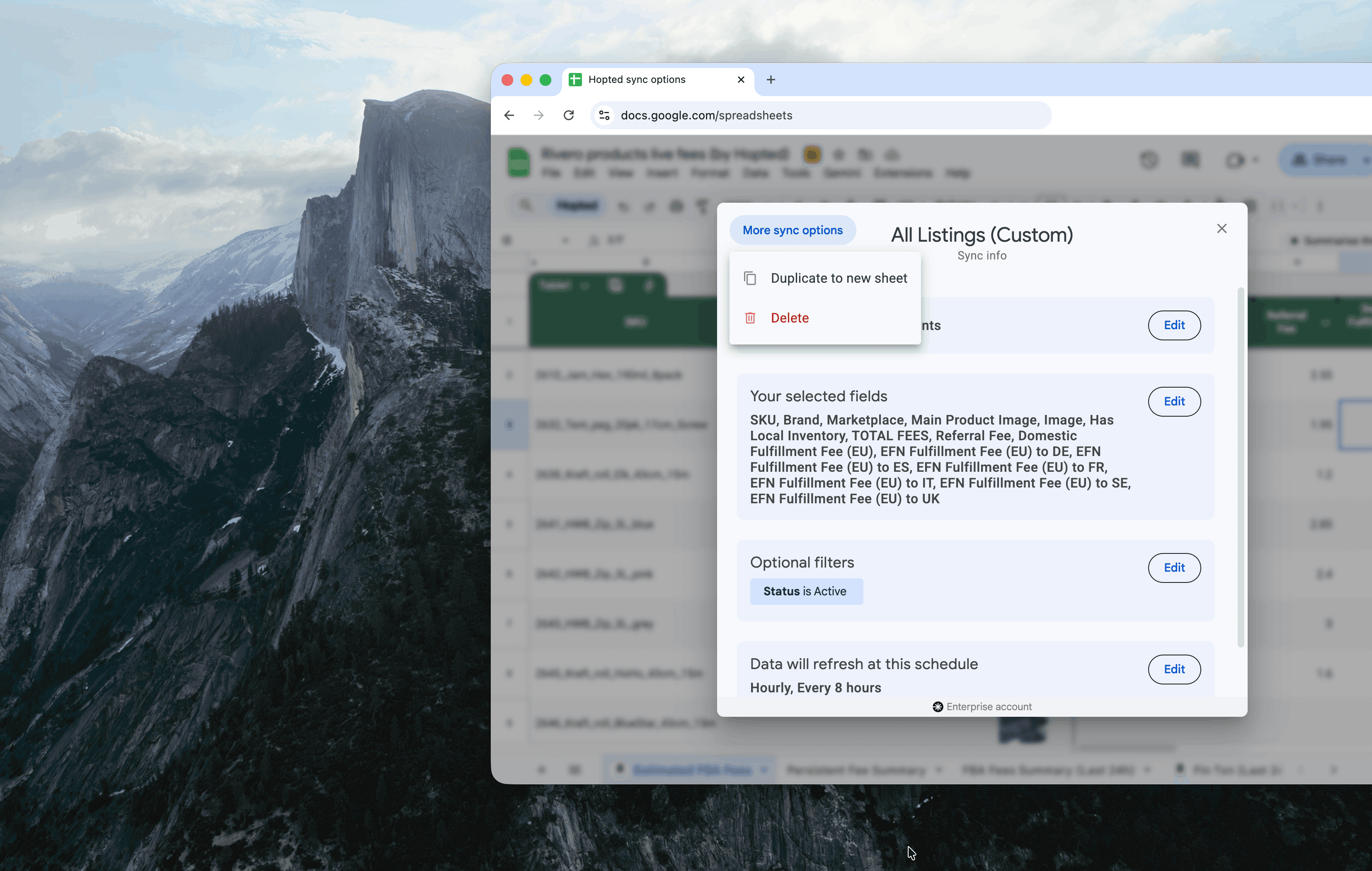
Duplizieren Sie bestehende Synchronisierungen, um schnell ähnliche Importe in einem neuen Blatt einzurichten.
Wenn Sie einen völlig neuen Tab mit fast identischen importierten Spalten- und Zeitplaneinstellungen erstellen müssen, ist dies jetzt ein Kinderspiel.
Sie können Ihre bestehende Synchronisierung klonen—einschließlich der Amazon-Konten, ausgewählter Spalten, Filter und Aktualisierungszeitpläne—damit Sie nicht von Grund auf neu anfangen müssen.
Sie können dann den neu duplizierten Tab modifizieren, zum Beispiel, indem Sie neue Spalten hinzufügen oder die Amazon-Konten oder Marktplätze ändern, von denen die Daten importiert werden.
Dies verwandelt im Wesentlichen jede Ihrer Synchronisierungen in eine wiederverwendbare Vorlage.
Um eine Synchronisierung in einem neuen Tab zu duplizieren, öffnen Sie Alle Synchronisierungen von Ihrer Hopted-Seitenleiste und klicken Sie einfach auf Duplizieren bei der Synchronisierung, die Sie duplizieren möchten.
Synchronisierungen löschen
Früher mussten Sie einen gesamten Tabellenblatt-Tab löschen, um Synchronisierungen zu entfernen.
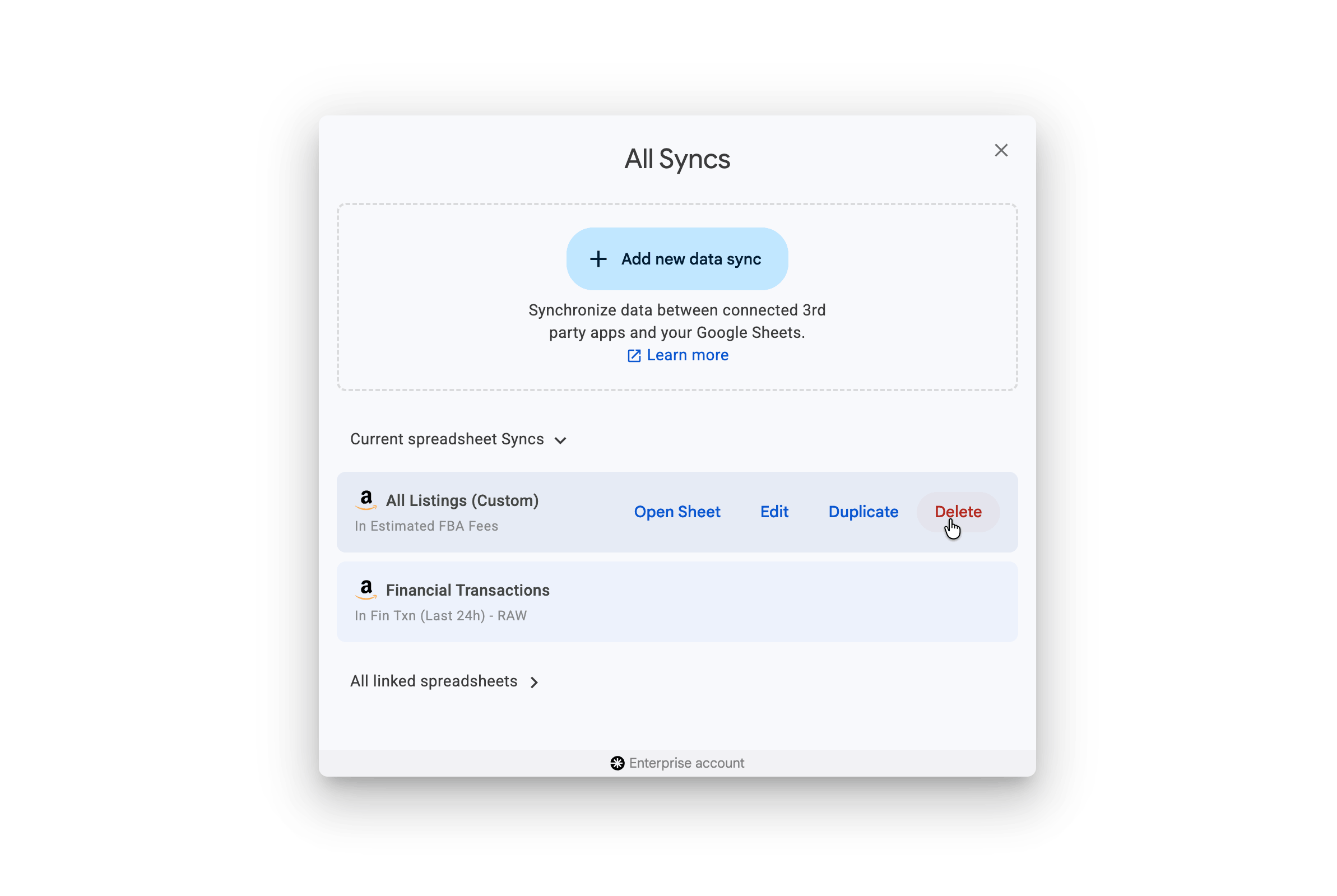
Jetzt können Sie dauerhaft Synchronisierungen entfernen, die nicht mehr benötigt werden, ohne tatsächlich einen Tab zu löschen.
Um eine Synchronisierung zu löschen, öffnen Sie Alle Synchronisierungen von Ihrer Hopted-Seitenleiste und klicken Sie einfach auf Löschen bei der Synchronisierung, die Sie entfernen möchten.
Duplizieren Sie bestehende Synchronisierungen, um schnell ähnliche Importe in einem neuen Blatt einzurichten.
Wenn Sie einen völlig neuen Tab mit fast identischen importierten Spalten- und Zeitplaneinstellungen erstellen müssen, ist dies jetzt ein Kinderspiel.
Sie können Ihre bestehende Synchronisierung klonen—einschließlich der Amazon-Konten, ausgewählter Spalten, Filter und Aktualisierungszeitpläne—damit Sie nicht von Grund auf neu anfangen müssen.
Sie können dann den neu duplizierten Tab modifizieren, zum Beispiel, indem Sie neue Spalten hinzufügen oder die Amazon-Konten oder Marktplätze ändern, von denen die Daten importiert werden.
Dies verwandelt im Wesentlichen jede Ihrer Synchronisierungen in eine wiederverwendbare Vorlage.
Um eine Synchronisierung in einem neuen Tab zu duplizieren, öffnen Sie Alle Synchronisierungen von Ihrer Hopted-Seitenleiste und klicken Sie einfach auf Duplizieren bei der Synchronisierung, die Sie duplizieren möchten.
Synchronisierungen löschen
Früher mussten Sie einen gesamten Tabellenblatt-Tab löschen, um Synchronisierungen zu entfernen.
Jetzt können Sie dauerhaft Synchronisierungen entfernen, die nicht mehr benötigt werden, ohne tatsächlich einen Tab zu löschen.
Um eine Synchronisierung zu löschen, öffnen Sie Alle Synchronisierungen von Ihrer Hopted-Seitenleiste und klicken Sie einfach auf Löschen bei der Synchronisierung, die Sie entfernen möchten.