Choose the columns in your sync
Find fields, understand view-only and Writeback columns, and review selected fields.
Search results
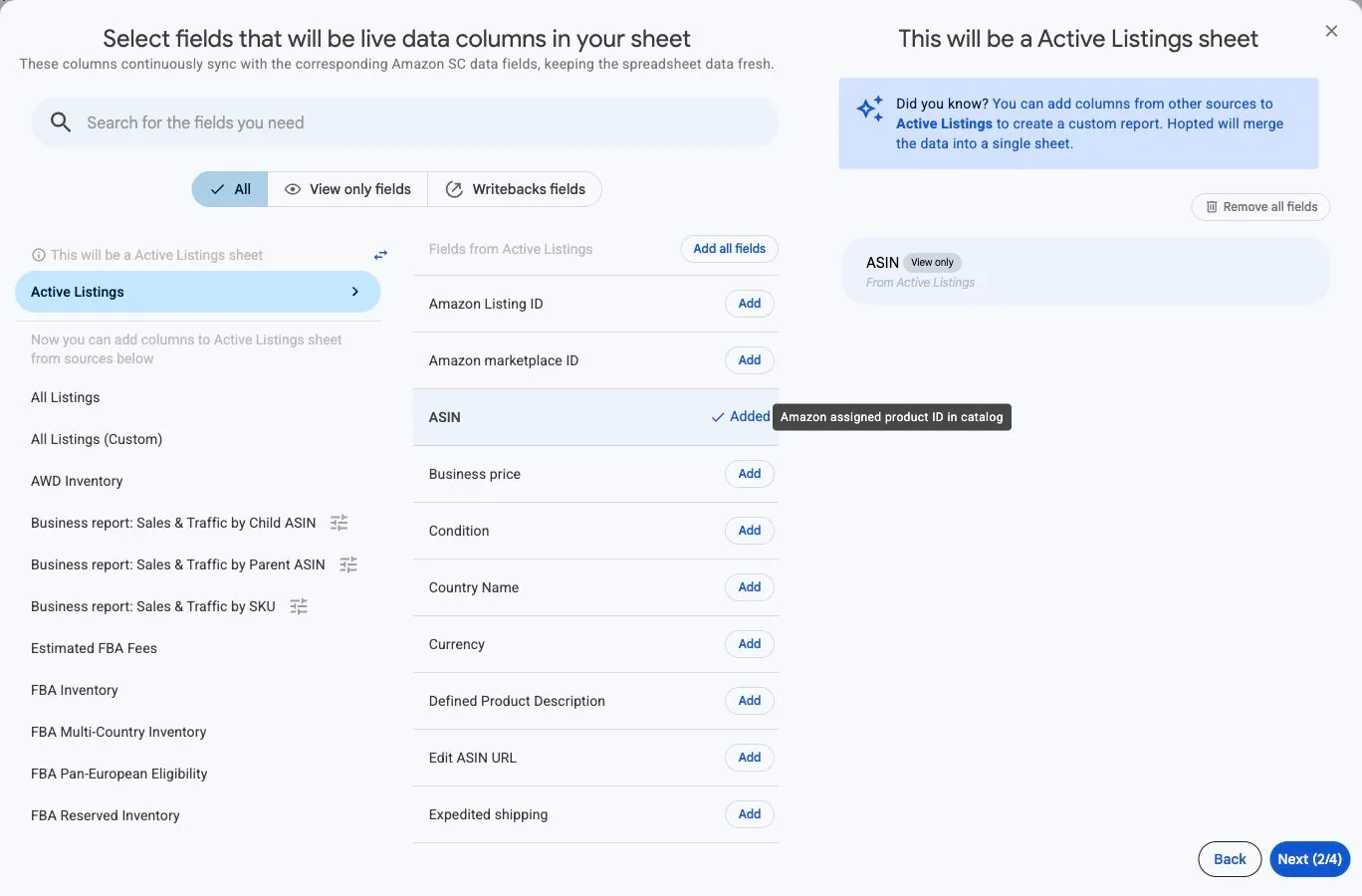
Each field you add becomes a column in the sync's sheet. Start with a source that matches the rows you want, then add the business values needed for your task.
Select a source and fields
- In the sync setup, continue from account selection to the field picker.
- Choose a source from the left-hand list. The first source you add fields from establishes what each row represents.
- Use Search for the fields you need to find a column, or browse the selected source.
- Select Add for individual fields. Use Add all fields only when you need the full set.
- Review your selected fields. Open a field to inspect its options and resolve any Action required notices before continuing.
Understand column types
View only columns display incoming data. Writebacks fields are for supported outgoing edits; changes must be reviewed and submitted through Writebacks. Typing into a view-only column is not a supported way to update Amazon.
Choose recognizable identifiers alongside the values you need, so you can distinguish products, accounts and marketplaces when reading the result.
Change existing columns
Open the existing sync and select Edit to add or remove fields. Review the configuration and select Confirm changes. Changes are saved for this sync only; repeat the process for other syncs that need the same update.
For data from multiple sources, follow Combine sources in one sync.