Get @yourbrand.com Email in Gmail for Free

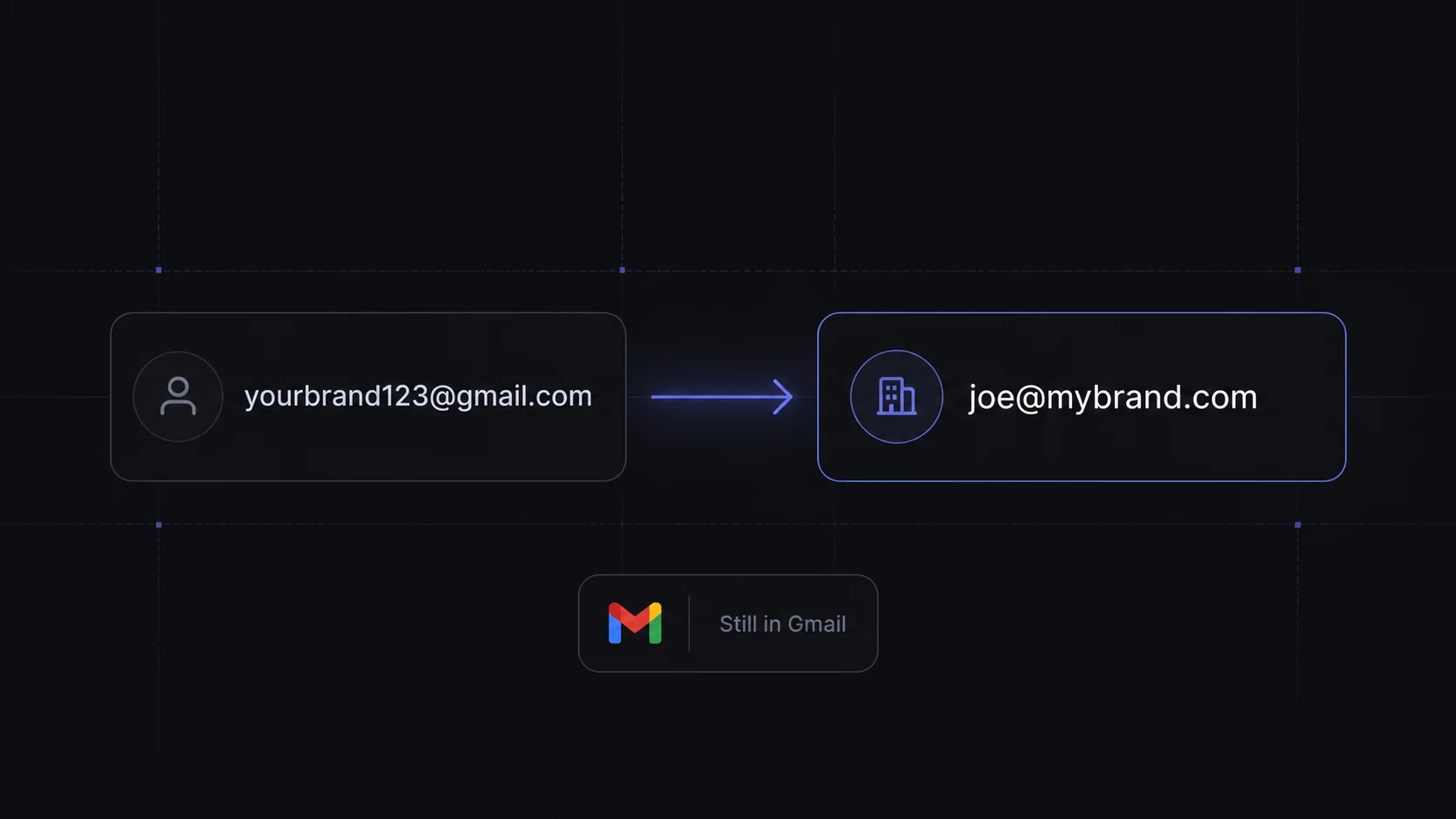
Amazon sellers already pay for enough things.
There are Amazon fees, ads, inventory tools, freelancers, samples, freight, and usually a spreadsheet setup on top. Another subscription just for support@yourbrand.com can feel annoying when the brand is still small.
You can receive branded email in Gmail without paying for a separate mailbox. Sending from that address is a separate question.
You need a domain for this setup, with its own registration and renewal cost. Amazon does not generally require sellers to own a domain.
September 2026 update: Google says third-party “Send as” support ends in January 2027, and new setups may be restricted sooner. Forwarding into Gmail continues. The receiving steps below remain useful; treat the sending walkthrough as a legacy option. (Google Help)
This guide walks you through steps so you can receive email at addresses like:
support@yourbrand.comwholesale@yourbrand.comsuppliers@yourbrand.com
…and have everything land inside your existing Gmail inbox.
I use this kind of setup when I want a brand to look more real, but I do not yet want another monthly software bill. It is not perfect, and it is not a full business email suite. But for many Amazon sellers, it is enough.
One important note before we start: this is not a replacement for Amazon Buyer-Seller Messaging. For order-specific buyer communication, stay inside Amazon’s own systems. Amazon’s FBM guidance points sellers to Buyer-Seller Messaging for buyer communication around orders and customer service. Use your custom email for brand operations, suppliers, agencies, invoices, wholesale leads, product development, and your own website support — not to bypass Amazon’s communication rules. (Sell on Amazon)
What you are actually setting up (quick overview)
This setup gives you a branded forwarding address, with your existing Gmail account as the inbox.
We'll use Cloudflare -- one of the most widely used internet infrastructure services in the world.
Cloudflare receives emails sent to your branded email address, then forwards them to your personal Gmail inbox.
So, for example:
Someone emails you atsupport@yourbrand.com
Cloudflare forwards it toyourpersonal@gmail.com
To reply as support@yourbrand.com, you need a separate sending setup. Forwarding alone does not provide it.
Cloudflare forwarding has no monthly fee. Domain renewal and any separate sending service are additional costs; check renewal prices before buying.
Who this is good for
This is a good fit for:
Small Amazon private label brands
Solo sellers
Side projects
New DTC brand websites
Supplier communication
Wholesale inquiries
Press or partnership emails
A simple “support@” address on packaging or inserts (assuming it follows Amazon rules)
It is not ideal for:
Large teams
High-volume outbound sales
Cold email campaigns
Enterprise brands
Deliverability-sensitive email operations
A proper shared helpdesk setup
For an average Amazon brand, I would not over-engineer it. A clean branded inbox is often enough at the start.
What you need
You need four things:
A domain name
A Gmail account
A free Cloudflare account
Access to your domain registrar (Godaddy, namecheap, etc), so you can change nameservers (no worries I'll explain how exactly)
That is it.
Receiving forwarded mail does not require Google Workspace or a paid mailbox. Reliable sending from your domain may need a separate service.
Step 1: Buy a domain for your Amazon brand (if you haven't yet)
First, buy a domain for your brand.
You can use Namecheap, Porkbun, GoDaddy, Cloudflare Registrar, or basically any normal domain registrar. For Amazon sellers, I would keep it simple and pick a domain that matches your brand name as closley as possible.
A few practical tips:
- Try to get the .com if it is available.
- Avoid weird spelling if customers might type it manually.
- Keep it short enough to print on packaging.
- Do not pick a domain that looks too close to another brand.
- Check that the name is not already used in your category.
Cheaper domain extensions like .xyz, .site, or .online can work, but for an Amazon brand I still prefer .com when possible. It just looks more familiar.
Step 2: Add the domain to Cloudflare
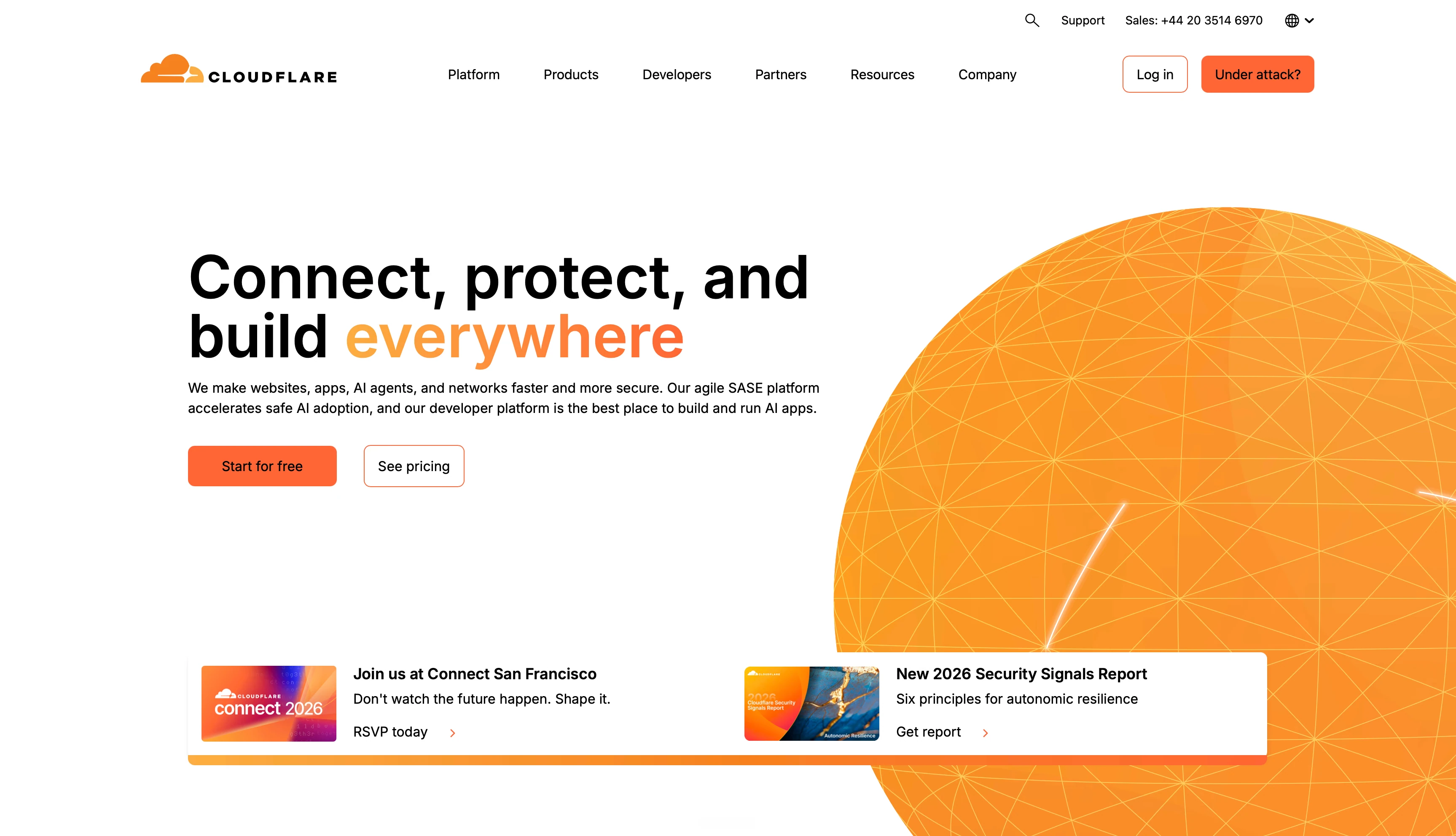
Create a free Cloudflare account (https://www.cloudflare.com), then add your domain.
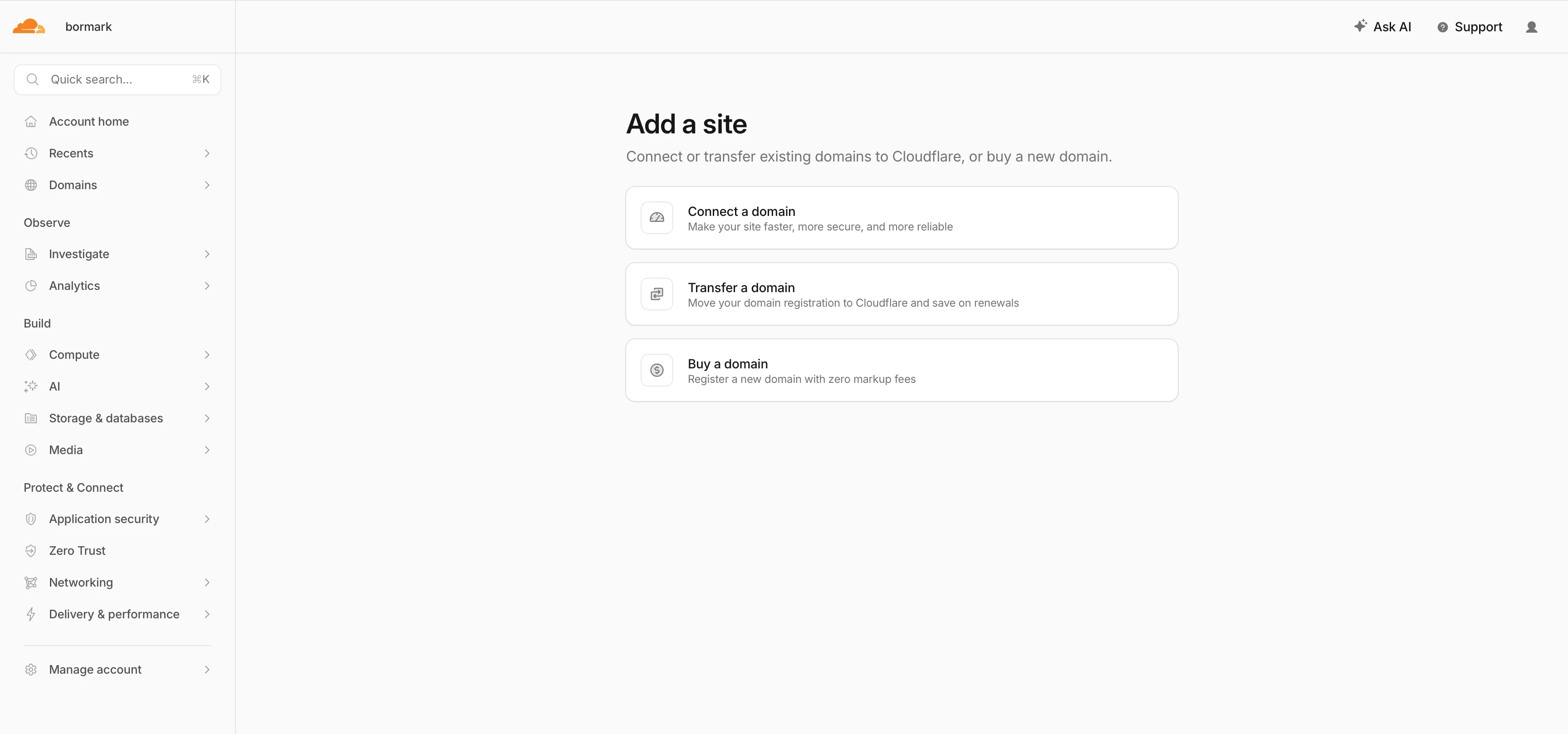
In the current Cloudflare dashboard, the flow may appear as Domains → Onboard a domain. Older tutorials often say Add a site, so do not be surprise if the wording is a bit different. Cloudflare’s own docs describe the onboarding flow as entering your domain, reviewing detected DNS records, choosing a plan, and then updating your domain’s nameservers at your registrar. (Cloudflare Docs)
The rough steps are:
Go to Cloudflare https://www.cloudflare.com
-
Open Domains and Add domain

-
Choose Connect a domain
Enter your domain, like
yourbrand.com-
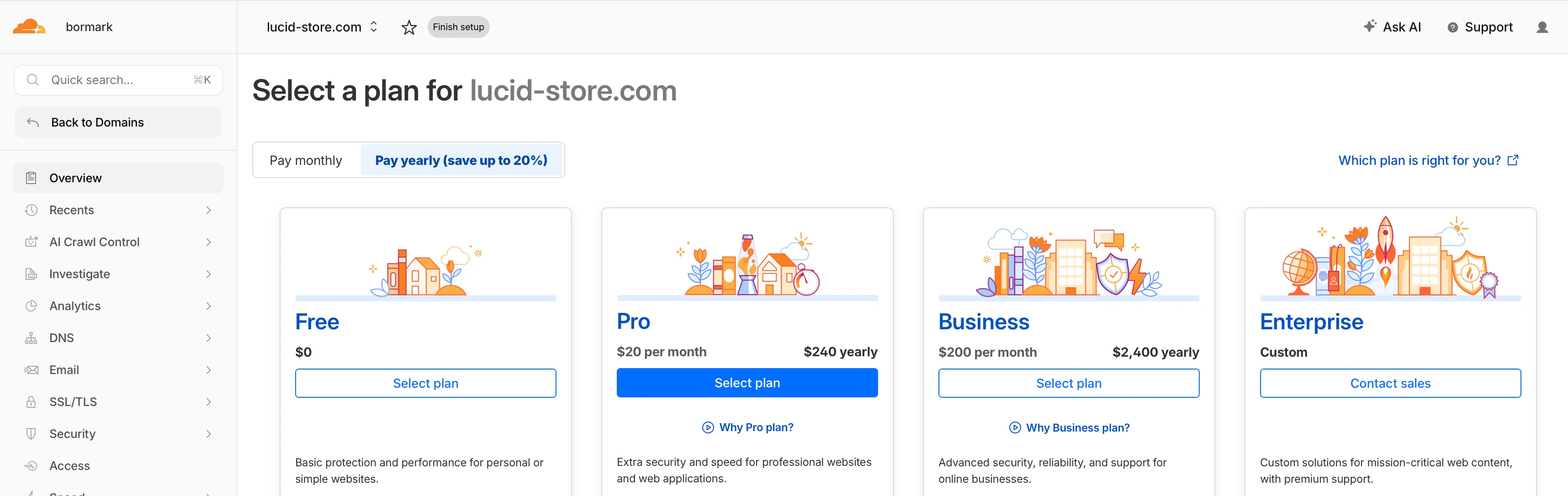
Select the Free plan
Let Cloudflare scan your DNS records
Review the detected DNS records and preserve the records your website and existing services need.
Cloudflare will give you two nameservers
Go back to your domain registrar (Godaddy, Namecheap, etc.)
Replace your old nameservers with the two Cloudflare nameservers
After that, wait for DNS to update.
Wait until Cloudflare marks the domain active. Nameserver changes can take longer than later DNS edits; do not assume a 5–15 minute cutover.
Step 3: Enable Cloudflare Email Routing
Once your domain is active in Cloudflare, turn on Email Routing.
Depending on your dashboard version, you may see this under:
Email Routing
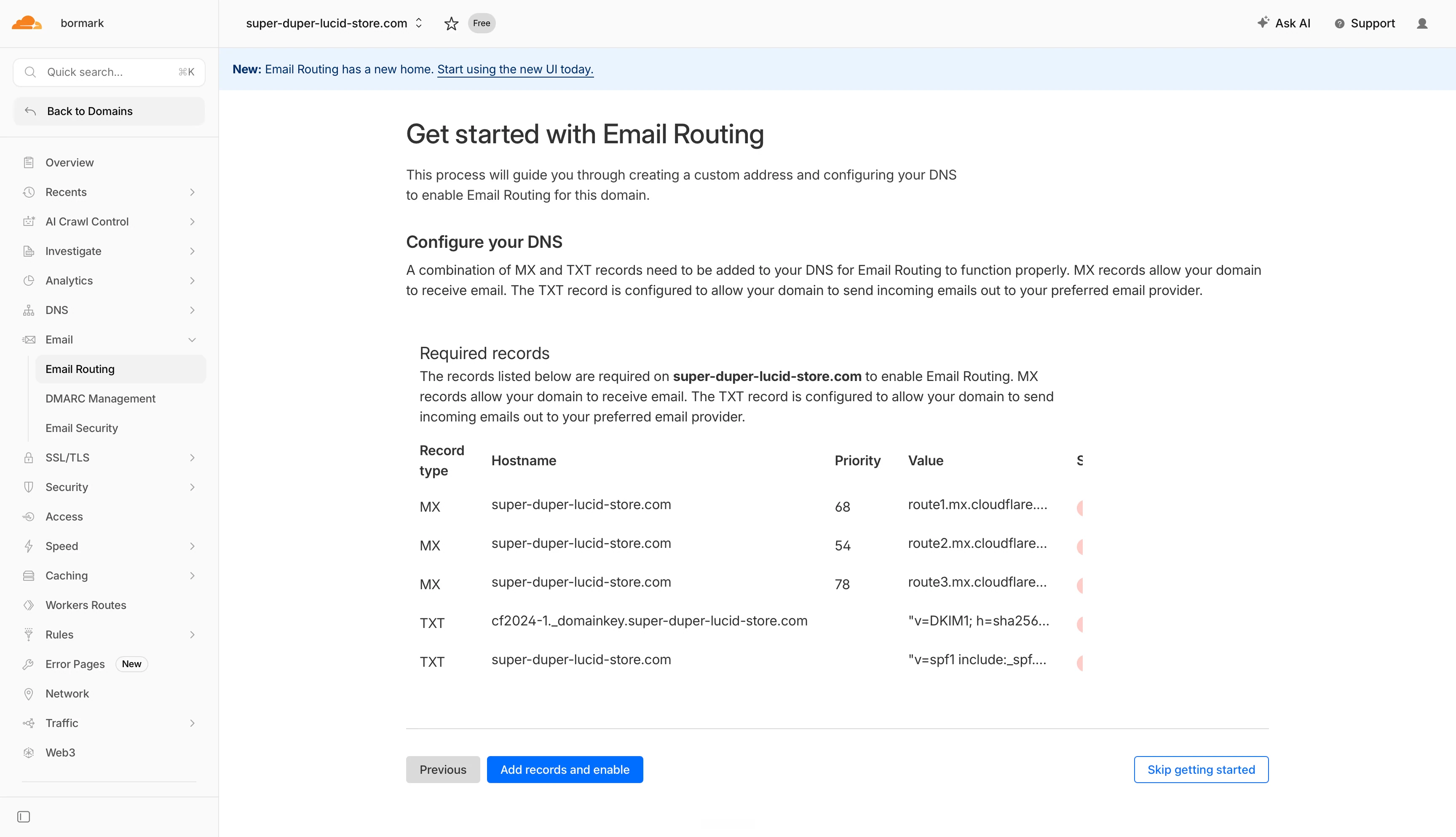
The steps are usually:
In the current dashboard, open Compute → Email Service → Email Routing
Select Onboard Domain and your domain
Review the required DNS records and select Done
Add your Gmail inbox under Destination Addresses and verify it by email
If the domain already receives mail elsewhere, plan the MX change first: it changes where incoming mail is delivered.
Cloudflare will add the records needed to receive mail for your domain. For Email Routing, this includes Cloudflare MX records and related TXT records such as SPF and DKIM for routing. You can check these later under Email Routing settings. (Cloudflare Docs)
Email Routing handles incoming mail. Cloudflare also offers a separate Email Sending service; enabling forwarding does not configure it. (Cloudflare Docs)
Cloudflare forwards the incoming mail and Gmail provides the inbox. Sending from the custom address needs its own service and authentication.
Step 4: Create your custom email addresses
Now create the addresses you want.
In Cloudflare, go to:
Compute → Email Service → Email Routing → your domain → Routing rules
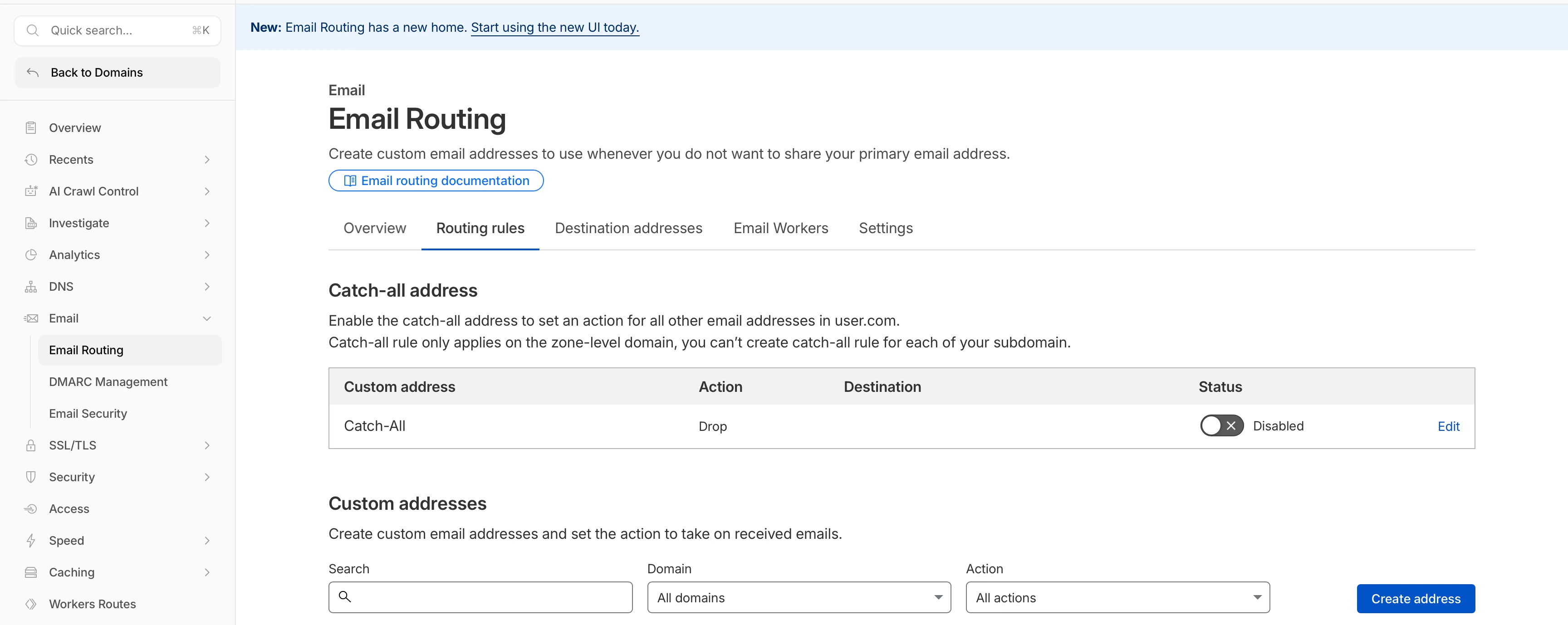
Cloudflare’s docs describe creating a custom address by entering the local part of the email, choosing an action such as “Send to an email,” and selecting a verified destination address. (Cloudflare Docs)
For example, if your domain is yourbrand.com, you could create:
support@yourbrand.comhello@yourbrand.comwholesale@yourbrand.comsuppliers@yourbrand.cominvoices@yourbrand.com
For Amazon sellers, I would usually start with just two or three:
support@yourbrand.comsuppliers@yourbrand.com
I do NOT recommend creating twenty email addresses just because you can.
It gets messy quick, to be honnest.
Step 5: Test receiving email
Before touching Gmail sending settings, test receiving first.
Ask someone to send an email from another email address to your new custom address. For example:
From: your teammate's email
To: support@yourbrand.com
Then check your Gmail inbox.
Also check Spam, Promotions, Updates, and All Mail if it does not show up right away.
Once the email arrives in Gmail, your Cloudflare routing is working 🎉
Step 6: Set up Gmail so you can send from the custom address
The steps and screenshots below describe the earlier Gmail “Send mail as” workflow. Check whether your account still offers it. For a new business setup, choose a provider that supports authenticated sending from your domain.
Open Gmail and go to:
Settings gear → See all settings → Accounts → Send mail as (section) → Add another email address
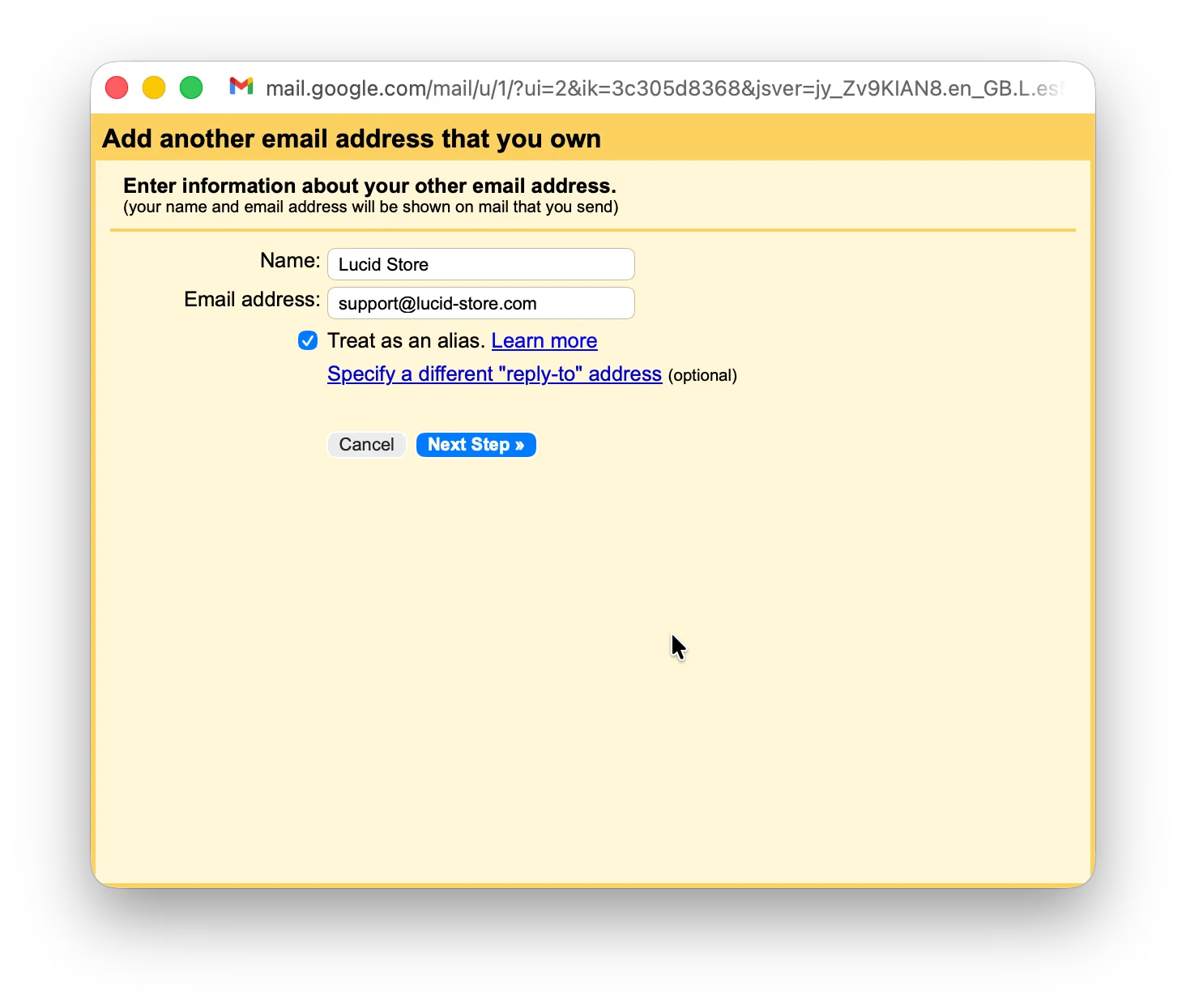
Enter your name and your custom email address. This is actually what your receivers of your emails will see when getting emails from you. So it's important to make it right and beautiful
For example:
Name: Your Brand
Email address: support@yourbrand.com
Then click the blue Next button.
The original walkthrough used the Gmail SMTP settings below. They do not by themselves authenticate your custom domain; for another sending provider, use that provider’s settings.
SMTP server: smtp.gmail.com
Port: 587
Security: TLS
Username: your full Gmail address, like yourname@gmail.com
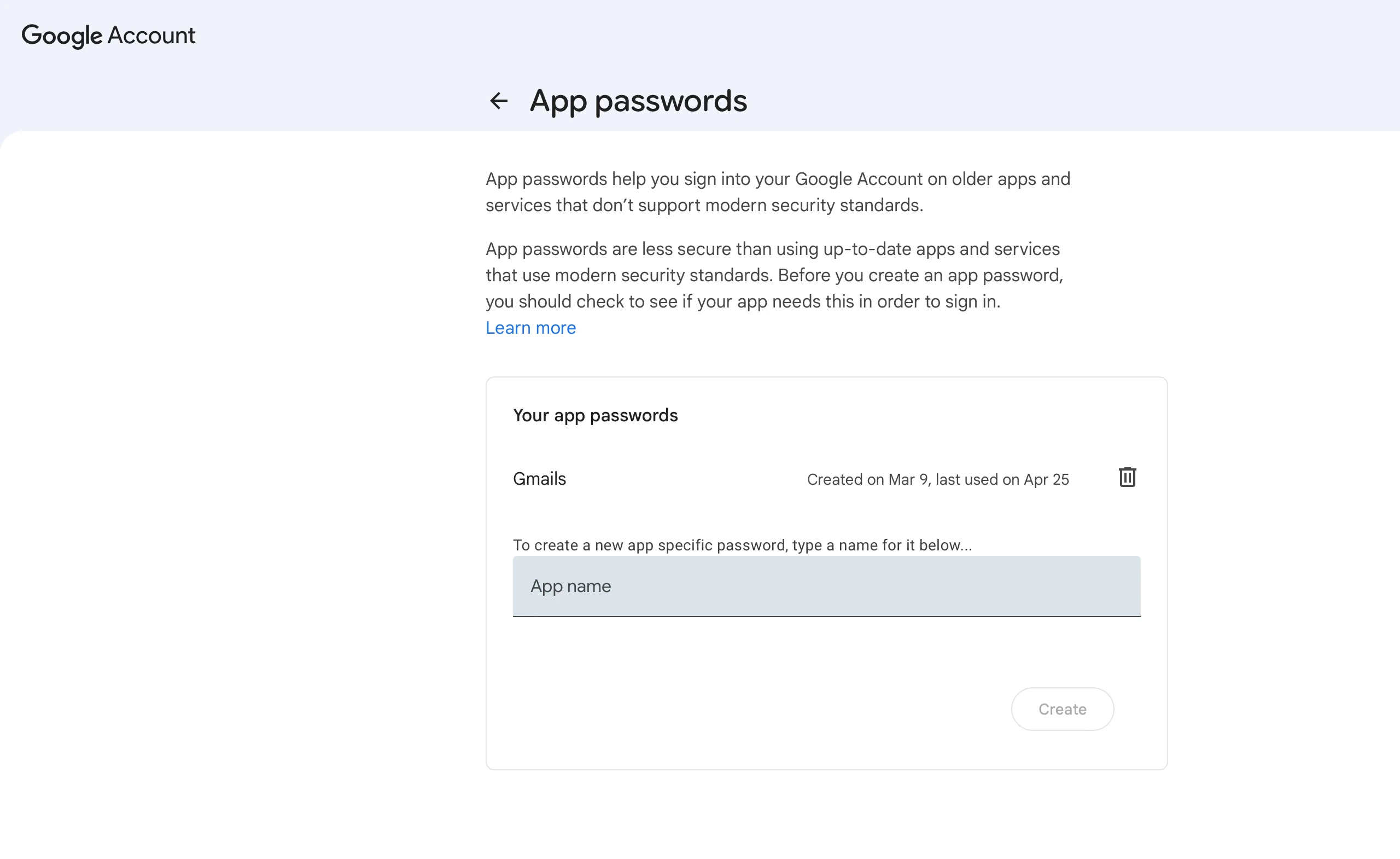
Password: a Google App Password, not your normal Gmail password
Google’s developer documentation lists smtp.gmail.com as Gmail’s outgoing SMTP server, with port 587 for TLS and 465 for SSL. (Google for Developers)
The password part is where people usually get stuck.
Google app passwords require 2-Step Verification and are unavailable for some managed accounts, security-key-only setups, and Advanced Protection accounts. Do not disable account protection to make this workaround work. (Google Help)
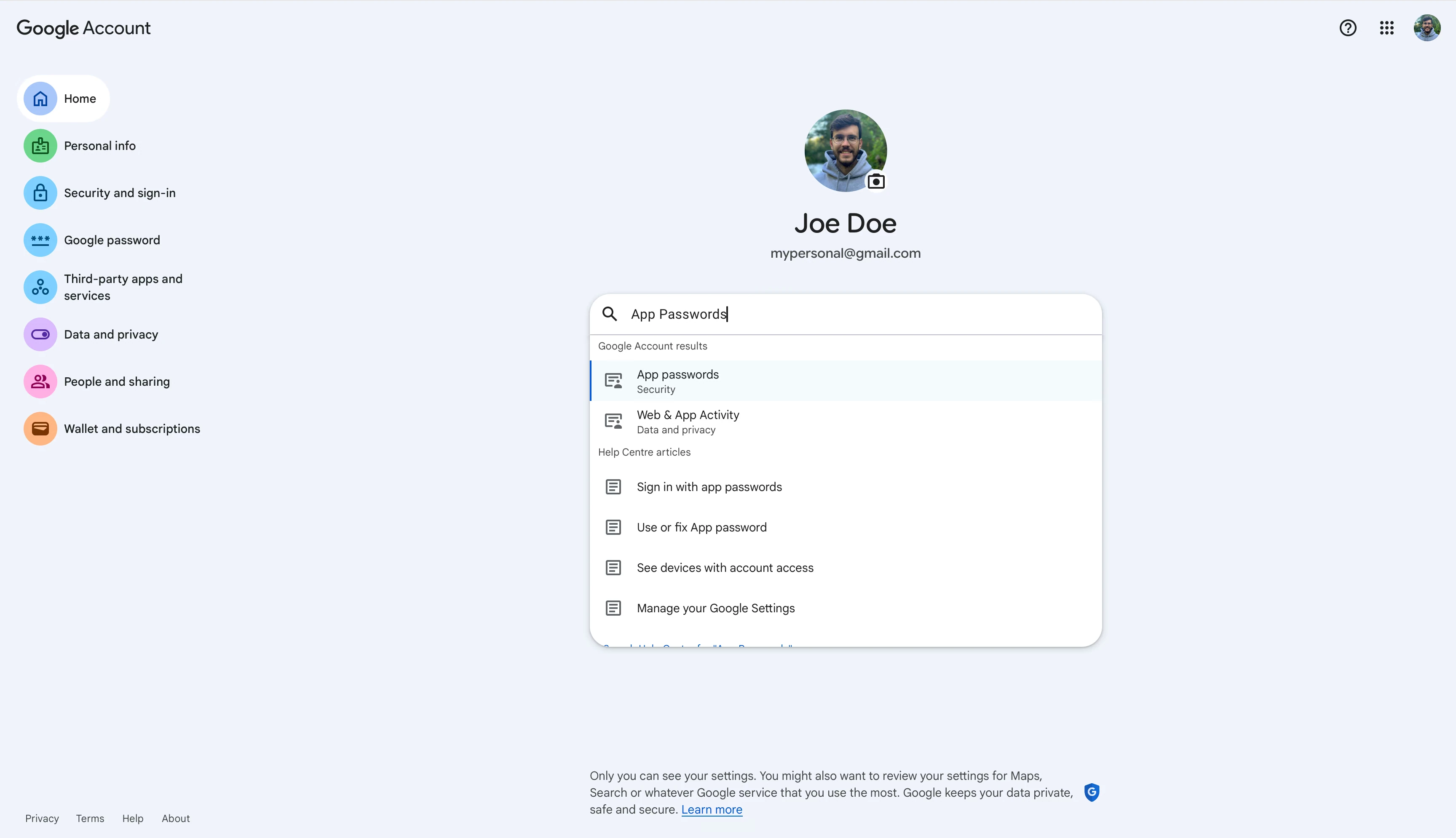
To create it:
Go to your Google Account https://myaccount.google.com/u/0/
Open Security
Turn on 2-Step Verification, if it is not already on
Find App passwords
Create one for Mail
Copy the 16-digit password
Paste that into Gmail’s SMTP password field
Then click Add Account.
Gmail will send a verification email to your custom address. Cloudflare forwards that email back into your Gmail inbox. Open it and click the verification link, or copy the code into Gmail.
Now when you compose a new email in Gmail, you should be able to choose your custom address in the From field. 🎉 🎉 🎉
Before relying on it, send a test to a different mailbox and check the sender, reply-to address, and authentication results. Some recipients may see your Gmail address too.
Step 7: Check your DNS records
After everything works, do one last DNS check.
Open your domain’s Email Routing settings and review the DNS records Cloudflare lists.
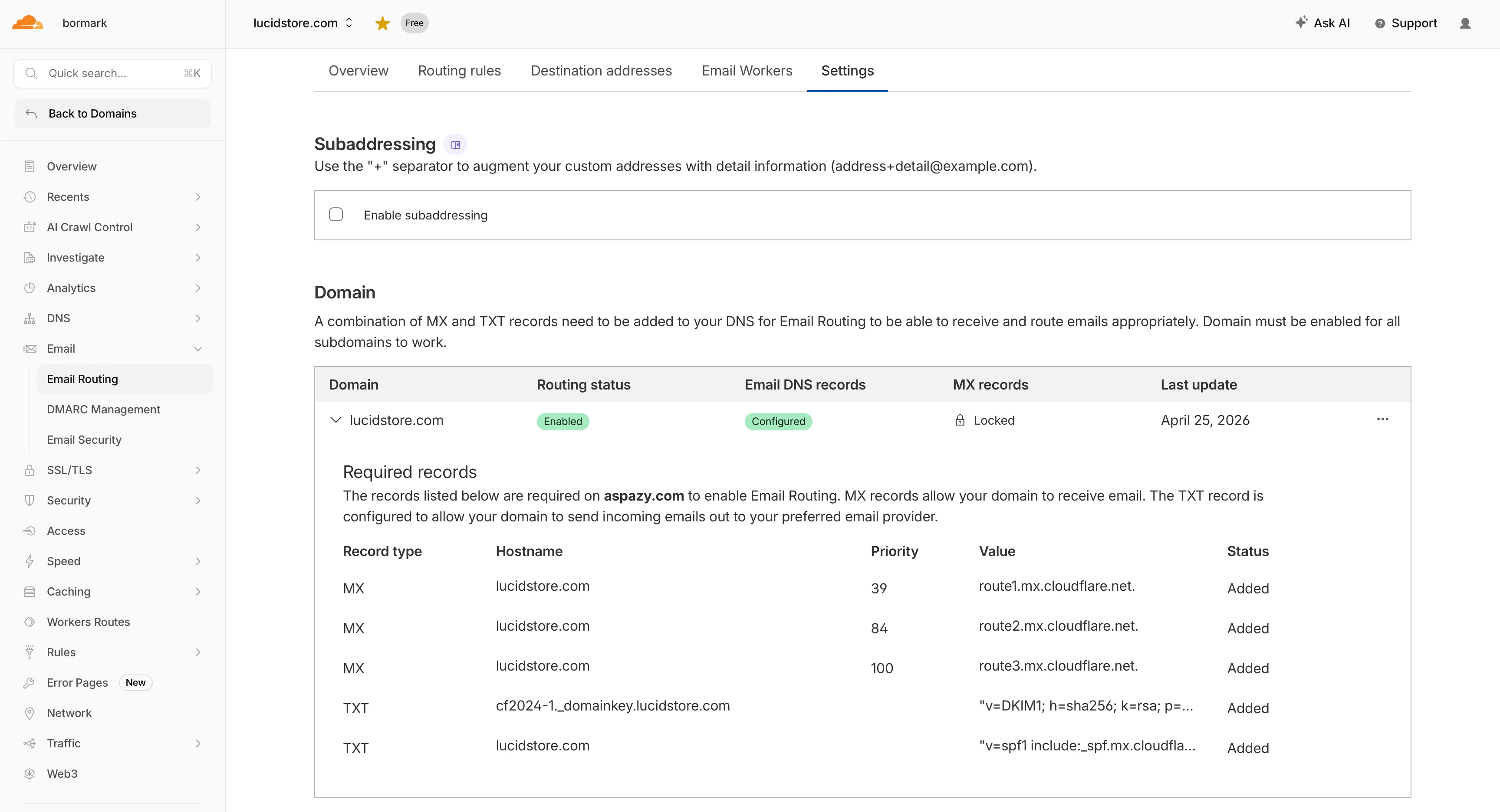
You should see Cloudflare MX records similar to:
route1.mx.cloudflare.netroute2.mx.cloudflare.netroute3.mx.cloudflare.net
You should also see an SPF TXT record. Cloudflare’s Postmaster docs show the Email Routing SPF include as:
v=spf1 include:_spf.mx.cloudflare.net ~all (Cloudflare Docs)
Follow the DNS instructions for the service that actually sends your mail. Adding include:_spf.google.com alone does not make a personal Gmail alias pass DMARC for your domain.
Keep one SPF record per domain. Merge authorized senders according to their instructions; do not replace an existing record without accounting for its other services.
This matters more than people think. If you have Shopify, Klaviyo, Amazon SES, SendGrid, or another tool sending email from your domain, those senders may also need to be included. Otherwise, your emails are more likely to fail authentication or land in spam. Google’s sender guidelines specifically tell senders to authenticate with SPF or DKIM and make sure third-party senders are included. (Google Help)
A note about DKIM and deliverability
This setup is cheap because it is not a full business email product.
For DMARC, the visible From domain must align with a passing SPF or DKIM domain. A personal Gmail alias may fail that check even when Gmail’s own authentication passes. Check the delivered message headers. (Google Help)
But it does mean this is not the setup I would use for high-volume outbound email, cold email campaigns, or serious customer support at scale.
For ongoing business correspondence, use a mailbox provider that supports your domain, SPF, DKIM, and DMARC. Keep Cloudflare forwarding if receiving is all you need.
Important limitations
Here are the catches, because there are always catches.
Cloudflare does not give you a mailbox, inbox UI, or email archive.
Cloudflare Email Routing rejects incoming messages larger than 25 MiB. That is a whole-message limit, not an attachment allowance. (Cloudflare Docs)
Free Gmail storage is not unlimited. A personal Google account includes up to 15 GB of storage shared across Gmail, Drive, and Photos. (Google Help)
This is not a shared inbox. If you have two support agents and need assignments, notes, collision detection, saved replies, and reporting, use a proper helpdesk.
And again: do not use this to move Amazon order communication outside of Amazon’s rules. Keep Amazon buyer messages where Amazon expects them.
What the finished setup looks like
Receiving works like this. Replies from the branded addresses in these examples require the separate sending setup discussed above:
A supplier emails suppliers@yourbrand.com
You receive it in Gmail
You reply from suppliers@yourbrand.com
A customer emails support@yourbrand.com from your website
You receive it in Gmail
You reply from support@yourbrand.com
A wholesale lead emails wholesale@yourbrand.com
You receive it in Gmail
You reply from wholesale@yourbrand.com
A branded address can look more professional than yourbrand123@gmail.com. Receiving can stay free apart from domain renewal; sending costs depend on your provider.
It is one of those small, boring brand setup things that makes the business feel more real.
My recommendation for Amazon sellers
Use this setup if you are early, lean, and trying to avoid another subscription.
Use a proper paid mailbox when:
You have a team
You send a lot of email
You care deeply about deliverability
You need shared inbox features
You need admin control over employee accounts
You want proper DKIM signing for your domain
You are building a brand where email is a serious sales or support channel
For a one-person Amazon brand, I would start with:
hello@yourbrand.com for general brand emailsupport@yourbrand.com for website or product supportsuppliers@yourbrand.com for sourcing and manufacturing
That is probably enough.
This post is not sponsored by Cloudflare. I just like simple setups that save money without making the business look amateur.
For a small brand, free forwarding can still be a useful first step. Just decide how you will send replies before printing that address on everything.